Need to send the same email to hundreds or even thousands of people?
Whether you're announcing a product launch, sending a newsletter, reaching out to customers, or running a marketing campaign, sending bulk emails is one of the fastest ways to communicate at scale.
But there's one catch: sending a large volume of emails isn't as simple as adding everyone to the "To" field and clicking Send.
The method you choose can affect everything from deliverability and open rates to whether your emails end up in the inbox or the spam folder.
Over the years, I've learned that there's no one-size-fits-all approach.
The best way to send bulk emails depends on your audience size, your goals, and the level of personalization you need.
In this guide, I'll walk you through:
Let’s get into it!
If you only have a minute, this is the quick view of the three methods that actually work for sending bulk emails in 2026. Each one fits a different use case, sets you back a different amount, and takes a different amount of time to get running. Pick the one that matches how much volume you are sending and how personalized each email needs to be.
| Method | Best For | Why It Works | Setup Time | Cost |
|---|---|---|---|---|
| Email Automation Tool | Personalized outbound at scale (100 to 10,000+ emails/day) | Distributes volume across many mailboxes, handles sequenced follow-ups, keeps every send trackable | 1 to 2 days to connect mailboxes and build your first sequence | $50 to $500+/month depending on volume |
| Google Workspace Mail Merge | Small internal or opted-in lists on Google (up to ~500/day safely) | Uses your existing Gmail mailbox with basic personalization via Google Sheets | 30 minutes with a free add-on | Free (built-in) or $25/month for add-ons like YAMM |
| Microsoft Word + Excel + Outlook Mail Merge | Small internal or opted-in lists on Microsoft (up to ~500/day safely) | Uses your existing Outlook mailbox with field-level personalization from Excel | 30 minutes if you know your way around Word | Free if you already have Microsoft 365 |
The short answer for most readers is that if you are sending real outbound, only the first method scales. Mail merge is fine for small opted-in lists and internal comms, but it caps hard and cannot distribute volume across mailboxes the way outbound requires.
Before touching a single setting or signing up for a tool, it helps to understand why bulk emails get flagged in the first place, because none of the best practices in the next section make sense without that context.
Spam filters at Gmail, Outlook, and Yahoo score every incoming email in real time against dozens of signals, and once your mailbox trips too many of those signals, the reputation damage compounds and follows every future send from that address.
The problem is never one setting gone wrong. It is usually a stack of small mistakes that each look fine in isolation but combine into a pattern that reads as spam behavior.
The 6 root causes I see behind almost every spam-flagging problem are worth going through one at a time, because each of them shows up again as a best practice further down.
Each of the seven best practices in the next section addresses one or more of these root causes directly.
That is how the list is ordered, by how much deliverability damage each problem does when left unfixed. Start at the top and work down.
These are the deliverability decisions you get right once and benefit from every send after. Every method in the section that follows assumes you have done these first, because no sending tool can save an underprepared setup. Work through them in order, since each one builds on the last and the ordering matters more than it looks.
The single most important decision in the entire bulk email workflow is also the one most people skip because it seems like overkill when they are just starting out. Your primary domain, the one that hosts your website and your team's daily inboxes, is the domain your customers trust and the domain your business runs on.
Using that same domain for bulk sending means betting your company's entire email reputation on a campaign that might underperform, and if that campaign burns your reputation, you take down your team's email along with your outreach.
The fix is to buy one or more secondary domains that look similar to your primary but are technically separate.
If your main domain is acmecorp.com, you might register acmecorp.co, getacmecorp.com, or tryacmecorp.com, then set up mailboxes on those secondary domains and route every bulk send through them.
If one of those secondary domains takes a hit, your primary stays clean and your team keeps working without interruption. This is not paranoia, it is the standard setup used by every serious outbound team.
How many secondary domains you need depends on how much volume you are pushing per day. The math I follow across every setup is:
The three-mailboxes-per-domain cap is not arbitrary either.
It is the sweet spot where you get useful sending volume per domain without over-concentrating risk on any single one, and it stays below the density that Google Workspace and Microsoft 365 start scrutinizing more heavily when they detect too many active senders on the same domain.
If you want to go deeper on the domain math, I break the full logic down in how many domains you need for cold email.
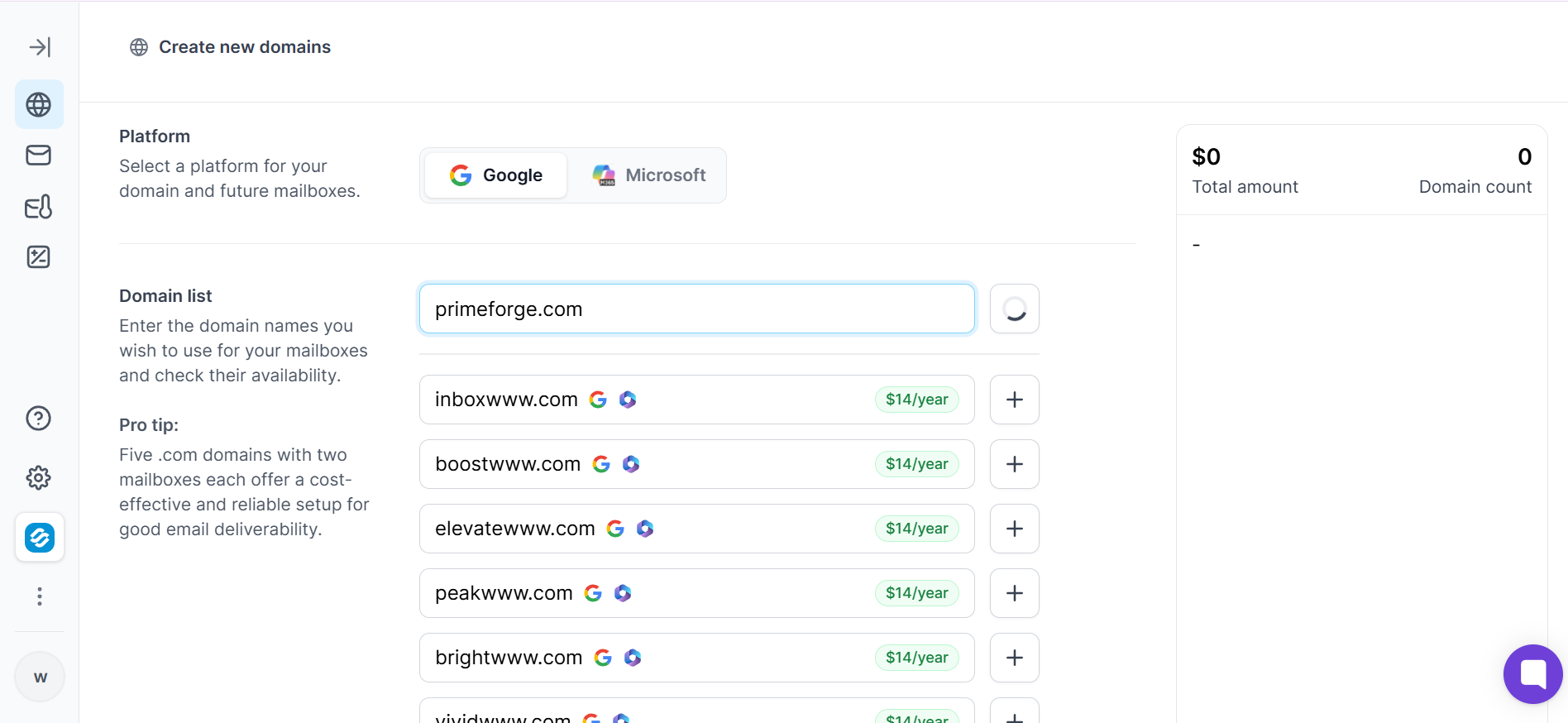
Setting all this up manually means buying domains one by one at a registrar, pointing DNS at your mailbox provider, waiting for propagation, then provisioning mailboxes and configuring authentication for every domain separately.
On my last full setup for a client running 12 domains, that took me a full weekend.
Primeforge provisions the secondary domains and mailboxes together with authentication configured in one flow, which is why I default to it whenever I am setting up new infrastructure for a client rather than doing the multi-day manual dance.
Also check out these cold email infrastructure providers
A mailbox that has never sent an email has no sender reputation at all, and to any spam filter that looks exactly like a fresh spammer account waiting to be spun up.
When that same mailbox suddenly starts firing thirty emails a day to strangers on day one, filters do the obvious thing and quarantine every message you send from it, which means you have burned a mailbox before you ever gave it a chance to build any reputation of its own.
This is why warmup exists as a step and why skipping it is the single most expensive mistake I see people make with new infrastructure.
Warming a mailbox is the process of building up its sending reputation gradually before you use it for real outreach.
During the warmup period, the mailbox sends and receives small volumes of legitimate-looking email with other warmed mailboxes, marks messages as important, replies to conversations, and behaves like a real human inbox in every measurable way.
That activity builds up a positive sending history that inbox providers can see when they later evaluate your first real campaign.
The industry standard is a 14-day warmup period before you send your first real send. A typical warmup schedule looks like this:
You have two options for handling this. The first is to run every new mailbox through a standalone warmup tool for the full 14 days before you can send any real outreach from it, which adds two weeks to your setup timeline every time you scale up your infrastructure.
The second is to skip the standalone warmup step entirely by using mailboxes that are already warmed at the point of provisioning. Primeforge delivers pre-warmed Google Workspace and Microsoft 365 mailboxes so you can start sending from them on day one instead of waiting two weeks per new batch, which is the whole reason I use it for new client setups. I cover the full comparison of pre-warmed options in pre-warmed Google Workspace mailboxes.
One important note that most guides miss: warmup is not a one-and-done task.
Once your mailboxes are running real campaigns, keep a low level of ongoing warmup activity going in the background alongside your outreach. That baseline of steady human-looking behavior keeps your reputation stable across the natural ups and downs of real campaign performance, and it costs almost nothing to leave running.
Authentication is how receiving mail servers verify that you are actually allowed to send email on behalf of the domain in your From address, and without it, filters have no way to distinguish your legitimate sending from a spoofer pretending to be you.
The safe default when they cannot tell the difference is to route the message to spam, so unauthenticated bulk mail almost always ends up there.
On top of that, Gmail and Yahoo now reject unauthenticated bulk mail outright once you cross 5,000 daily sends, which means authentication in 2026 is no longer optional at any real volume. It is table stakes.
There are three DNS records that make up the full authentication stack, and all three need to be in place for every single domain you send from. Skipping any one of them creates a hole that receiving servers will catch and hold against you.
Setting all three up manually is doable but tedious, especially if you are managing more than a handful of domains. Every domain needs its own set of records, DNS propagation delays add hours to every change, and one typo in a DKIM key breaks authentication for that entire domain until you notice and fix it.
Mailboxes provisioned through Primeforge come with SPF, DKIM, and DMARC configured automatically at provisioning time, so the authentication step is already done by the time you have access to the mailbox. For deeper reading on DMARC specifically, since it is the most commonly misconfigured of the three, I recommend how DMARC improves cold email deliverability.
The single fastest way to get your mailbox flagged is to send to a list full of invalid or dead addresses, because every hard bounce is a signal to inbox providers that you either bought a list or scraped one without checking it.
Both of those behaviors are strongly correlated with spamming, and once your bounce rate crosses 2% on any single campaign, you have already done reputation damage that takes weeks to recover from.
That is the entire reason list hygiene sits ahead of every content-related best practice on this list, because a great email to a bad list will still land in spam.
Cleaning a list is really about two separate steps. The first is running every address through an email verification service before you upload it into your sending tool, and the second is filtering out risky address types even after verification confirms them as valid.
Verifiers check whether the address exists at the receiving server, whether the domain has valid MX records, and whether the mailbox actually accepts mail, all of which catches most of the dead addresses. But verification alone does not catch every risky address type, which is where the second step comes in. Filter out or flag:
Beyond the technical cleaning, list quality also depends heavily on where the addresses came from in the first place.
A list you scraped from LinkedIn or bought from a low-quality data vendor will hit spam traps and pull down your reputation no matter how well you verify it after the fact, because the underlying source of the data was polluted from day one.
A list you built from your own ICP research using a proper B2B data source holds up much better under sending pressure, since the addresses were pulled from active professional profiles rather than aggregated from expired sources.
This is where I use Leadsforge for the actual sourcing side. Its waterfall enrichment pulls contacts from multiple data providers in sequence, so if one provider does not have a verified email for a given prospect, the next one gets checked, and so on until a verified match is found or the record is dropped entirely.
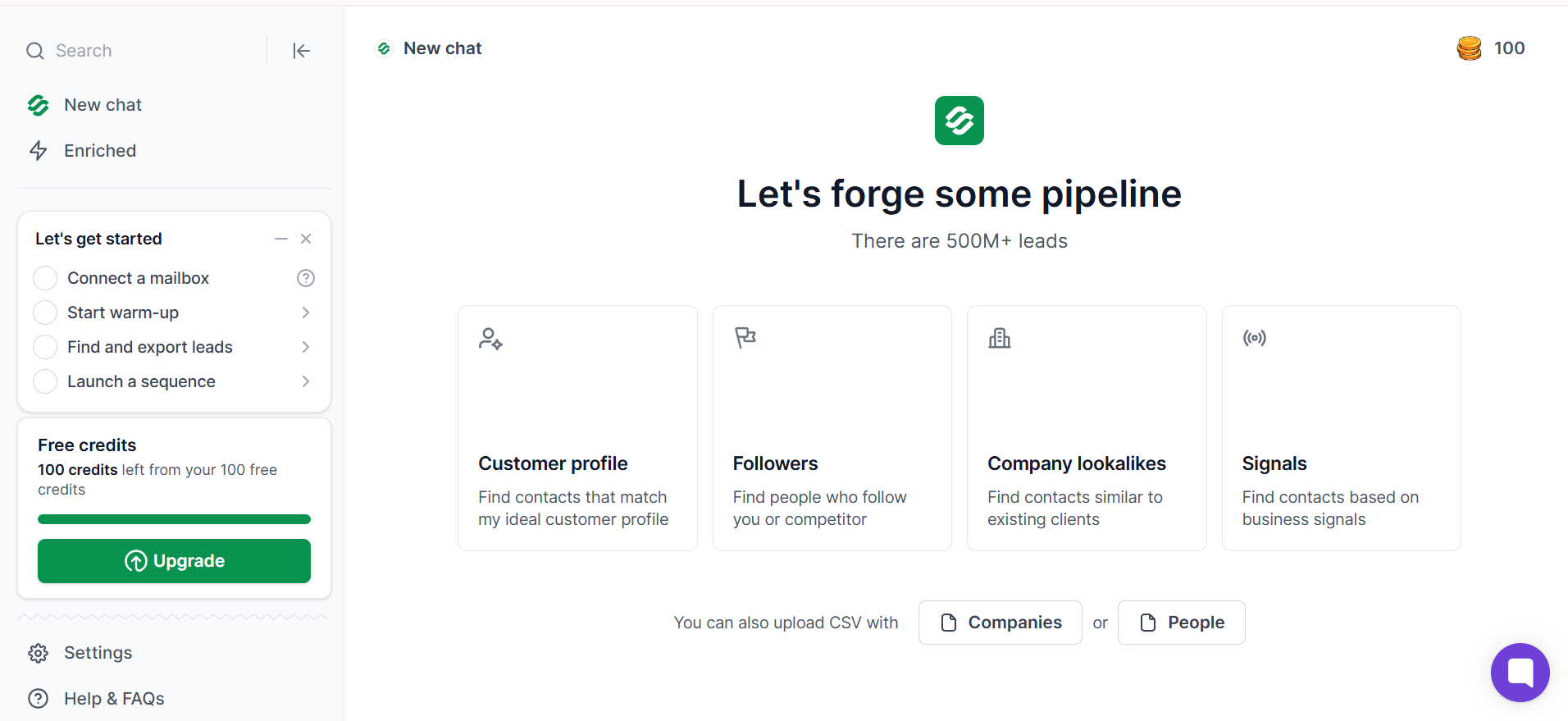
That approach keeps hit rates high and bounce rates low, which is exactly the profile you want for bulk sending. Even if you use a different data source, run a fresh verification before every major campaign, not just once when you first built the list, since email addresses go stale at roughly 22% per year and a list you verified 12 months ago is meaningfully worse today than it was when you built it.
Personalization affects deliverability in two ways that are easy to miss when you are focused on the copywriting side of your email. The first is that spam filters have gotten very good at spotting mass-blast content, and an email that reads identically to a thousand other recipients gets scored as bulk sending regardless of how good your infrastructure is underneath it. The second is that reply rates and positive engagement are among the strongest deliverability signals inbox providers use to score your future sends, and generic emails get almost no replies, which means every campaign of generic emails makes your next campaign harder to deliver.
The lazy version of personalization is {{first_name}} at the top of every email, and that was enough to fool spam filters in 2018. It is nowhere near enough in 2026. What actually works is variation at the sentence level, where the specific words in the email change based on real fields about each recipient. Fields I use in almost every campaign include:
The more of these you weave into the body of the email, the less your outreach looks like a template and the more it reads like a real one-to-one message. That difference matters both to spam filters looking for repeat patterns and to human recipients deciding whether to reply.
The final best practice is really two rules that work together, because both come down to sender discipline over time and both protect you from the same underlying risk. Throttling your daily volume protects your sender reputation from the volume side, and honoring unsubscribes protects it from the complaint side.
Get both right and your mailboxes stay healthy for years. Skip either one and your reputation degrades slowly enough that you might not notice until a campaign performs badly and you cannot figure out why.
On the volume side, every mailbox has a healthy daily send ceiling that depends on how long it has been active and how good its warmup history looks. For a well-warmed Google Workspace or Microsoft 365 mailbox running real cold outreach in 2026, the daily caps I follow are:
Notice these caps are well below what Google Workspace and Microsoft 365 technically allow, and that is intentional.
The published limits from Google and Microsoft are meant for internal team email between coworkers, not cold outreach to strangers, and pushing the published limits for outbound gets your mailbox reviewed and often suspended without warning.
Staying under the practical caps is what keeps your infrastructure alive for the long haul, which matters far more than squeezing an extra ten sends out of a mailbox on any single day. For the longer explanation of why volume discipline matters this much, I recommend reading email throttling and how it improves deliverability.
On the unsubscribe side, every bulk email you send needs a clear, one-click way for the recipient to opt out, and every opt-out needs to be honored across every mailbox in your setup within ten business days at the outside.
That is not just a best practice, it is the legal minimum under CAN-SPAM in the United States, GDPR in the EU, and CASL in Canada. Beyond compliance, honoring unsubscribes protects you from spam complaints, and spam complaints are one of the fastest ways to destroy a sender reputation. Any inbox provider will drop your delivery rate hard the moment your spam complaint rate crosses 0.1% of your total sends, and it takes months to recover from that once it happens.
Most cold email automation tools handle unsubscribe links and suppression lists automatically at the account level, which means a recipient who opts out of one campaign is suppressed from every future campaign across every mailbox in your setup without any manual work on your part. If you are running mail merge instead, you are managing suppression manually across every list, which is a heavier lift and much easier to get wrong.
Now that the best practices are in place underneath, the question becomes what you actually use to send.
Only three methods are worth serious consideration in 2026 for different volume levels and use cases, and picking the right one comes down to how many recipients you are hitting, how personalized the emails need to be, and how much technical setup you are willing to do upfront to make sending easier later.
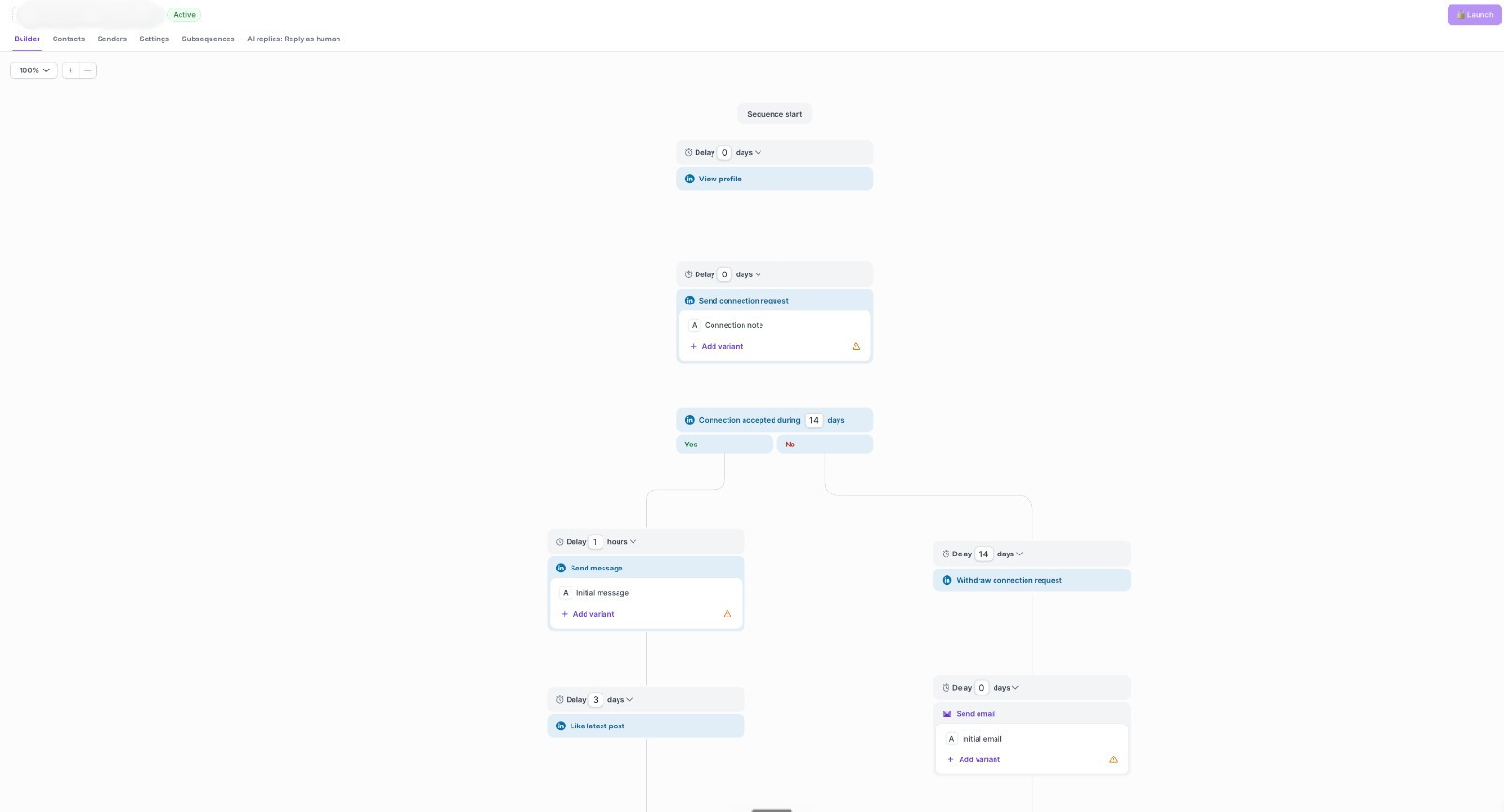
A cold email automation tool is a purpose-built platform for sending sequenced, personalized outreach to prospect lists across one or many mailboxes from a single control panel. Unlike mail merge, which sends a single campaign and then stops, an automation tool handles multi-step sequences with follow-ups, reply detection, unified inbox management, and sending across dozens of mailboxes in parallel from one place.
This is the method that scales to thousands of daily sends without the volume ever tracing back to a single mailbox, which is the whole point of the secondary-domain-plus-multiple-mailboxes setup you built during the best practices phase. If you want a broader view of the tools in this category, the top cold email infrastructure tools guide covers the leading options.
How it works, step by step:
This method makes sense for anyone sending more than a hundred personalized emails per day, running multi-step sequences, or coordinating outbound across a team. If you are doing cold outreach for lead generation, sales development, recruiting, or partnerships, this is really the only method that reliably scales without breaking your infrastructure or your workflow.
Pros:
Cons:
For this method, I use Salesforge. It handles unlimited mailboxes without per-seat pricing, runs multi-channel sequences across email and LinkedIn from one platform, and has Agent Frank as an optional AI SDR if you want the whole sequencing, sending, and follow-up workflow fully automated. It also plugs directly into Primeforge mailboxes without extra configuration, which is why I default to running the two together.
Mail merge in Google Workspace lets you send a batch of personalized emails from a single Gmail account by pulling recipient data and personalization fields directly from a Google Sheet.
It is available as a native feature in Gmail for Workspace accounts, and add-ons like Yet Another Mail Merge (YAMM) and Mailmeteor extend the built-in functionality with better tracking, scheduling, and follow-up support. If you are already running on Google Workspace, this is the lowest-friction way to send small opted-in bulk emails, and I cover setup tools in more depth in top Google Workspace setup tools.
How it works, step by step:
This method makes sense for teams sending small internal campaigns, event invites, or opted-in announcements to lists of a few hundred recipients maximum, from a single Google Workspace mailbox. It is a legitimate choice for internal HR emails, alumni outreach, or one-off customer notifications where personalization needs are simple and volume stays low.
Pros:
Cons:
The Microsoft-native equivalent of Google's mail merge uses Word as the email composer, Excel as the recipient data source, and Outlook as the sender.
This has been the standard mail merge workflow for Microsoft Office users for over two decades, and it still works well for the same limited use cases that Google mail merge covers. If your team runs on Microsoft 365 rather than Google Workspace, this is the equivalent option.
How it works, step by step:
This method fits Microsoft-native teams sending internal announcements, small opted-in campaigns, or invitations from a single Microsoft 365 mailbox. Same general use cases as Google mail merge, just for Outlook users.
Pros:
Cons:
If you take one thing away from this guide, it should be that the best method to send bulk emails without getting flagged as spam is a cold email automation tool running through pre-warmed Google Workspace or Microsoft 365 mailboxes on secondary domains.
That combination handles every one of the seven best practices at once and scales cleanly from your first hundred sends to your first ten thousand without the underlying setup ever changing. Mail merge is fine for small internal or opted-in lists, but the moment you are sending real outbound at any meaningful volume, the automation tool is the only method that holds up.
For the mailbox layer, Primeforge provisions the secondary domains, real Google Workspace and Microsoft 365 mailboxes, SPF/DKIM/DMARC authentication, and pre-warmed sending status in a single 30-minute setup.
For the sending layer, Salesforge handles the actual campaigns with unlimited mailboxes, multi-channel sequences across email and LinkedIn, and Agent Frank as an optional AI SDR if you want the workflow fully autonomous. Start a free Salesforge trial and connect your Primeforge mailboxes if you want to see the whole thing running end to end.
Yes, sending bulk emails is legal in most countries as long as you follow the applicable anti-spam regulations for your recipients. In the United States, that means complying with CAN-SPAM, which requires accurate sender information, a clear unsubscribe mechanism, and honoring opt-outs within ten business days. In the EU and UK, GDPR requires a legitimate legal basis for processing recipient data, which for cold B2B outreach usually means legitimate interest. Canada's CASL is stricter and generally requires prior consent for commercial email. Always verify the specific rules for the countries you are sending into before running any campaign.
A standard Gmail account allows 500 emails per day and Google Workspace allows 2,000 per day, but those are the published limits for internal team email, not for cold outreach to strangers. In practice, cold sending from any single Gmail or Google Workspace mailbox above 30 to 50 emails per day starts hurting deliverability, and pushing past 100 daily cold sends per mailbox reliably gets you throttled or flagged within a few weeks. Distribute your sending volume across multiple mailboxes on secondary domains instead of pushing the limit on any single address.
The safest setup for sending 1,000+ daily emails is to distribute the volume across 25 to 30 mailboxes spread over 8 to 10 secondary domains, each authenticated with SPF, DKIM, and DMARC, warmed for at least 14 days, and connected to a cold email automation tool that handles sequencing and reply management. That structure keeps volume per mailbox in the safe 30 to 50 daily send range and isolates any deliverability risk to a single domain if a campaign underperforms, so you never take down your whole infrastructure with one bad send.
Yes, if the bulk email is cold outreach or anything at meaningful scale. Sending cold email from your primary domain exposes your entire business's email reputation to campaign performance risk, which means one bad campaign can send your customer support replies, invoices, and internal calendar invites to spam alongside your outreach. Secondary domains isolate that risk while still letting you brand your outreach around your business. For fully opted-in newsletters at low volume, sending from your primary domain is usually fine.
The minimum is 14 days of gradual warmup activity that ramps from around 5 daily sends on day one to your intended daily send cap by day 14. Anything less than that and the mailbox does not have enough sending history built up to survive its first real campaign. If you want to skip the standalone warmup period entirely, Primeforge provisions mailboxes that come already pre-warmed, so you can start sending on day one instead of day 15.
Mail merge sends a single campaign from a single mailbox and then stops, with basic field substitution for personalization. A cold email automation tool sends sequenced, multi-step campaigns across many mailboxes at once, with reply detection, unified inbox management, sentence-level personalization, and automated suppression list handling built in. Mail merge is fine for small internal announcements from one Google or Microsoft account. Cold email automation is the required tool for anything that looks like cold outreach at scale.
You can technically send up to 500 emails per day from a personal Gmail account, but you should not use it for anything resembling bulk outreach. Personal Gmail has stricter spam filtering, no support for authentication records like DKIM on your own domain, and Google reserves the right to suspend the account if it detects business-like sending patterns. For any real bulk email use case, use a Google Workspace or Microsoft 365 mailbox on a secondary domain instead.