
Personalized Outbound Strategy
Get The Right Outbound Strategy In Minutes
Enter your email to get a custom plan & stack recommendation for your business
It's being carefully crafted by AI
Please check your mailbox in 5 minutes

“Please set your out-of-office before you leave on Friday.”
Most admins send an email like that before a holiday, then discover in January how it went. A few people forgot. Two used last year’s dates. One wrote “back soon” with no return date or backup contact, and a customer waited a week for an answer.
Asking everyone to set their own reply sounds like the easiest option. But you’re still the one fixing mistakes, and you only find them after customers have seen them.
The other option is to set replies centrally, and you don’t need the scripting skills many admins expect.
For one mailbox, the Microsoft 365 admin center takes about a minute and needs no password. For a whole team, one PowerShell command, repeated from a spreadsheet, sets every reply with the right dates and messages in one run.
Below, I’ll show you how to set out-of-office in Microsoft 365 for one mailbox or hundreds.
That includes the roles you need, a ready-to-use script, a Power Automate flow for recurring absences, and fixes for the most common errors.
Microsoft 365 gives you three ways to set out-of-office replies, each suited to a different number of mailboxes. Here’s how they compare, so you can choose the right one.
For one mailbox, use the admin center. For a one-off change across a list of mailboxes, use PowerShell. For absences you don’t want to set manually again, build a Power Automate flow.
Most bulk runs don’t fail because of the script. They fail because the account lacks permission or the person running it is connected to the wrong tenant. I’d check both before writing a single message.
You don’t need to be a Global Administrator. Many companies reserve that role for a few people, and asking for it just to set automatic replies won’t go down well with IT. Here are the options, from most access to least.
For bulk changes, you need three things.
Keep the Exchange admin center open too. It’s the quickest way to check a mailbox after a bulk run and confirm the reply, dates, and message match your settings.
Before using the full list, test on two or three mailboxes. If permissions or the connection are wrong, you’ll find out on three mailboxes rather than three hundred.
If you’re covering only one or two people, you don’t need PowerShell. The Microsoft 365 admin center lets you set someone’s automatic reply without signing into their mailbox or knowing their password.
For your own mailbox, you don’t need the admin center. In Outlook, go to File, then Automatic Replies. In Outlook on the web, go to Settings, then Mail, then Automatic replies.
The admin center works well for one mailbox. The problems start when you repeat it 40 times before a company holiday.
If that sounds familiar, PowerShell is a better choice. You write the message once, keep all dates in one file, and apply the full list in one run.
You don’t need to know how to write scripts for this. The job is one command repeated for every spreadsheet row. You fill in the spreadsheet, and PowerShell handles the repetition.
This command sets automatic replies for a mailbox. It works for one person at a time.
Set-MailboxAutoReplyConfiguration -Identity "alex@company.com" -AutoReplyState Scheduled -InternalMessage "I'm away until January 4. For anything urgent, contact Priya in the sales team." -ExternalMessage "Thanks for your email. I'm away until January 4 and will reply when I'm back." -StartTime "12/23/2026 5:00 PM" -EndTime "1/4/2027 8:00 AM"Each part does one job:
One detail often trips people up. StartTime and EndTime work only when AutoReplyState is set to Scheduled. With Enabled, the dates are ignored, and replies stay on until someone turns them off.
Build a spreadsheet with one row per mailbox and these five columns.
Save it as a CSV with UTF-8 encoding. If a message contains a comma, Excel adds quotes when saving to keep the columns aligned.
Then connect and run the loop.
Connect-ExchangeOnline
$rows = Import-Csv -Path "C:\ooo\mailboxes.csv" -Encoding UTF8
foreach ($row in $rows) {
try {
Set-MailboxAutoReplyConfiguration -Identity $row.Email -AutoReplyState Scheduled -InternalMessage $row.InternalMessage -ExternalMessage $row.ExternalMessage -StartTime $row.StartTime -EndTime $row.EndTime -ErrorAction Stop
Add-Content -Path "C:\ooo\log.csv" -Value "(row.Email),Done"
}
catch {
Add-Content -Path "C:\ooo\log.csv" -Value "(row.Email),Failed,(_.Exception.Message)"
}
}
The only line you need to change is the file path. The log marks each mailbox as Done or Failed, with the reason, so one bad address won’t stop the run, and you can check the results afterward.
Need different messages for different teams? Put them in the CSV. The script reads each row’s messages, so sales and support can have different replies in the same run.
Because the script uses Scheduled, each reply stops automatically at its EndTime. I’d always include an end date, even for an open-ended absence. A reply left running for months after someone returns confuses everyone who emails them.
Before the full run, test the script with a CSV containing two or three mailboxes. Then open one in the Exchange admin center, or run Get-MailboxAutoReplyConfiguration -Identity with its address, and check that the dates and messages match.
If plans change and replies need to stop early, run the same loop with one change. Set AutoReplyState to Disabled and remove the message and date parameters.
PowerShell handles one-off changes. You run it once to set every reply on your list. Power Automate handles absences you don’t want to manage each time manually. You build the workflow once, and it sets replies whenever its trigger runs.
Most companies already track time off somewhere. Power Automate can use that record to set a reply, so nobody has to remember. Here’s a flow based on a Microsoft Forms leave request.
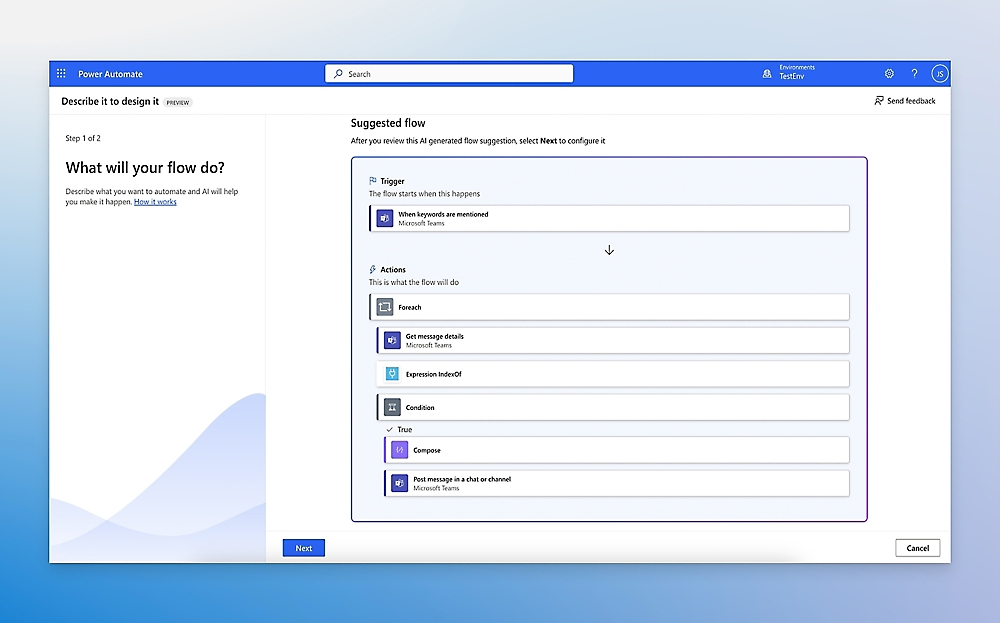
Forms isn’t the only starting point. A calendar event or SharePoint list update can also trigger a flow. Conditions let you tailor messages by department or role, so sales replies name a backup and support replies link to the help desk. The same flow can also update the person’s Teams status and calendar.
Check one thing before building this for a whole team. Power Automate’s Outlook action sets replies for the mailbox connected to the flow. Test it on someone else’s mailbox before relying on it, and ask IT if your setup needs the flow to act for other people.
Many teams use both, with PowerShell for the December shutdown and Power Automate for vacations throughout the year.
A bulk run sends your message from dozens of mailboxes, so any mistake gets repeated too. Writing it carefully once saves you from fixing it everywhere later.
Anyone reading the reply should learn four things.
For bulk runs, I’d use one template and give the changing details their own CSV columns, including the return date and backup contact. That keeps every reply consistent and prevents a team’s backup name from being missed.
These messages serve different purposes, so write them separately.
Internal replies help colleagues keep work moving. Be clear about who covers what.
"I'm away until January 4. Priya is covering client renewals, and Marco has access to the Q1 reports."
External replies go to customers, partners, and prospects. Keep them more formal and leave out internal details. That includes personal phone numbers, so use a shared inbox or main office number instead.
"Thank you for your email. I'm away until January 4. For anything time-sensitive, please contact our team at sales@company.com."
Leave jokes out of external replies. Something your team finds funny can seem careless to a customer seeing it for the first time.
Some industries have extra requirements.
If you send cold email, plan for responses too. A prospect replying to an absent rep’s sending mailbox is a warm lead. Point the external reply to a colleague who can continue the conversation, rather than leaving the lead waiting a week.
Most problems show up in the first test run, so I’d start with two or three mailboxes. These are the ones I see most often.
After the full run, email a few mailboxes from internal and external addresses to check both messages. Keep the script’s log file too. If someone asks why their reply failed, you’ll know which mailboxes had problems and why.
If your Microsoft 365 mailboxes come from Primeforge, automatic replies work the same way because these are real Microsoft 365 mailboxes. Their setup is different, though, and that affects how you plan bulk changes.
Primeforge uses one Microsoft 365 tenant per domain. That keeps domains separate, which is what you want for cold email. It also means a bulk change isn’t one run within one tenant. If your mailboxes span 10 domains, the script must run in 10 tenants, connecting to each separately.
Before planning a PowerShell run across Primeforge domains, ask support what admin access your Microsoft 365 tenants include. That determines whether you can use the script.
For a handful of mailboxes, you don’t need admin access. Primeforge has no separate mailbox login. Sign in to each mailbox through Microsoft using the credentials and one-time codes in Primeforge’s Credentials tab. Then set the reply in Outlook on the web under Settings, then Mail, then Automatic replies.
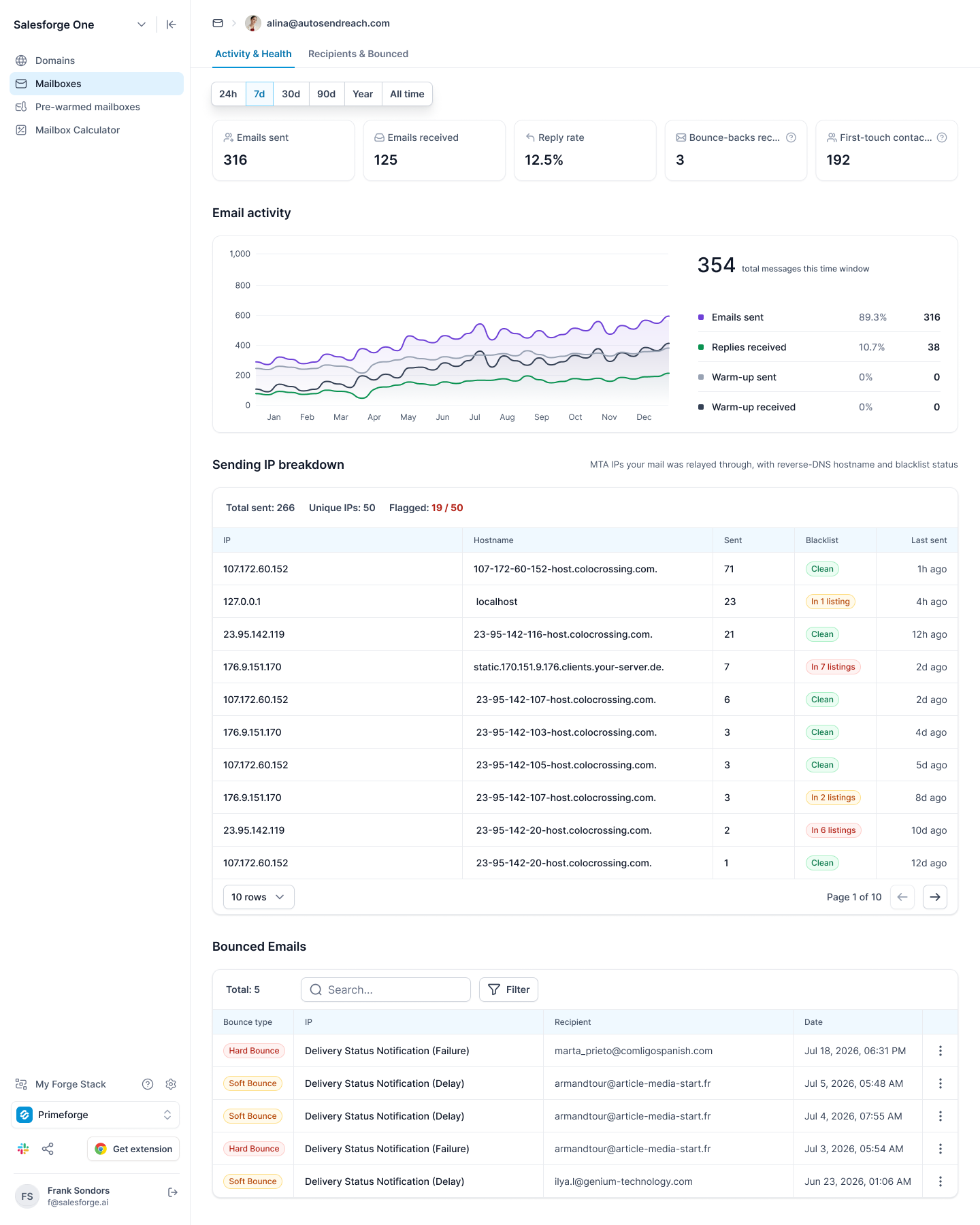
Not every sending mailbox needs an automatic reply. Primeforge’s Mailbox Analytics shows reply rates for each mailbox, so you can see which ones prospects answer. Set replies on those first, and direct external contacts to a colleague who can continue the conversation.
Enter your email to get a custom plan & stack recommendation for your business
Please check your mailbox in 5 minutes
Build your out-of-office setup during a quiet week, not the Thursday before a shutdown. Save the five-column CSV template, keep a test file with two or three mailboxes, and store the script alongside them.
For the next closure, update the dates, test, and run the full list, taking minutes instead of an afternoon of clicking.
If you’re setting up Microsoft 365 mailboxes for cold outreach, Primeforge provides real Microsoft 365 mailboxes, configured automatically and ready to send in 30 minutes, with a separate tenant for each domain.
Mailbox Analytics shows which mailboxes prospects answer, so you know where automatic replies should direct leads to a colleague.