
If your cold emails are going to spam in Gmail, do not start by rewriting the subject line. Start by proving whether Gmail distrusts the message, the sender, the domain, the links, or the way you are sending.
Most teams waste days editing copy while the real issue is broken authentication, weak domain reputation, bad list quality, or a sending pattern that looks unnatural.
The hard part is that Gmail does not give you a single public spam score for a cold email. It uses layers.
So the way you and I should approach this is simple: we do not guess. We isolate the failure layer. If authentication is broken, we fix DNS. If the domain is damaged, we stop digging.
If Gmail only spams cold recipients, we treat it as a trust problem. If a link or tracking domain changed yesterday and placement collapsed today, we test without that link before touching the rest of the sequence.
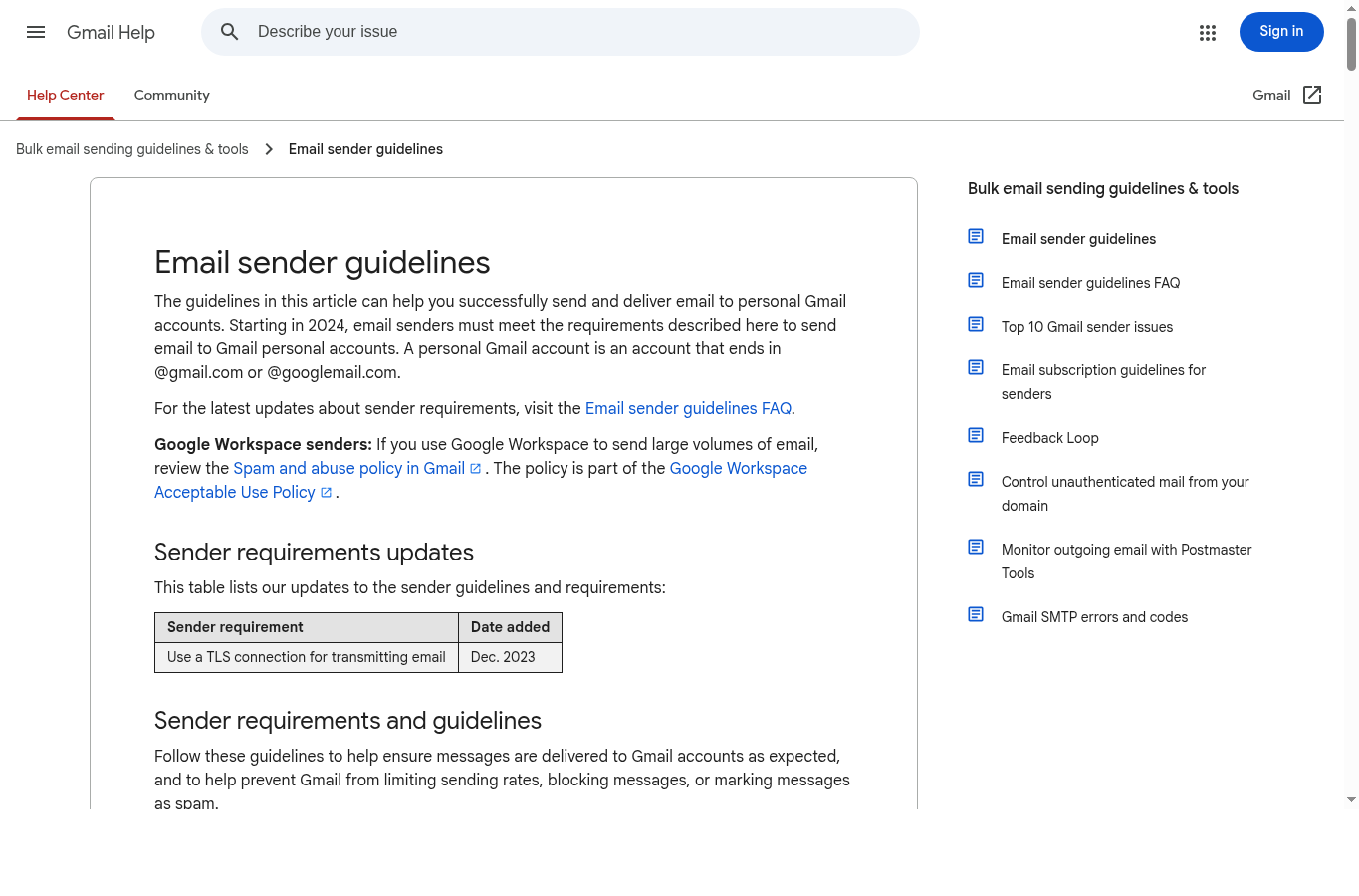
Here is the order I would use if a cold email campaign started landing in Gmail spam today.
Gmail is not sitting there with a simple checklist that says "contains the word free, send to spam." It is running a layered evaluation. You need to understand those layers to fix placement problems in the right order.
Did this message actually come from who it claims to come from? SPF, DKIM, and DMARC answer that question. These are not optional bonuses. They are the minimum standard Gmail expects from any sender it will consider treating well.
Has this domain and IP behaved historically in a way Gmail trusts? Google Postmaster Tools shows you domain reputation and IP reputation in four tiers: High, Medium, Low, and Bad. If your domain is at Low or Bad, almost everything else is a distraction until you address that.
Does the sending pattern look like a real business or a spam operation? Sudden volume spikes, sending to cold lists without any warmup, and blasting from a domain with no history all look suspicious.
What happens after the email lands? If recipients consistently ignore, delete without reading, or mark as spam, Gmail learns from that and adjusts placement for future sends. If recipients open, reply, or move emails from spam to inbox, that positive signal helps too.
Does the content, links, or attachments look like something harmful? Risky links, shared tracking domains on spam blocklists, or attachments that match malware patterns can trigger filters even if your domain reputation is fine.
Are you sending to people who could plausibly want this email? Sending to invalid addresses (hard bounces), sending to people who have previously marked similar emails as spam, or sending to a purchased list with no real qualification all hurt placement.
Use symptoms first. A domain with failing DKIM needs a different fix than a healthy domain sending to a dirty list. Here is a diagnostic table based on common patterns.
This is the situation that frustrates most teams. SPF passes. DKIM passes. DMARC passes. Mail-tester says 10/10. Still, Gmail sends the email to spam. When that happens, I stop checking DNS and move to behavioral proof.
Authentication is not a deliverability hack. It is the entry ticket. If Gmail cannot verify that your sending infrastructure is authorized to send as your domain, it will not trust the message. Here is what each record does and how to check it.
SPF lists which mail servers are allowed to send email on behalf of your domain. Check it by sending a test message to a Gmail address, opening the email, clicking the three-dot menu, selecting "Show original," and looking for SPF: PASS or SPF: FAIL.

If it fails, your sending infrastructure is not in your SPF record. Fix: update your domain's DNS TXT record to include the sending provider's mail servers. Most providers give you the exact string to add.
DKIM adds a cryptographic signature to each outgoing message so Gmail can verify the message was not tampered with in transit and genuinely came from your authorized mail provider. Check it in the same "Show original" view: DKIM: PASS or DKIM: FAIL. If it fails, DKIM is either not set up on your domain or the key has expired or been rotated.
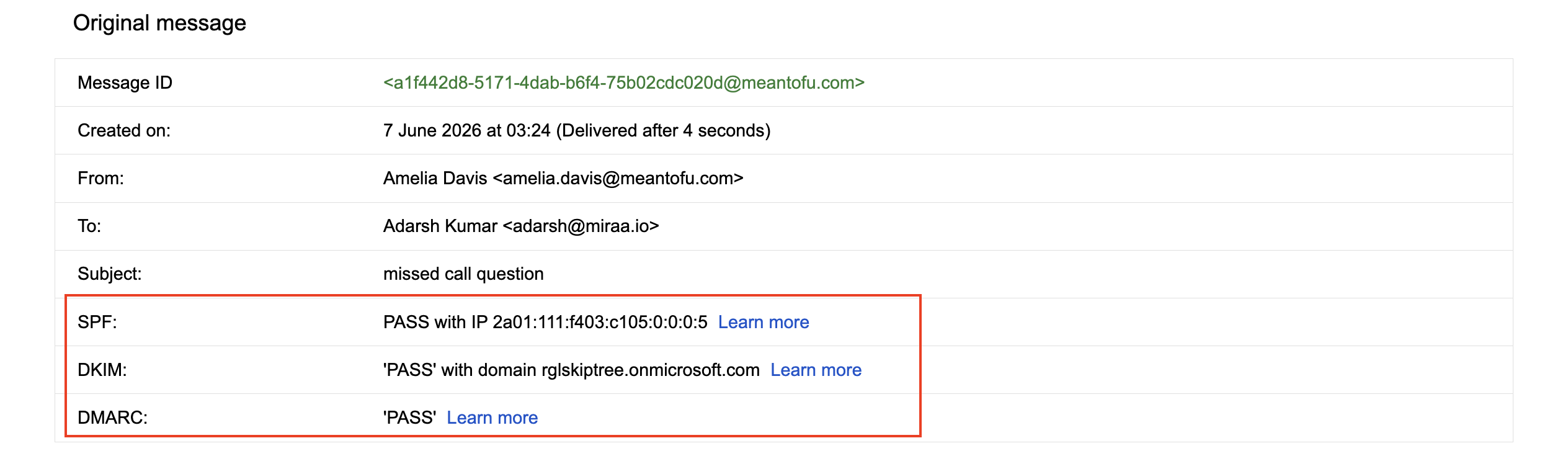
Fix: in Google Workspace Admin or your sending provider's DNS setup, locate the DKIM key and add or update the DNS TXT record.
DMARC tells Gmail what to do if SPF or DKIM fails: nothing (none), quarantine to spam, or reject. A DMARC record in monitoring mode (p=none) does not protect your domain but gives you visibility.
A policy of p=quarantine or p=reject adds real enforcement.
Check DMARC in the same headers view. Start with p=none and a reporting address, then move to p=quarantine once you are confident your legitimate mail streams pass SPF and DKIM.
Send a test email from the affected mailbox to Gmail. Open the message in Gmail, click the three dots beside reply, and choose Show original. You want authentication results that pass and align.
If SPF passes for one domain but your visible From domain is different, DMARC alignment can still fail. If DKIM is not configured, fix it before you scale.
Google Postmaster Tools is the closest thing Gmail gives senders to a reputation score. It is free, updated daily, and shows data you cannot get anywhere else.
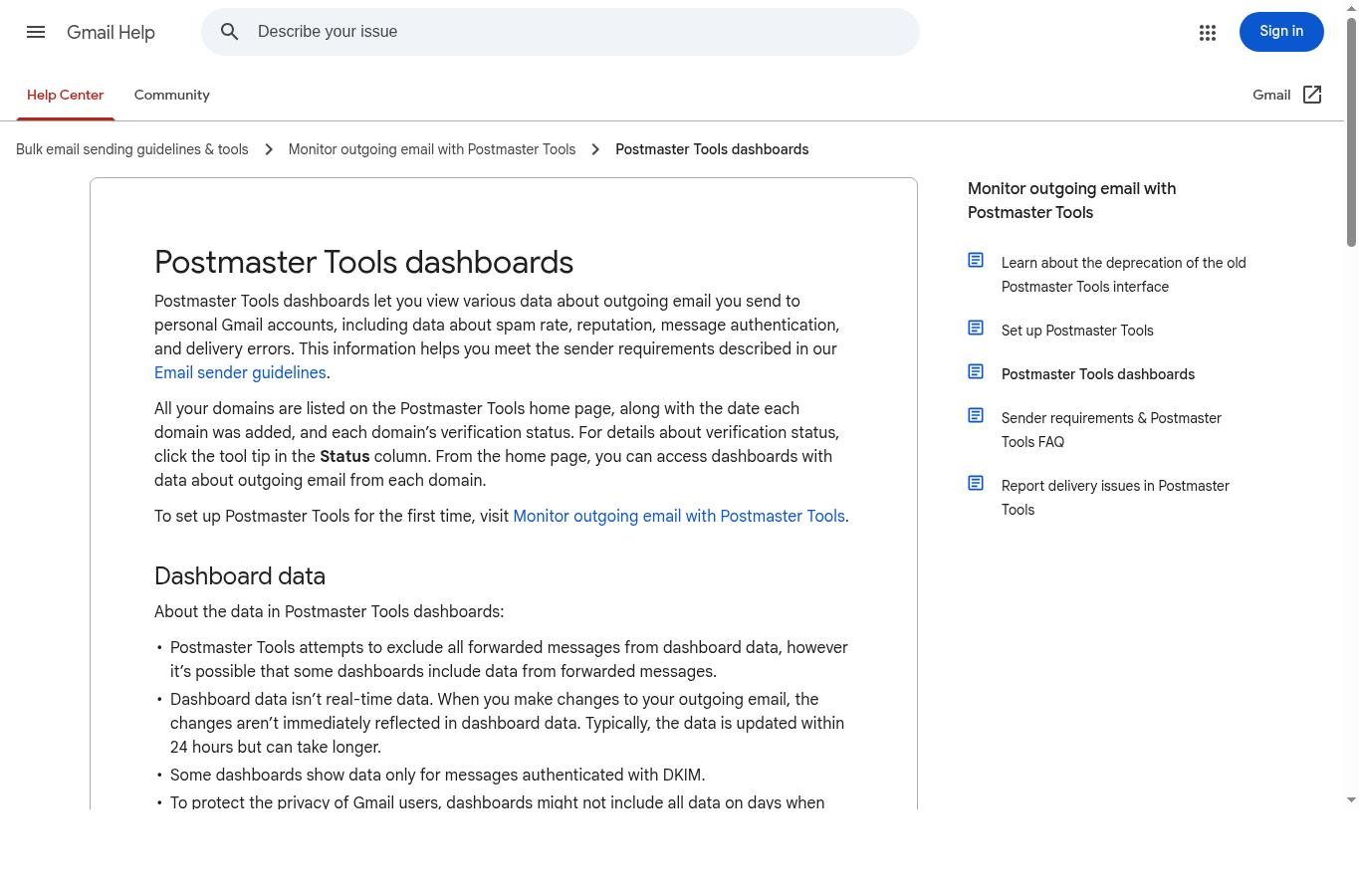
Set it up by going to postmaster.google.com, adding your sending domain, and verifying ownership through a DNS TXT record.
Once verified, data appears within a few days of sending.
The two metrics you care most about are Domain Reputation (High, Medium, Low, Bad) and Spam Rate.
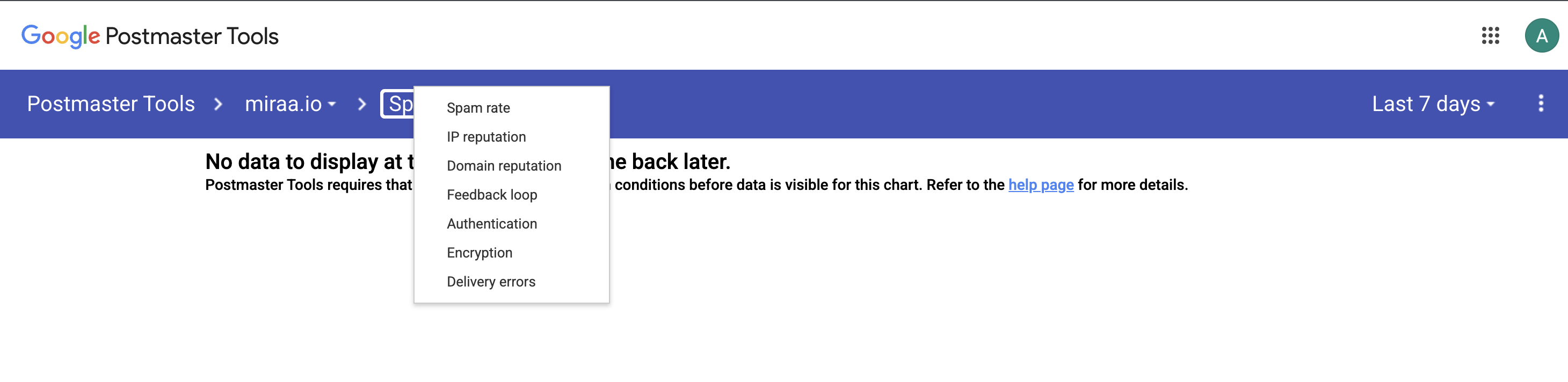
Spam Rate above 0.1%: you have a list, targeting, or message problem.
Spam Rate above 0.3%: Gmail considers this a serious signal.
Anything near or above 1% means your outreach is actively damaging domain reputation.
Cold email failures often happen right after a team "finishes warmup" and starts blasting. From Gmail's perspective, finishing warmup just means an inbox has survived a controlled set of sends between consenting parties. It does not mean the domain is trusted for cold outreach at scale.
The ramp pattern Gmail expects from a legitimate business looks gradual: a small number of sends in the first weeks, growing slowly, with real replies and real engagement happening at each stage.
What spam operations look like: dormant domain, then suddenly 500 sends per day to cold addresses. Even if your DNS is perfect, that pattern looks suspicious.

Volume guidelines for cold email are not hard rules, but these are defensible ranges:
If your volume needs are higher, the answer is more inboxes on more domains, not higher volume per inbox. Primeforge supports this with bulk domain and mailbox provisioning, so you can scale sends without concentrating risk on one domain.
One common mistake: pausing entirely for 30 days, then resuming at full volume.
Pausing looks like a reset, but Gmail does not clear reputation data on a pause. Resume at low volume, with a very clean list, and let engagement signals build back up before scaling.
Bad lists hurt Gmail placement in three ways.

Before sending any cold campaign, run your list through an email verification tool (Leadsforge, Salesforge (Native Email Verifier), ZeroBounce, NeverBounce, Bouncer, Clearout).
Remove hard bounces before sending. Remove addresses that are clearly catch-all mailboxes if you are not confident they are monitored.
Segment by fit: a highly relevant list with 50% open rate delivers better reputation signals than a broad list with 2% opens and periodic spam reports.
Personalization is not just a response rate play. A message that is clearly relevant to the specific recipient is less likely to be reported as spam than one that looks mass-blasted. This is how copy connects to deliverability: not through keyword tricks, but through whether recipients respond positively or negatively to what lands in their inbox.
Cold emailers underestimate link reputation. Gmail does not only see your sending domain. It also evaluates every URL in your message. If your tracking domain is on a blocklist, or if a third-party link in your email points to a domain with poor reputation, that can affect placement even if your sending domain is clean.
Custom tracking domains reduce risk compared to shared tracking domains used by your sending tool's default setup. If you are using a shared tracking domain from your sequencer, check it against MXToolbox blocklist lookup. If it appears on a blocklist, switch to a custom tracking subdomain on your own domain, or disable tracking during recovery.
Once placement stabilizes, you can reintroduce one variable at a time. Do not add tracking, multiple links, HTML signatures, and higher volume all in the same week. If placement drops again, you will not know which variable caused it.
Copy still matters, but not in the childish "never say free" way. Gmail filters are smarter than a word list. What hurts copy today: sounding like a mass-blast rather than a genuine outreach, using manipulative urgency language that recipients hate and report, promises that feel too big relative to what a cold email can reasonably offer, and subject lines that are clearly deceptive clickbait.
What helps: a specific reason why this particular person might benefit, a clear and honest ask, and a tone that matches how a real person would reach out. Reply rate is the engagement signal that matters most for deliverability in cold email. Opens are a tracking-dependent metric that does not feed Gmail's filters directly. Write for replies.
Subject: Quick question!!!

HTML-heavy message, generic “we help companies like yours”, several links, a calendar link, a banner signature, a case study attachment, and no clear opt-out.Subject: Question about {{specific workflow}}
Plain text. One relevant observation. One sentence explaining why you are reaching out. One low-friction question: “Worth sending over the 3-step version, or is someone else better for this?”
Clear opt-out.The best cold email for deliverability is not the shortest email. It is the email that the right recipient is least likely to resent.
Use personalization that proves relevance, not fake flattery. Ask for a reply, not a click. Make “not interested” acceptable. A polite no is still a better Gmail signal than a spam report.
Subject: Question about {{specific process}}

Hi {{first_name}},

I noticed {{specific observation about company, role, hiring, stack, campaign, or workflow}}.

Usually when that is happening, teams either already have {{problem area}} covered, or it quietly creates {{specific operational pain}}.

Worth sending over a short breakdown of how I’d approach it, or is this not a priority right now?

Either way, happy to close the loop if this is not relevant.
This works better than a pitch-heavy email because it gives the recipient an easy reply path. You are not forcing a click. You are not forcing a meeting. You are asking whether the topic is relevant. That is healthier for replies, and replies are the signal you actually want
Reduce volume for 48 to 72 hours. Remove low-quality contacts from the active list. Test placement with a plain text email to a Gmail address you control. Check if Postmaster shows any complaints or reputation changes. If placement improves at lower volume and cleaner lists, resume slowly.
Pause cold sending on this domain. Do not increase volume hoping it will self-correct. Check authentication again — even if it was working before, re-verify. Check Postmaster for Low or Bad reputation. If reputation is Low or Bad, do not try to outrun it with volume. You are digging deeper.
Stop cold outreach on this domain. Send only to existing engaged contacts (people who have replied to you before) at very low volume, 5 to 10 per day. Let positive engagement signals accumulate over time. Use new provisioned domains for any new cold outreach while the primary domain recovers. This process typically takes 2 to 4 weeks minimum. Cutting corners (resuming volume early, keeping a dirty list) resets the clock.
Fixing spam placement once is useful. Preventing the next crash is better. If you are running cold email every week, you need a system that catches problems before they compound.

Weekly: check Google Postmaster domain reputation. It only takes a minute and gives you early warning before a small reputation dip becomes a crash. Check bounce rates in your sequencer dashboard. A bounce rate above 3% is a warning sign that list quality is degrading.
Per campaign: run a placement test with a tool like GlockApps before scaling a new campaign or a new template. Catch a problem when it affects 10 test sends, not after it affects 1,000 live sends.
Monthly: audit your tracking setup. Check your custom tracking subdomain against blocklists. Review whether any new links in your templates point to domains with a poor reputation.
Stopping cold emails from going to Gmail spam is not a subject-line trick. Fix it in order: authentication, reputation, list quality, sending pattern, links/tracking, then copy. If you diagnose in that order, you avoid the classic mistake: rewriting the email ten times while Gmail is actually punishing your domain, your list, or your sending behavior.
Primeforge handles the infrastructure foundation: domains, mailboxes, and authentication. The rest, list quality, sending discipline, and message relevance, is on you. But starting with a clean, properly configured foundation removes the most common reason good outreach ends up in spam.