Your emails to Outlook.com started bouncing with 550 5.7.515. Retries hit the same wall, your campaigns are stalled, and nothing on your sending side actually changed.
That is Microsoft rejecting your mail at the DNS layer because your domain does not clear the required SPF, DKIM, or DMARC check.
This guide covers what the code means, how to pinpoint what broke, and the exact fix that stops the bounces for good.
| Question | Short Answer |
|---|---|
| What does 550 5.7.515 mean? | Microsoft rejected your email because your sending domain failed the required SPF, DKIM, or DMARC check for Outlook.com. |
| Who does it hit? | Domains sending 5,000 or more messages per day to Outlook.com, Hotmail, Live.com, or MSN from the same From domain. |
| What is the fix? | Publish valid SPF and DKIM records, add a DMARC record at p=none, and confirm SPF or DKIM aligns with your visible From domain. |
You are staring at a cryptic string of numbers in a bounce message, and none of it explains what to actually do. Here is how to read it.
The bounce text you see in your NDR looks something like this: 550 5.7.515 Access denied, sending domain [YourDomain] does not meet the required authentication level. Every part of that code tells you something specific about what went wrong.
The leading 550 marks it as a permanent SMTP rejection, which is why the message bounces back instead of retrying. The 5.7 group signals a policy or security rejection, not a routing or capacity problem. The 515 at the end is Microsoft-specific, and it points at authentication enforcement rather than a spam score or blocklist hit.
That distinction matters because the fix has nothing to do with your content, your IP reputation, or your recipient's inbox. The rejection is happening at the DNS layer, before your message even reaches any spam filter.
💡Pro tip: If your bounce shows a different sub-code like 5.7.1 or 5.7.509, the diagnosis and fix path can differ. I cover those in the related codes section further down.
You did not change anything on your end, and yet the same domain that was delivering fine last month is suddenly bouncing. This is not on you. It is a policy shift Microsoft rolled out and has been enforcing hard since 2025.
On May 5, 2025, Microsoft turned on stricter authentication requirements for high-volume senders to its consumer email services. Before that date, mail from domains missing SPF, DKIM, or DMARC often still landed. After it, the same mail started bouncing with 5.7.515.
Here is what actually happens under the hood. Every message your domain sends to an Outlook.com, Hotmail, Live.com, or MSN address now runs through a mandatory authentication check before it even reaches the recipient's mailbox. Microsoft's inbound servers verify SPF, DKIM, and DMARC results in real time, and if any of the required conditions fails, the message is rejected at connection time with 5.7.515.
The move did not happen in isolation. Google and Yahoo rolled out similar rules for bulk senders in February 2024. Microsoft was the last of the big three to formalize the same enforcement.
All three now expect the same specific bar. You need valid SPF, valid DKIM, and a published DMARC record. On top of that, your visible From domain has to align with SPF or DKIM.
For anyone sending outbound at scale, this changed the cost of a broken auth record. A missed SPF entry used to mean occasional spam folder placement. Now it means total rejection at the door.
Not every 5xx bounce from a Microsoft server is 5.7.515. And not every domain sending to Microsoft addresses will trigger it. Two conditions need to be true at the same time, and if either one is false, the enforcement does not fire.
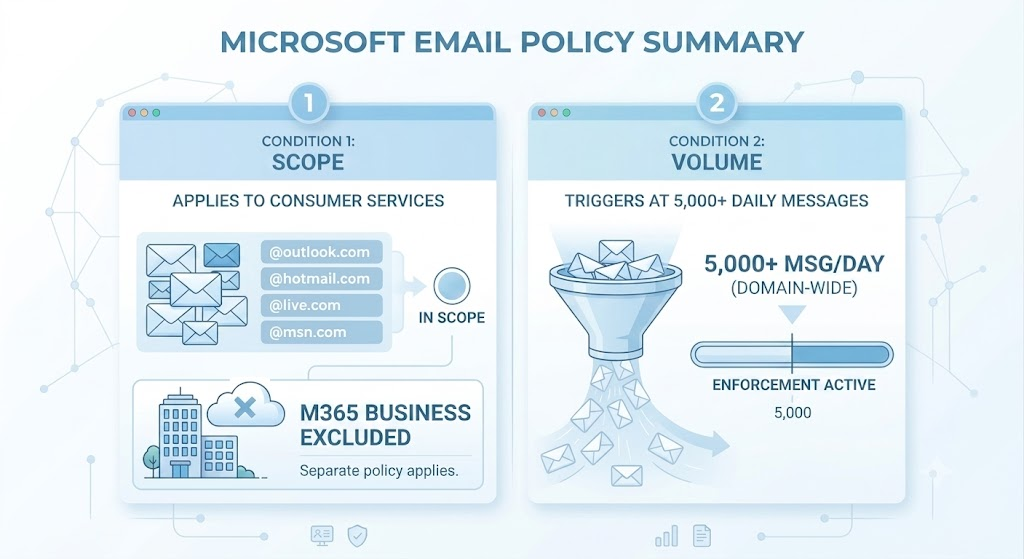
The 5.7.515 policy applies specifically to Microsoft's consumer email services. That means addresses at outlook.com, hotmail.com, live.com, or msn.com.
If your recipient sits on a business Microsoft 365 tenant, this specific enforcement does not apply automatically. A tenant admin can still enforce their own authentication rules, but those live under separate settings and typically surface as different error codes.
The quickest way to confirm is to look at the recipient's domain. If it is one of the four consumer domains above, you are inside the policy scope.
The second trigger is volume. Enforcement kicks in once your domain sends 5,000 or more messages per day to Microsoft consumer services, all using the same From domain.
That count is not per campaign or per mailbox. It is measured across every message leaving your domain, including cold outreach, transactional mail, notifications, and marketing. If the total to consumer addresses crosses 5,000 in a day, Microsoft treats you as a high-volume sender for that domain.
Below that threshold, the rule is technically softer. In practice, weak authentication still hurts placement, so I would treat the same standard as the floor for any cold outreach volume.
You cannot fix the error without knowing which of the three authentication pieces actually broke.
This is where a lot of teams jump straight to editing DNS and end up making the problem worse. The header from the rejected message tells you exactly what to touch.
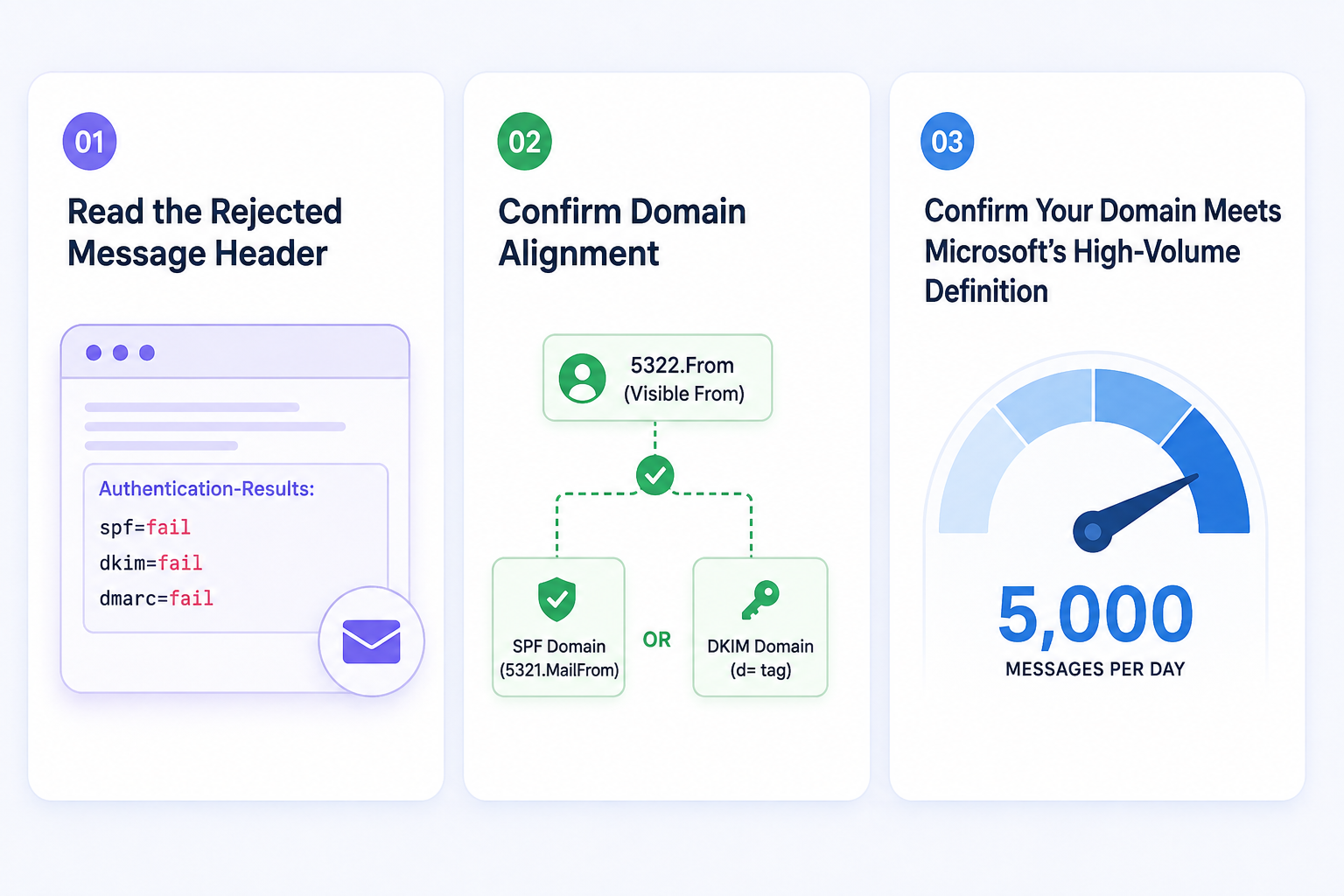
Before you touch any DNS, pull the header from a rejected message. Every mail server that touches your email adds an authentication-results line, and Microsoft's rejection tells you what it saw.
Look for a line that reads something like Authentication-Results: spf=fail dkim=fail dmarc=fail. Those three verdicts are your diagnosis.
If SPF passed but DKIM failed, the fix lives in your DKIM setup. If both passed but DMARC failed, you have an alignment problem, not a missing-record problem. That distinction changes what you edit next.
Alignment is where a lot of teams get stuck. Passing SPF is not the same as SPF being aligned for DMARC purposes, and Microsoft cares about the second one.
Here is the short version. Your visible From address is called the 5322.From. It has to match either the SPF domain (5321.MailFrom) or the DKIM domain (the d= tag).
If neither matches, DMARC fails and 5.7.515 fires, even if SPF and DKIM each pass their individual checks. This is the failure mode that catches most third-party sending services.
A common example is a marketing tool that puts its own return path on your outgoing mail. SPF passes for that service, but the domain does not match your From address, so alignment fails. Fixing it usually means enabling a custom Return-Path or DKIM signing with your own domain inside the tool.
If you are seeing 5.7.515 without hitting the 5,000-messages-per-day threshold, the diagnosis changes. Microsoft may still be enforcing the check on borderline domains, or your sending pattern may look bulk-like even at lower volumes.
Two things worth confirming:
If your combined volume clears 5,000 to the same consumer service, treat yourself as a high-volume sender. Everything below applies as if you already crossed the line.
Skip the DIY loop: If diagnosing and fixing this on domain after domain is not how you want to spend the week, Primeforge mailboxes come with SPF, DKIM, and DMARC pre-configured on real Microsoft 365 or Google Workspace accounts. Book a Primeforge demo to see how the setup works.
Once you know which authentication piece broke, the fix follows a predictable order. Publish SPF first, then DKIM, then DMARC, then confirm alignment, then test. Skipping any step or reordering it is how most fixes fail on the second try.
SPF is a DNS record that lists which IPs or services are authorized to send mail on behalf of your domain. If your sending service is not on that list, Microsoft rejects the message before it reaches the recipient.
Log into your domain registrar (GoDaddy, Cloudflare, Namecheap, or whichever hosts your DNS). Look for a TXT record on your root domain that starts with v=spf1. If it does not exist, publish one that includes every service you send from.
An SPF record for a domain sending through Microsoft 365 looks something like this:
v=spf1 include:spf.protection.outlook.com -all
If you send through both Google Workspace and Microsoft 365, both includes go into a single record:
v=spf1 include:_spf.google.com include:spf.protection.outlook.com -all
Two rules I would not skip:
If you are hitting the lookup limit or juggling multiple sending services, my walkthrough on SPF record configuration for Google Workspace and Microsoft 365 covers it in more depth.
DKIM adds a cryptographic signature to every outgoing message so the receiving server can confirm the mail was not altered in transit. Microsoft treats a missing or failed DKIM signature as an authentication failure.
For Google Workspace, you enable DKIM inside the Admin Console under Apps > Google Workspace > Gmail > Authenticate email. Generate the key, publish the DNS TXT record Google gives you, then activate signing.
For Microsoft 365, DKIM lives inside the Defender portal, under Email & Collaboration > Policies & Rules > Threat policies > DKIM. Publish the CNAME records Microsoft provides, then flip signing on for your domain.
DKIM breaks in a few common ways that are worth flagging up front:
If any of these look like your situation, my post on Microsoft 365 DKIM issues walks through the fix for each.
DMARC is the policy layer that tells receiving servers what to do when SPF or DKIM fails. Microsoft requires a valid DMARC record to exist, even if the policy is set to monitor-only.
Add a TXT record at _dmarc.yourdomain.com with a value like this:
v=DMARC1; p=none; rua=mailto:[email protected]
The p=none starts you in monitoring mode. Reports flow in, nothing gets blocked, and you get visibility into every source sending on your domain. Once you have that data, you can tighten to p=quarantine and eventually p=reject.
For a full setup walkthrough tailored to consumer and business inboxes, I broke down DMARC for Microsoft 365 and Google Workspace end to end.
This is the step most guides skip, and it is the reason a lot of "fixed" domains keep bouncing.
Publishing SPF and DKIM is not enough. For DMARC to pass, at least one of the two needs to align with your visible From domain. Microsoft will not accept the mail without that alignment.
Run your rejected message header through a free tool like MXToolbox or LearnDMARC.com and look for two things:
If neither matches, alignment is your problem. That usually means switching your third-party sender to a custom Return-Path on your domain, or enabling DKIM signing with your own domain inside the tool.
DNS changes propagate on their own timeline, usually within a few hours but occasionally longer. Do not restart high-volume sending until you have confirmed the fix landed.
Two quick tests I run every time:
Once both tests pass on a fresh message, ramp your sending back up gradually. Do not go from zero to full volume on day one, even if the DNS is perfect. Microsoft still watches for sudden spikes and treats them as a separate risk signal.
Sometimes you publish everything correctly, the tools verify green, and the bounces keep coming. Here are the culprits I see most often when that happens.
If you have worked through all five and still hit bounces, the issue usually sits inside a specific third-party tool's configuration. Pull a fresh header from a failed message and trace the d= tag and Return-Path back to whichever service handled the send.
5.7.515 is one of several 550-series codes you might see. If your bounce looks similar but the sub-code is different, use this quick reference to figure out where the problem lives.
| Sub-Code | What It Means | Who Fixes It |
|---|---|---|
| 550 5.1.1 | The recipient email address does not exist or is misspelled. | Sender (verify the address) |
| 550 5.2.2 | The recipient's mailbox is full and cannot accept new mail. | Recipient (clear space) |
| 550 5.7.1 | Your IP or domain is on the recipient server's blocklist, or authentication failed. | Sender (check blocklists, verify auth) |
| 550 5.7.509 | Your DMARC verdict did not meet the recipient's required policy. | Sender (fix DMARC alignment) |
| 550 5.7.515 | Your sending domain failed Microsoft's authentication check for Outlook.com. | Sender (fix SPF, DKIM, DMARC) |
The 5.x.x sub-codes tell you which category the failure sits in. Anything starting with 5.7 is a policy or security block, and the number after tells you the specific policy that fired.
Everything above assumes you are on the DNS-and-DMARC treadmill. You buy a domain, configure SPF, generate DKIM keys, publish DMARC, verify alignment, and retest. Then you watch for the setup to break the next time a service rotates keys or your team adds a new tool.
Primeforge exists so that treadmill is not your problem.
Every Primeforge mailbox is a real Google Workspace or Microsoft 365 account. The domain comes with SPF, DKIM, and DMARC pre-configured and aligned before the mailbox goes live.
Every account also ships with automated DNS and pre-set mailbox profile pictures. The whole setup is ready to send in 30 minutes.
For teams running cold outreach at scale, the practical value shows up here. You never publish a broken auth record, because you never publish one manually. The 550 5.7.515 error becomes a Primeforge non-event.
Get started with Primeforge for real Google Workspace or Microsoft 365 mailboxes, pre-configured and ready to send in 30 minutes.
Both are Microsoft-specific rejection codes tied to authentication, but they enforce slightly different rules. 5.7.515 fires when your sending domain does not meet the required SPF, DKIM, and DMARC standards for high-volume mail to consumer services.
5.7.509 fires when your DMARC verdict does not clear the recipient's specific policy, even when basic authentication is set up. The fix for both starts with the same foundation, but 5.7.509 often needs tighter alignment work.
550 5.7.515 does not automatically apply to Microsoft 365 business tenants. The policy targets Microsoft consumer services like Outlook.com, Hotmail, Live.com, and MSN. Microsoft 365 tenants can enforce their own rules that produce similar codes, but those live under different settings and admin controls.
If you are seeing 5.7.515 specifically, the recipient is on a consumer address.
Most DNS changes propagate within a few hours. Some registrars and providers can take up to 24 to 48 hours in edge cases.
If you are testing a fresh record, wait at least two hours before checking. An incognito browser or a fresh DNS resolver helps you avoid cached results.
DMARC reports themselves usually start flowing 24 hours after your record goes live, since receiving servers batch and send them daily.
There is no real whitelist path for 550 5.7.515. Microsoft's Sender Support form exists, but it will not exempt your domain from the enforcement policy. The requirement is universal for high-volume senders, and the only path forward is meeting the authentication bar.
If DKIM is a temporary blocker on your side, you have two workarounds. Route sending through a service that signs with your domain properly. Or drop your daily volume below the 5,000-message threshold while you fix the underlying issue.
Warmup will not fix 550 5.7.515. Warmup is about building sender reputation over time and improving inbox placement, but it does not address authentication failures.
If your SPF, DKIM, or DMARC is broken or misaligned, no amount of warmup will clear a 5.7.515 bounce. Fix the authentication layer first, then warm the mailbox.
The 550 5.7.515 enforcement specifically targets high-volume senders. Below the 5,000 messages-per-day threshold to a single Microsoft consumer service, the rule is technically softer. Microsoft can still flag borderline domains or those with a poor reputation, so weak authentication remains risky.
I would treat proper SPF, DKIM, and DMARC as the floor for any cold outreach, regardless of volume. Google and Yahoo both apply similar bars for bulk senders to their consumer inboxes, and the standard is only getting stricter.