
When it comes to cold outreach, ensuring your emails land in inboxes - not spam folders - is critical. The secret lies in setting up proper DNS records like SPF, DKIM, and DMARC. These records authenticate your domain, protect your reputation, and boost email deliverability. Without them, your outreach efforts risk poor performance or outright failure.
For a hassle-free setup, tools like Primeforge can automate DNS configurations, saving time and reducing errors. Start small, monitor results, and scale up once your domain is properly authenticated and trusted.
Setting up a reliable DNS is essential to minimize technical hiccups and ensure smooth cold outreach campaigns.
To configure DNS for cold outreach, you need three key things: ownership of a domain, access to DNS management, and a trusted email provider.
First, you must have full administrative control over your domain. This access is typically provided through your domain registrar's control panel or your hosting provider's DNS management interface. Popular providers like GoDaddy, Namecheap, and Cloudflare offer user-friendly tools for this purpose, though the interfaces may differ.
Next, pick a dependable email provider such as Google Workspace or Microsoft 365. These providers supply specific DNS record values - like SPF, DKIM, and DMARC - that must be configured correctly to ensure deliverability and authentication.
A solid grasp of technical basics is also necessary, or you’ll need someone with the expertise to help. Even a small error in configuration can disrupt authentication and email delivery. Accuracy matters: as of 2025, over 45% of cold emails fail due to technical missteps, and a 2024 Validity Email Benchmark report revealed that 21% of B2B emails never reach their intended inboxes.
Once your DNS setup is ready, the next step is choosing the right domain for your outreach.
The domain you use plays a big role in your cold outreach success. Avoid using your primary domain for high-volume email campaigns - it’s better to create dedicated sending domains. This strategy protects your main domain’s reputation. Additionally, always opt for a custom domain instead of free email services like Gmail or Yahoo. Free services often have strict sending limits and are more likely to trigger spam filters.
When selecting a domain, pay attention to its top-level domain (TLD). Here’s a quick guide:
| TLD | Recommendation | Notes |
|---|---|---|
| .com | Use if available | The gold standard for email deliverability |
| .io | Good for tech businesses | Popular with startups and SaaS companies |
| .co | Strong alternative to .com | Reliable when .com isn’t available |
| .ai | Use cautiously for AI companies | Can sometimes be flagged as spam |
| .xyz, .biz, .info | Avoid | High risk of being marked as spam |
Older domains typically perform better than new ones. If you’re setting up a domain specifically for outreach, consider one that’s been registered for several months. Maintaining a good reputation is equally important - keep your bounce rate below 1% and aim for spam complaints under 0.1% .
Another critical step is warming up your domain. Start small - send just five emails on the first day, then increase by five emails daily, capping at 50 emails per day over three weeks.
Once your domain is ready, automation tools can make ongoing management far easier.
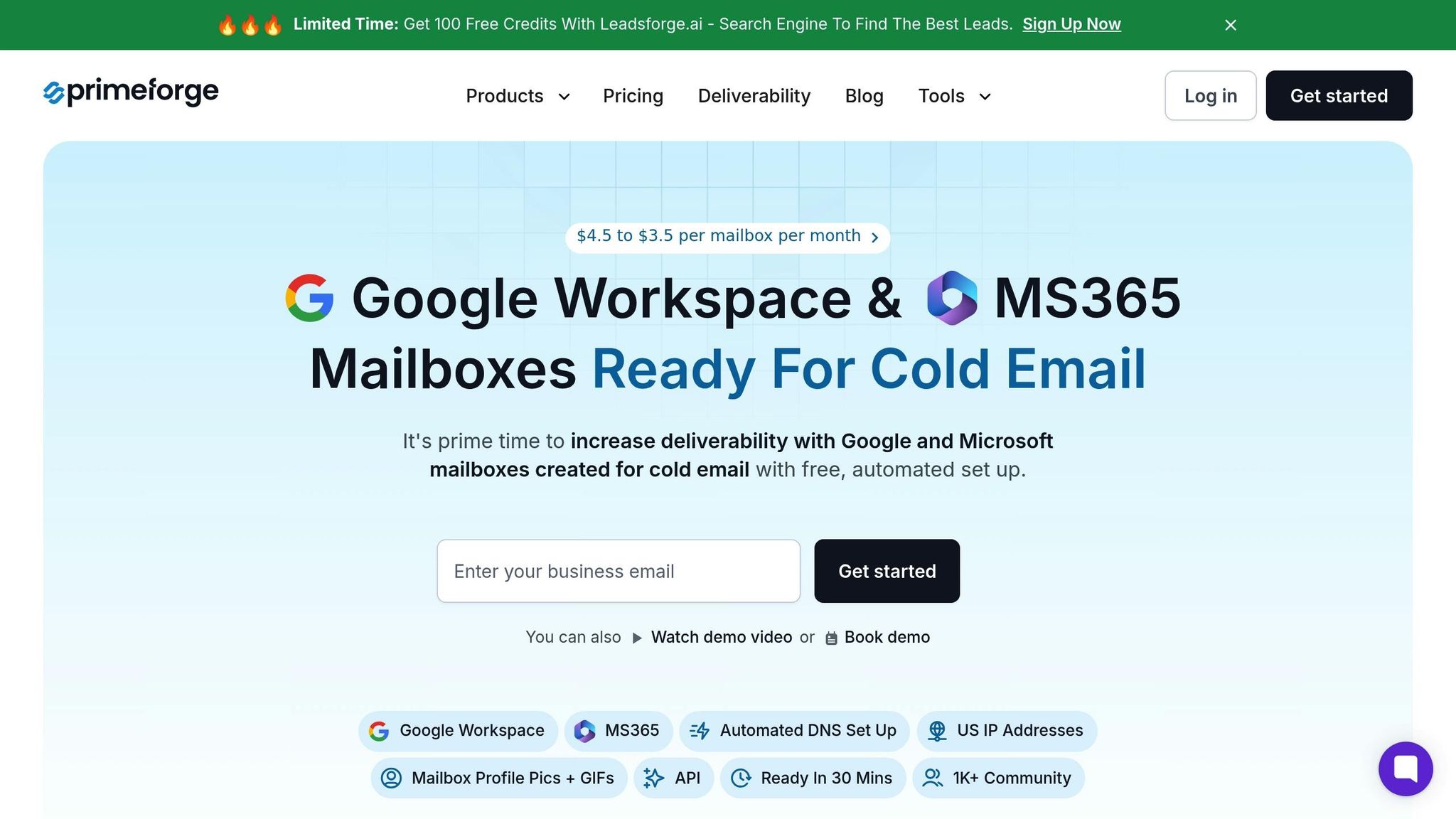
Primeforge takes the hassle out of DNS setup, cutting configuration time from 24 hours to just 30 minutes. It automates the setup of DMARC, SPF, and DKIM for Google Workspace and Microsoft 365, significantly reducing the chances of errors.
The platform also supports bulk DNS updates, enabling you to manage multiple domains with a few clicks. At $3.50–$4.50 per mailbox per month, Primeforge is a cost-effective option compared to competitors charging $6–$8.40.
Primeforge is designed to address the technical challenges of DNS authentication and email setup that can impact deliverability. It even automates tasks like account creation and profile picture uploads, making it easier to manage outreach campaigns at scale. For businesses focused on cold outreach, solutions like Primeforge represent a modern approach to streamlining email infrastructure.
Getting your DNS settings right is crucial for successful cold outreach. Each record you configure plays a role in protecting your sender reputation. To authenticate your emails and safeguard your domain, you'll need to set up three key DNS records. Let's start with SPF.
SPF (Sender Policy Framework) records let receiving email servers know which IP addresses and services are authorized to send emails from your domain. Without it, your emails could be flagged as spam or outright rejected.
v=spf1 include:_spf.google.com ~allv=spf1 include:spf.protection.outlook.com ~allv=spf1: Identifies it as an SPF record.include:_spf.google.com or include:spf.protection.outlook.com) to authorize specific mail servers.~all: A test mode policy that flags unauthorized emails but doesn’t reject them outright. Once confident in your setup, you can switch to -all for stricter enforcement.Once SPF is set up, move on to DKIM for added security.
DKIM (DomainKeys Identified Mail) ensures your emails remain untampered during transit by adding a digital signature. This not only boosts security but also enhances email deliverability.
selector._domainkey.yourdomain.com. For example:
Now, let’s add DMARC for comprehensive email protection.
DMARC (Domain-based Message Authentication, Reporting & Conformance) works alongside SPF and DKIM to dictate how receiving servers should handle emails that fail authentication. It also provides valuable reporting to help you refine your email practices.
_dmarc.yourdomain.com. A basic DMARC record might look like this:v=DMARC1; p=none; rua=mailto:[email protected]
v=DMARC1: Identifies it as a DMARC record.p=none: Sets the policy to monitor only.rua=mailto:[email protected]: Specifies where to send aggregate reports.p=none to p=quarantine (suspicious emails go to spam) and eventually to p=reject to block unauthorized emails entirely.Finally, confirm that all your DNS changes are live and working.
DNS updates can take anywhere from 5 minutes to 24 hours to propagate globally. Verifying these changes is essential before sending emails.
nslookup -q=txt [selector]._domainkey.yourdomain.com or dig txt [selector]._domainkey.yourdomain.com. Replace "selector" with your actual DKIM selector and "yourdomain.com" with your domain.As of February 2024, Gmail and Yahoo require DKIM and DMARC for domains sending over 5,000 emails daily. Even if your email volume is lower, proper authentication is critical for ensuring your messages reach their destination.
When it comes to cold outreach, even small errors can throw a wrench in the process. That’s where automated DNS management tools come in - they make everything smoother and more efficient.
By automating DNS management, you not only avoid mistakes but also handle large-scale operations with ease.
Setting up DNS records manually can lead to errors and slow down the entire process, especially when managing multiple domains. Automation solves this by generating properly formatted records and updating several domains at once. This speeds up the setup while cutting down the risk of authentication issues caused by formatting mistakes.
Another key benefit is scalability. While manual updates might work if you’re managing just a few domains, it becomes overwhelming as the number grows. Automated tools handle updates across all your domains in one go, ensuring consistency and accuracy.
Plus, many automated tools come with built-in monitoring features. These tools not only alert you to issues but also suggest fixes, helping you maintain a strong sender reputation - an essential factor in email deliverability.
This sets the stage for a clear comparison between manual setups and a tool like Primeforge.
The advantages of using Primeforge for automated DNS management are even more apparent when compared to manual methods:
| Aspect | Manual Setup | Primeforge |
|---|---|---|
| Time | Requires significant manual effort for each domain. | Delivers fast, automated configurations across multiple domains. |
| Errors | High risk of syntax mistakes in SPF, DKIM, and DMARC records. | Automated validation reduces formatting errors. |
| Bulk Management | Requires individual setup for every domain. | Handles bulk updates across domains with a few clicks. |
| Ongoing Maintenance | Relies on manual monitoring of reports and changes. | Offers automated monitoring with proactive alerts for issues. |
| Technical Expertise | Demands in-depth knowledge of DNS and email authentication. | User-friendly interface suitable for all skill levels. |
| Cost | Hidden costs from manual work and potential email issues. | Affordable pricing starting at $37.50/month with predictable ROI. |
Primeforge simplifies the technical side of DNS management. When you add a new domain, it automatically generates the correct SPF records for your email provider, sets up properly formatted DKIM entries, and configures DMARC policies with accurate reporting addresses. This ensures compatibility with any email-sending software, making your cold outreach tool work seamlessly.
The bulk update feature is particularly handy during domain migrations or when applying policy changes across multiple domains. What would normally require hours of manual edits can now be done in just a few clicks.
For teams using Google Workspace or Microsoft 365, Primeforge makes the process even easier. It automatically configures the provider-specific includes and selectors, eliminating the need to figure out the right DKIM selectors or SPF formatting. By automating both the initial setup and ongoing management, Primeforge removes the headaches of manual DNS management and ensures everything runs smoothly.
Keeping your DNS records accurate and functional is an ongoing task. Even the most carefully configured records need regular checks to ensure your cold outreach efforts stay on track.
After setting up your DNS records, it's crucial to confirm they’re working as intended. DNS propagation usually takes anywhere from 5 to 30 minutes, though it can sometimes stretch to 24 hours. Testing too soon might lead to false error messages.
To verify your DNS setup, use online tools like EasyDMARC’s checkers or MXToolbox. Alternatively, command-line tools such as nslookup and dig allow you to directly query your DNS records to confirm the values of your TXT entries. Another option is sending a test email to a Gmail account and using the "Show original" feature to view the email's authentication details. In the "Authentication-Results" section, check that SPF, DKIM, and DMARC have all passed.
After confirming the setup, keep an eye on DMARC reports to track email deliverability and detect any issues.
Once your DNS records are verified, DMARC reports become a key tool for maintaining email performance. These reports provide detailed insights into how well your email authentication measures are working. For instance, over 20% of DMARC reports commonly highlight SPF failures, making regular monitoring essential. Organizations using DMARC solutions often experience a 57% drop in email fraud incidents, and effective DMARC implementation can cut phishing attacks by 50% over time. Considering that 94% of malware is delivered via email, reviewing these reports consistently is critical.
Focus on hitting key benchmarks in your DMARC reports: SPF success rates should average above 95%, while DKIM should stay above 90%. Regular reviews - weekly or bi-weekly - help catch and fix configuration issues early. Several tools can make this process easier:
Angel Grant, CISSP and SVP of Security Product & Market Intelligence, emphasizes the importance of ongoing monitoring:
"People often think, 'Once DMARC is set up, you're protected forever.' Wrong. DMARC requires ongoing monitoring and adjustments to maintain effectiveness against evolving threats."
By regularly reviewing DMARC reports, you can identify areas for improvement and make adjustments to stay ahead of potential threats.
For smaller setups, manual monitoring works. But as your operations grow, managing DNS records manually can become overwhelming. That’s where Primeforge comes in. This platform automates the management of DMARC, SPF, and DKIM records, ensuring best practices are maintained. It also simplifies bulk DNS updates, allowing you to modify multiple domain records with just a few clicks.
Primeforge goes beyond DNS management by offering mailbox and domain hosting services. It saves time, reduces human error, and boosts deliverability. Whether you’re using Google Workspace, Microsoft 365, or another email platform, Primeforge ensures compatibility while streamlining email deliverability.
When it comes to cold outreach emails, DNS configuration is the deciding factor between hitting the inbox or getting lost in the spam folder. With a staggering 85% of cold emails failing to reach their recipients’ inboxes, setting up SPF, DKIM, and DMARC records correctly is what separates successful campaigns from wasted effort.
The numbers don’t lie: domains with properly configured SPF and DKIM records are far more likely to avoid spam filters, while misconfigured domains often experience spam rates exceeding 50%. On top of that, 80% of email delivery failures stem from missing or incorrect PTR records. As Matthew Vernhout, Principal Email Advisor at Email Industries, succinctly explains:
"DNS is the backbone of your email strategy. A well-configured SPF record keeps spammers out and your reputation intact. But a single typo? It's like handing the keys to your domain to the bad guys."
Given the complexity and high stakes of manual DNS setups, automation becomes a game-changer. With 80% of companies struggling to enforce email authentication properly, even one misstep can tarnish months of hard work, sending emails straight to spam.
This is where Primeforge steps in. By automating the setup process with pre-configured templates for SPF, DKIM, and DMARC records, Primeforge simplifies email authentication. Its real-time validation system ensures deliverability rates of 98–99%, far surpassing the industry average of 85%. Starting at just $4.50 per mailbox per month, Primeforge also offers bulk DNS updates and compatibility with any email-sending software - making it an indispensable tool for cold outreach campaigns.
Using a separate domain for cold email outreach is a smart move to safeguard your primary domain's reputation. When you’re reaching out to people who may not know your brand, there’s always a chance your emails could be flagged as spam. If that happens and you’re using your main domain, it could get blacklisted, which would disrupt your regular business communications.
By using a dedicated domain, you keep your primary domain safe from potential deliverability issues. Plus, it gives you the flexibility to fine-tune email settings like SPF, DKIM, and DMARC specifically for outreach campaigns. These settings help improve deliverability, making it more likely your emails will land in inboxes instead of spam folders. For an easier setup, platforms like Primeforge can handle the DNS configuration and email infrastructure for you, making the process seamless.
Building trust with email service providers is a gradual process, and that's where domain warming comes into play. It involves slowly increasing your email sending volume over time, which helps establish a solid sender reputation. This reduces the likelihood of your emails landing in spam folders.
When you warm up your domain, you show email providers that your activity is steady and reliable. This, in turn, boosts your chances of getting your emails delivered directly to inboxes. It's especially important for cold outreach campaigns, where hitting the inbox consistently can make or break your efforts.
If your SPF, DKIM, and DMARC records aren’t set up the right way, your cold outreach emails are much more likely to get flagged as spam, rejected outright, or never make it to your recipient’s inbox. This can seriously hurt your email deliverability and the performance of your campaigns.
On top of that, a poor setup leaves your domain vulnerable to email spoofing and phishing attacks. These threats can damage your business’s reputation and even lead to financial losses. Properly configuring these records protects your email domain and helps build trust with your recipients.