Setting up DKIM (DomainKeys Identified Mail) is essential for improving email deliverability and protecting your domain from spoofing attacks. It authenticates your emails using cryptographic signatures, ensuring they’re sent from an authorized source and haven’t been altered. This is particularly important for cold email campaigns where sender reputation is critical.
Here’s a quick summary of the process:
Key Benefits:
Proper configuration is critical for successful email campaigns. Follow the steps above to ensure your emails are trusted and delivered effectively.
Getting your DKIM setup right starts with proper preparation. Before jumping into the configuration, make sure you have all the necessary access and details ready. This will help prevent errors during the setup process. Here's what you need to know before you begin.
To configure DKIM, you’ll need two key types of access: DNS management rights and email server administrative permissions. This typically means having access to your DNS settings (through your domain registrar, DNS host, or web hosting control panel) and admin rights for your email server, such as the Google Workspace Admin Console or Microsoft Defender portal. These permissions are essential for adding the DKIM TXT record to your domain's DNS settings.
If you don’t have DNS access, reach out to your domain administrator or IT team. In many organizations, DNS access is restricted for security reasons, so you might need to request permissions or have someone else add the DKIM record for you. For companies using managed email infrastructure services like Primeforge, the DNS setup process is often automated, including updates across multiple domains.
Every email provider has its own DKIM setup guidelines. Before you start, it’s important to go through your provider’s documentation to understand their specific requirements. Key details to check include:
Gather this information in advance to avoid common mistakes, like using the wrong selector, entering an incorrect key value, or forgetting to enable DKIM signing after adding the DNS record. Missteps like these can lead to failed email authentication.
Before adding new DKIM records, check if your domain already has existing ones. Overlapping or duplicate records can cause authentication issues and disrupt email delivery. This is especially relevant if you’ve recently switched email providers or inherited a domain from another team.
To check for existing records, query your domain’s DNS for TXT records using tools like dig, nslookup, or online services such as MXToolbox or Google’s Admin Toolbox. Look for records with a selector name followed by "._domainkey". For example, if the selector is "default", search for "default._domainkey.yourdomain.com".
If you find a TXT record that starts with "v=DKIM1", it means a DKIM record is already in place. Document the details of any existing records, including their selector names and dates of creation, before making changes. This will help you avoid conflicts and ensure a smooth transition if you need to update or replace old keys.
Skipping this step can lead to configuration conflicts, which might cause emails to be flagged as spam or rejected by recipient servers. If you discover an outdated DKIM key still in use, plan your transition carefully to maintain uninterrupted email delivery.
Keep a record of all existing DKIM entries for troubleshooting and future key rotations. This documentation will save time and effort down the line.
Setting up DKIM for your domain involves three main steps: creating a DKIM key pair, publishing the public key in your DNS records, and enabling DKIM signing on your email server. Each step is essential to ensure proper email authentication and improve email deliverability.
Start by generating a public and private key pair. The private key stays on your email server to sign outgoing messages, while the public key is added to your DNS records so recipient servers can verify the signature.
For Linux servers using OpenDKIM, you can generate a key pair with this command:
opendkim-genkey -b 2048 -d example.com -s marketing -o /etc/opendkim/keys/marketing.private
This command creates a 2048-bit key pair for "example.com" with the selector "marketing." The private key is saved to the specified location, and the public key is displayed for copying into your DNS records.
If you're using Google Workspace or Microsoft 365, you can generate keys directly through their admin consoles. Once your key pair is ready, move on to publishing the public key in your DNS.
The next step is to publish the public key in your domain's DNS records. This allows receiving email servers to validate the DKIM signatures on your messages.
selector._domainkey.domain, such as marketing._domainkey.example.com.
v=DKIM1; k=rsa; p=MIGfMA0GCSqGSIb3DQEBAQUAA4GNADCBiQKBgQC...
selector1._domainkey pointing to selector1-contoso-com._domainkey.contoso.onmicrosoft.comselector2._domainkey pointing to selector2-contoso-com._domainkey.contoso.onmicrosoft.com.Once the public key is added to your DNS, the final step is to configure your email server to sign outgoing messages with your private key.
The last step is enabling DKIM signing on your email server. The process varies depending on your platform.
main.cf file:
smtpd_milters = inet:127.0.0.1:8891
non_smtpd_milters = $smtpd_milters
milter_default_action = accept
With these steps completed, your DKIM setup will be ready to authenticate outgoing emails and enhance their deliverability.
After configuring DKIM, testing is essential to confirm everything is set up correctly. Proper validation ensures your outgoing emails are signed and authenticated, which plays a big role in improving email deliverability. Here's how to make sure your DKIM setup is working as intended.
Start by sending an email from your domain to an external email account, such as Gmail or Outlook, since they provide detailed authentication results.
To check your setup, send a test email to your Gmail or Outlook account. Once it lands in your inbox, open the message, and access the full email headers. In Gmail, for instance, click the three-dot menu in the email and select "Show original" to view the headers.
In the headers, locate the DKIM-Signature field. This section should include details like d= (domain), s= (selector), and the cryptographic signature. Ensure these values match the settings in your DNS records. If the DKIM-Signature field is missing, it means your server isn’t signing outgoing emails, and you’ll need to revisit your configuration.
Next, check the Authentication-Results section in the headers. Look for "DKIM: PASS" alongside your domain name. This indicates the receiving server successfully verified your email’s signature against the public key in your DNS records.
For additional confirmation, turn to online tools designed to validate DKIM setups. Platforms like MXToolbox, DKIMCore, and DMARC Analyzer can help verify that your DKIM public key is correctly published. These tools often detect issues that might be missed when manually reviewing email headers.
Using MXToolbox as an example, go to their website and use the DKIM lookup tool. Enter your selector and domain in the format selector._domainkey.yourdomain.com. For instance, if your selector is "marketing" and your domain is "example.com", you’d enter marketing._domainkey.example.com. The tool will query your DNS records and confirm whether your DKIM public key is published and formatted correctly.
These tools can flag common issues such as poorly formatted records, missing public keys, or DNS propagation delays. Keep in mind that DNS changes may take up to 48 hours to fully propagate.
Some tools also let you send test emails to a specific address they provide. These services analyze your email and give detailed feedback on your DKIM signature, including whether it passed validation and any potential problems.
Once you’ve reviewed the headers and used validation tools, it’s time to interpret the results. DKIM authentication results appear in the email headers as either "pass" or "fail." Understanding these outcomes is key to maintaining strong email deliverability.
A "pass" result means the email’s DKIM signature matches the public key in your DNS records, confirming the message’s authenticity and integrity. When you see "DKIM: PASS" in the Authentication-Results header, it’s a sign that your private key, public key, and DNS settings are all aligned. This boosts your sender reputation and reduces the chances of your emails being flagged as spam.
On the other hand, a "fail" result points to an issue in your DKIM setup that needs fixing. Common causes include mismatched selectors between your server and DNS records, formatting errors in the public key, or delays in DNS propagation. If you encounter a failure, double-check that your selector name matches across your configuration and DNS settings. Also, ensure the public key was copied correctly, without extra spaces or line breaks.
| Result | Meaning | Required Action |
|---|---|---|
| DKIM: PASS | Valid signature | None |
| DKIM: FAIL | Invalid signature | Review DNS and server configuration |
| No DKIM signature | Email not signed | Enable DKIM signing on your server |
For organizations using Primeforge email infrastructure, the platform’s automated DKIM setup simplifies the process and reduces errors. Primeforge handles the technical aspects of DKIM, DMARC, and SPF record creation based on industry standards, making it especially useful for cold outreach campaigns where deliverability is critical.
If issues persist despite confirming your configuration, keep in mind that some email providers have stricter validation rules than others. Regularly monitoring DKIM authentication results ensures consistent email deliverability and allows you to quickly address any problems that arise.
After setting up DKIM as described earlier, it’s crucial to troubleshoot any issues that might arise to ensure smooth email authentication. Even with a proper setup, small errors can disrupt DKIM functionality. Thankfully, most problems stem from simple mistakes that are relatively easy to fix once identified. Knowing these common pitfalls can help you maintain reliable email deliverability.
DNS misconfigurations are a frequent source of DKIM issues. These errors often result from typos, mismatched selectors, or incorrect formatting. Another common problem occurs with certain DNS providers - like GoDaddy, Squarespace, and Namecheap - that automatically append your domain name to TXT records. This behavior can lead to improperly formatted DKIM records that fail validation.
To address these issues, log into your DNS management tool and carefully review your DKIM TXT record. Make sure the selector matches exactly with what’s configured on your email server, paying attention to capitalization. Also, check for extra spaces or missing characters in the public key. Once you’ve corrected any errors, save the changes and allow time for DNS propagation, which can take anywhere from a few minutes to 48 hours, depending on your provider’s TTL settings.
| Common DNS Error | Cause | Solution |
|---|---|---|
| Selector mismatch | Typo in DNS or server config | Verify the selector spelling matches |
| Incomplete public key | Copy/paste error | Re-copy the full public key without breaks |
| Wrong record type | Using CNAME instead of TXT | Change the record type to TXT |
Once your DNS is correctly configured, verify that your outgoing emails include the DKIM signature.
If your DNS records are correct but DKIM signatures are missing from email headers, the issue likely lies on the server side. Missing signatures often occur when DKIM signing hasn’t been enabled on your email server or when DNS changes haven’t fully propagated.
To fix this, first check that DKIM signing is enabled in your server settings. Refer to your email provider’s documentation for guidance. Next, confirm that the private key installed on your server matches the public key in your DNS record. For platforms like Google Workspace or Microsoft 365, DKIM is often pre-configured, but manual activation may still be necessary.
Using automated tools or services can simplify this process and help prevent such oversights.
Even when signatures are present, authentication can fail if the receiving server cannot validate the DKIM signature. These failures are typically caused by mismatches between the public and private keys, outdated DNS records, or email clients that don’t fully support DKIM.
Start by ensuring your public and private keys match. If there’s a mismatch, regenerate the key pair and update both your DNS record and server configuration. After making these updates, send test emails to major providers like Gmail, Outlook, and Yahoo to confirm DKIM signatures are applied correctly.
In some cases, email forwarding services or unsupported clients may strip or modify DKIM headers, causing validation to fail. If the problem persists, verify that your email client or service supports DKIM signing. For example, Primeforge users benefit from an automated setup that integrates DKIM, DMARC, and SPF records, which is particularly helpful for cold outreach campaigns where deliverability matters.
Regular monitoring of your DKIM authentication results can help you catch problems early. Tools like MXToolbox or DKIMCore are excellent for diagnosing and resolving issues. Proper DKIM implementation can significantly boost email deliverability - by as much as 30% - making it worth the effort to troubleshoot thoroughly.
Setting up DKIM correctly is a powerful way to safeguard your email system and enhance the performance of your cold email campaigns. By following the right steps, you can ensure your emails consistently land in the inbox where they belong.
To secure your emails, generate a secure key pair, publish the public key in your DNS, and enable server-side signing. Each of these steps plays a vital role in building a reliable authentication system that protects your sender reputation.
Proper DKIM implementation can improve deliverability by up to 30%, significantly reducing the chances of your emails being flagged as spam. This improvement leads to higher open rates and better campaign results. Investing in email authentication not only protects your infrastructure but also ensures consistent inbox placement.
Regular testing and validation are crucial. DNS changes, server updates, or provider modifications can disrupt DKIM functionality without notice. Tools like MXToolbox and DKIMCore are invaluable for monitoring your authentication status and catching potential issues before they affect your campaigns.
For a smoother DKIM setup, automation can make all the difference.
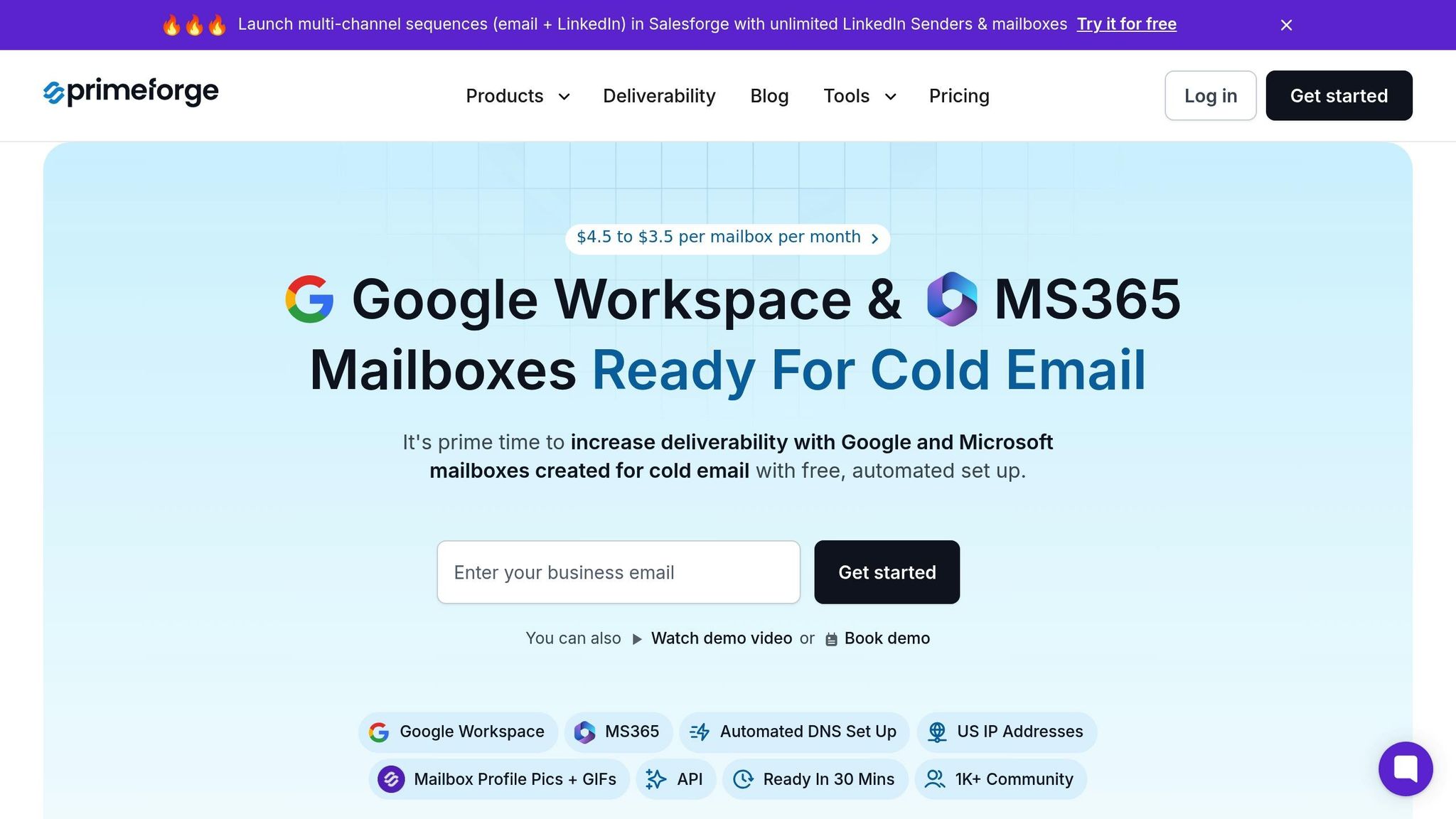
Managing DKIM for multiple domains can quickly become overwhelming, especially for large-scale campaigns. Primeforge simplifies this process with automated DNS configuration for DKIM, SPF, and DMARC, all aligned with industry best practices.
With Primeforge, setup time drops from over 24 hours to just about 30 minutes, a massive time saver compared to manual configuration with platforms like Google Workspace or Microsoft 365. This is especially beneficial when handling multiple domains, as the platform’s bulk DNS update feature allows you to configure authentication records for numerous domains in just a few clicks.
Beyond DKIM setup, Primeforge offers an integrated email infrastructure that boosts deliverability. Features like mailbox profile pictures, automated account setup, and seamless integration with popular sending tools are all designed to optimize cold outreach campaigns.
For organizations focused on email deliverability, Primeforge provides a reliable, automated solution that ensures consistent configuration across all mailboxes. By reducing the risk of human error - often the culprit behind authentication issues - the platform keeps your email system running smoothly. Plus, when paired with tools like Warmforge for email warm-up, you have a complete solution for maintaining a strong sender reputation. Automate your DKIM setup with Primeforge and secure your email operations with ease.
When you're setting up DKIM for the first time, it’s easy to run into a few common mistakes. To make the process smoother, here are some pitfalls to watch out for:
If you’re using a service like Primeforge, the setup can be much easier. Their automated DNS configuration takes care of your DKIM records, so they’re correctly set up right from the start.
DKIM, SPF, and DMARC work together to shield your email domain from spoofing and phishing attempts. Here's how they function:
When properly set up, these protocols form a robust defense, enhancing your email deliverability while protecting your domain's reputation. Tools like Primeforge make this process easier by automating DNS configuration and validation for platforms like Google Workspace and Microsoft 365, keeping your email system secure and running smoothly.
Testing and verifying your DKIM setup on a regular basis is crucial. It ensures your emails are properly authenticated, which helps lower the chances of them being marked as spam or rejected by recipients. This plays a key role in safeguarding your sender reputation and boosting email deliverability.
Tools like Primeforge make this process easier by automating DKIM setup for Google Workspace and Microsoft 365 mailboxes. You can also rely on free online tools to check your DKIM records and address any issues, keeping your configuration reliable and effective over time.