If you're setting up a custom tracking domain for the first time, you've probably been told it takes 20 minutes and helps deliverability.
Both are true. What's less obvious is that the 20-minute setup is the easy part.
The harder part is what happens after go-live. SSL certificates expire quietly, DNS records break when providers change, and a shared tracking domain's reputation can crater your inbox placement without warning.
I've seen all three happen on live campaigns, and most senders don't spot them until reply rates fall off a cliff.
This guide covers what a custom tracking domain does, how to set one up, and the five mistakes senders make after go-live.
To understand why the mistakes matter, you first need a clear picture of what a custom tracking domain is doing under the hood. Here's the mechanic in plain terms.
A custom tracking domain is a subdomain of a domain you own. It handles the tracking links and open pixels your email tool inserts into every cold email you send. Instead of your links routing through something like trk.emailtool.com or click.mailerplatform.com, they route through track.yourdomain.com or links.yourdomain.com.
The tracking still works exactly the same way. What changes is who owns the domain doing the tracking.
When you turn on click or open tracking, your email tool rewrites every link in your message before sending. A recipient who clicks that link doesn't go straight to your destination page. They hit the tracking domain first, which logs the click, and then get instantly redirected to the real URL.
The whole redirect happens in under a second, so the recipient never notices. Open tracking works the same way. Your tool adds a 1x1 pixel image to your email HTML, hosted on the tracking domain. Every time the email opens and that pixel loads, the platform logs an open event.
With a custom tracking domain, both the links and the pixel are branded to your domain. Without one, they're all pointing at the shared domain your platform uses for every customer. That single difference sits at the center of your email infrastructure reputation.
Spam filters don't only evaluate your sending domain and IP address. They also inspect every domain that appears inside your email, including:
If your tracking domain has a poor reputation, your emails can get penalized too.
This can happen when another sender using the same shared tracking domain gets flagged for spam.
So even if:
A bad tracking domain can still push your email toward spam.
Spam filters also look for inconsistencies between your From address and the domains inside your email.
For example:
From: [email protected] Tracking: trk.somethirdparty.com
That mismatch can look like phishing infrastructure because the email claims to come from one domain while sending users through another unrelated domain.
A custom tracking domain fixes this by keeping your tracking infrastructure under your own domain:
From: [email protected] Tracking: track.yourcompany.com
The setup itself is straightforward, and you'll spend most of the time waiting for DNS to propagate. Here are the four steps I run every time I stand up a new sending domain.
You need access to the DNS settings for the domain you want to use for tracking. Head to your domain registrar, whether that's GoDaddy, Namecheap, Cloudflare, or wherever you registered your sending domain, and log into your account.
If your domains are managed by someone else on your team, get access sorted before you start, you'll be adding a DNS record in the next step.
One thing to sort out before you touch anything: the domain you're logging into should be the same root domain you send from. If you send from bestdeals.com, you're setting up tracking on bestdeals.com.
Using a different domain creates the exact mismatch spam filters treat as phishing, and that's worse than using the shared default.
Now you're setting up a CNAME record that connects your domain to your email platform's tracking system.
Head into the DNS management section for your domain. Select "Add New Record" and choose CNAME as the type. Enter the following information:
Save the record.

This step creates the link between your custom subdomain and your email platform's tracking system. The specific host name and value above are examples from a Salesforge setup — the exact values your platform gives you may differ, so always copy them from your platform's setup wizard rather than reusing values from another account.
Before moving forward, check that the CNAME record has been set up correctly. You can use MxToolbox.com for this.
Head to MxToolbox.com. In the CNAME Lookup box, type sf.yourdomain.com, replace "yourdomain" with your actual domain name. Hit "Lookup."
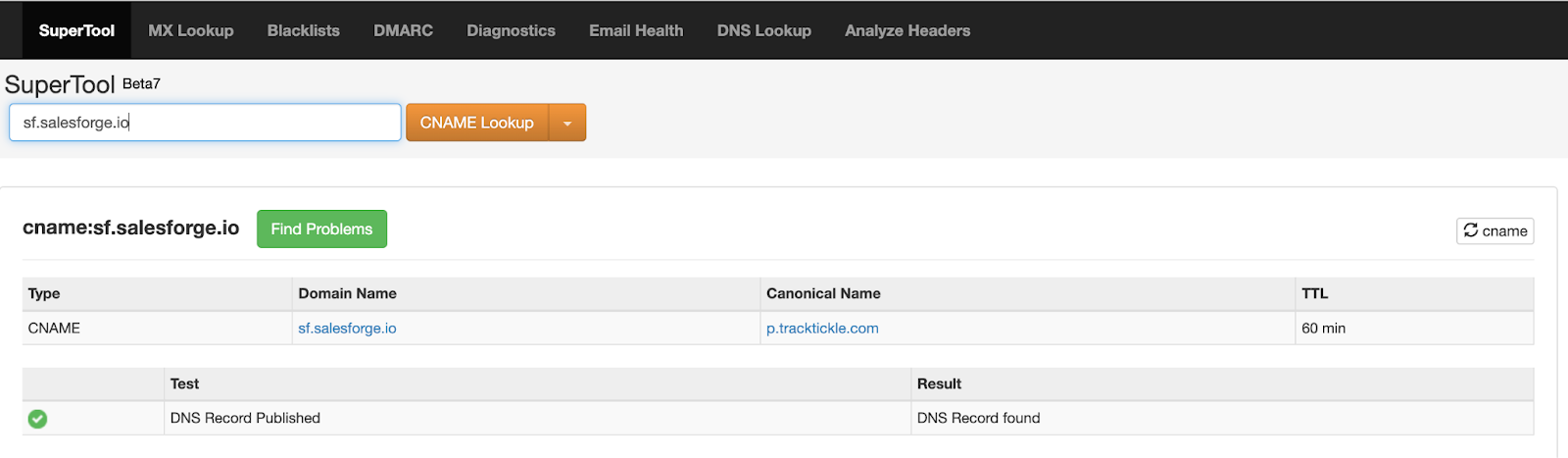
If everything is set up correctly, you'll see the Canonical Name as p.tracktickle.com. If it doesn't show up, give it a bit more time to propagate.
DNS changes can take anywhere from a few minutes to 48 hours to fully propagate, depending on your registrar. If it still doesn't resolve after a few hours, double-check the record for typos in the hostname or value.
Once your DNS is configured, it's time to integrate the custom tracking domain with your email platform.
Log in to your platform.
Select the mailbox you want to add the custom tracking domain to. Head to the Settings tab and enable custom domain tracking.
Insert your custom domain (for example, sf.yourdomain.com) and check the status. Your platform will show whether the custom domain is active.
Quick example: Let's say your domain is bestdeals.com and you're sending through Salesforge. You'll create a CNAME record for sf.bestdeals.com that points to p.tracktickle.com. Once that's done, head into Salesforge to activate it on your mailbox:
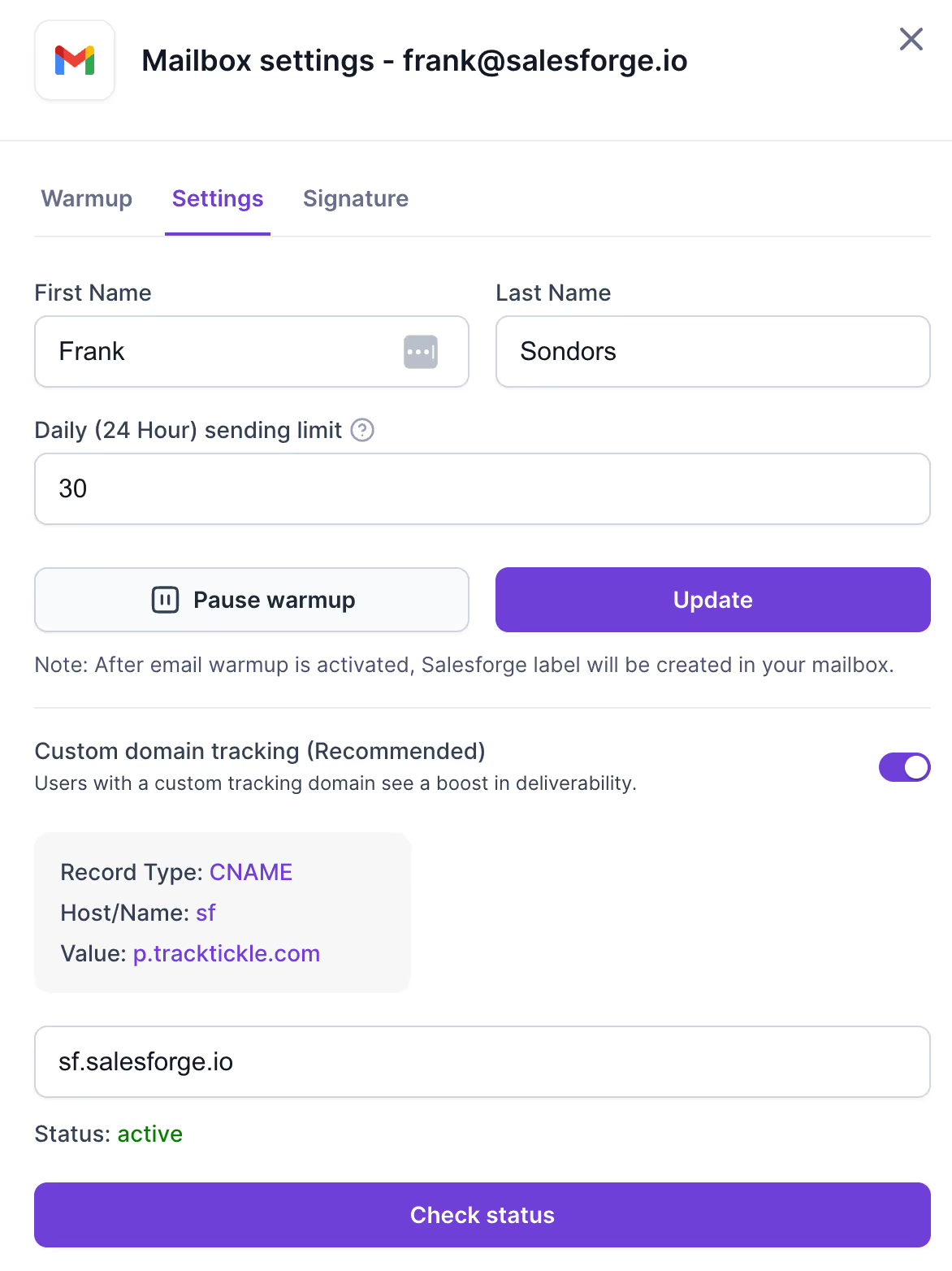
All your tracked links will now appear under sf.bestdeals.com, which gives your emails a branded, trusted look instead of routing through the shared Salesforge tracking domain.
One thing I run every single time before going live: send a test email to yourself from that mailbox and hover over any link in the body. The URL should start with sf.bestdeals.com, not the Salesforge default. If it still shows the default, the in-app configuration step didn't save, and you'll need to go back into Salesforge's Settings tab and paste the tracking subdomain in again.
Everything above works fine when you're managing one sending domain. Cold outreach at real volume doesn't look like that.
Most operators I know are running 20, 30, or 50+ sending domains at once, with two mailboxes per domain and daily sending caps low enough to protect each domain's reputation.
If you're figuring out the right number for your setup, my breakdown of how many domains you need for cold email walks through the math.
In that kind of setup, one custom tracking domain isn't enough. You need one custom tracking subdomain per sending domain, because the alignment rule from Step 1 still applies. If you send from domain-1.com, your tracking subdomain has to be on domain-1.com. If you also send from domain-2.com, that domain needs its own tracking subdomain too. The work scales linearly with your sending footprint.
Same story with SSL, DNS propagation checks, and platform-level activation. Every single one of those steps has to repeat for every domain in your stack.
Running that setup manually is where most senders lose hours. Adding a CNAME record 45 times, configuring SSL 45 times, and verifying propagation 45 times eats up a full week.
That's why I built my sending stack on Primeforge in the first place. Every Primeforge mailbox ships with the custom tracking domain, SPF, DKIM, and DMARC already configured, along with a mailbox profile picture.
The bulk DNS management feature lets you push changes across every domain in your account at once, so scaling from 10 domains to 100 doesn't multiply your setup work.
The setup steps above are the easy part. The mistakes below are where senders lose deliverability weeks or months after a setup that looked complete on day one. These are the five I see most often in real accounts.
This is the mistake I see most often, and it's the one that looks correct until you actually check. Someone sets up a sending domain on outbound-yourcompany.com, but points the custom tracking subdomain to their brand domain, yourcompany.com. Every email that goes out now contains two different root domains: one in the From address and one in every link.
That mismatch reads exactly like a phishing pattern to spam filters. The custom tracking domain, which was supposed to help deliverability, is now actively hurting it. The fix is straightforward. Set your tracking subdomain on the same root as the inbox you send from, and check the alignment every time you add a new sending domain.
SSL certificates expire. If your email platform manages renewal automatically, expiry usually takes care of itself. But auto-renewal fails on live accounts more often than you'd think. When the cert expires, your tracking links either fall back to HTTP or trigger a browser security warning when clicked. Click data disappears, recipients bounce off the warning, and you might not notice for weeks.
Set a reminder to verify your SSL status quarterly. It takes two minutes and prevents the kind of silent decay that turns a good campaign into a dead one.
If your DNS is managed through Cloudflare, there's one specific setting to watch. When you add the CNAME for your tracking subdomain, disable the Cloudflare proxy on that record. That means DNS-only, or the gray cloud instead of the orange one. Leaving the proxy on breaks certificate issuance and can make tracking links fail entirely.
CAA records cause a similar silent failure. A CAA record that blocks the certificate authority your email platform uses will cause SSL provisioning to fail silently. There's no clear error message when this happens. If your setup is done, everything looks right in DNS, but SSL never comes up, check your CAA records before anything else.
Your custom tracking domain can still end up on a blacklist even if your sending practices are clean. Spam filters maintain domain-reputation lists like URIBL, SURBL, and Spamhaus DBL, and any domain that shows up inside spam campaigns can land on them. That includes tracking domains that get caught up accidentally, or ones that get spoofed.
Check your tracking domain against these lists at least monthly using MXToolbox or a similar tool. If your tracking subdomain gets flagged, your click data will stay clean but your emails will start missing the inbox, which makes the problem hard to diagnose from the metrics alone. Running through a sender reputation monitoring routine at least monthly catches these issues before they compound across your full sending stack.
The last mistake is the one that happens most on day one, and it takes about 30 seconds to catch. You add the CNAME record. DNS propagates. Everything looks right in your registrar. But you never went into your email platform's settings and actually pointed it at the new tracking subdomain.
Your emails go out with the shared default tracking domain, but you think the custom one is live. The fix is simple: after every setup, send a test email to yourself and hover over any link. The URL should show your custom subdomain, not the platform default. If it doesn't, go back into your platform settings and paste the tracking subdomain in the right field.
Before every new campaign launch, I run through the same six-item check. It takes 10 minutes and catches silent tracking failures before they show up in your reply data.
That last one matters more than most senders realize. Reply rate holds up as a signal even when open data gets polluted by prefetching and security scanners, which is why serious operators use it as the diagnostic instead of open rate. If you want to see how it fits alongside the other technical signals that shape your sending health, my breakdown of Google Workspace email deliverability covers the wider picture.
Your sending domain is the domain in your From address, the one authenticated by your SPF, DKIM, and DMARC records. Your custom tracking domain is the subdomain used inside your email to host tracking pixels and rewrite click links. They're two separate DNS configurations, and the best practice is to keep both on the same root domain so everything in the email aligns.
Yes. Each sending domain needs its own custom tracking subdomain on the same root. If you run 10 sending domains, you need 10 tracking subdomains. Most email platforms also block the reuse of the same tracking domain across multiple sending accounts as a security measure.
Anywhere from a few minutes to 48 hours, depending on your registrar and the TTL you had set before making the change. Setting your TTL to somewhere between 300 and 3600 seconds during setup speeds up any fixes you need to make. Use WhatsMyDNS.net to confirm your CNAME is resolving globally before you activate the domain in your platform.
For most cold outreach setups, yes. Open pixels signal to spam filters that you're sending automated marketing mail, which pushes your first-touch deliverability down. Turning open tracking off on step one keeps that first email looking as close to a plain personal email as possible. You can turn open tracking back on for follow-up steps once you've confirmed inbox placement through reply rate.
Your emails will start missing the inbox even though your sending domain reputation is clean. Spam filters check every domain inside your email, and if the tracking subdomain is on a list like URIBL or SURBL, that alone triggers filtering. Check your tracking domain against these lists monthly using MXToolbox. If it does get flagged, submit a delisting request with the list operator and pause affected campaigns until you clear it.
Your tracking links go out over HTTP instead of HTTPS, which most modern email clients treat as a trust failure. Enterprise security gateways in B2B environments will flag or block them, and some top-level domains like .app and .dev enforce HTTPS at the browser level. Recipients get an unsafe-browser warning when they click, which kills your click data. Always enable SSL when setting up your custom tracking domain.