Many businesses use Google Workspace for sending everyday emails, sales outreach, client communication, and support messages.
But despite Google’s reputation, deliverability is not always perfect. Some users see strong inbox placement, while others face unexpected spam issues, blocked messages, or sudden sending limits.
This make users question, is Google Workspace email deliverability actually good, or does it cause problems depending on how you use it?
To answer this, we reviewed how Google scores senders, how its filters work, what affects inbox placement, and what businesses should expect.
Google Workspace email deliverability means how well your emails reach the inbox when you send them through your Google Workspace domain.
In simple words, it measures whether your message goes to:
Deliverability depends on a few key things in Google Workspace:
If these factors are good, your emails land in the inbox. If they’re weak or missing, Google may send your emails to spam or stop them completely.
This is what “Google Workspace email deliverability” refers to, your ability to land in inboxes when sending emails through Google’s platform.
If your emails from Google Workspace are landing in spam, it usually means something is wrong with how you're sending or how your domain is set up.
Below are the most common reasons:
1. You Didn’t Set Up SPF, DKIM, or DMARC: These are email authentication records. Without them, Google can’t confirm if your emails are safe and genuine, so they’re more likely to get flagged as spam.
2. You’re Sending Cold Emails Too Fast: If you send too many emails to people who’ve never interacted with you before, especially all at once, Google may slow you down or push your emails to spam.
3. Your Domain Reputation Is Low: If people mark your emails as spam, don’t open them, or bounce back often, your domain’s reputation goes down, and inbox placement suffers.
4. Your Email Content Looks Spammy: Using all caps, too many links, spam trigger words (“FREE”, “BUY NOW”), or heavy formatting can make Google treat your message as suspicious.
5. You’re Sending From a New Domain Without Warming Up: If your domain is new and you start sending many emails right away, Google sees this as risky behavior. You need to build trust by warming up slowly.
6. Your Email List Has Bad or Old Addresses: If you send to invalid or outdated emails, your bounce rate goes up. This is a red flag to Google and hurts your deliverability.
7. You’re Using Shared Files or Links That Are Blocked: Sometimes, links to Google Docs, Drive, or third-party tools get flagged, especially if they’ve been abused before. This can impact your emails even if your content is clean.
Google Workspace doesn’t treat all emails the same. It checks every message using several filters to decide whether it should go to the inbox, spam, or be blocked.
These checks happen in real time, based on your domain reputation and sending behavior.
Here’s exactly how Google handles deliverability:
| Pros | Cons |
|---|---|
| Google’s infrastructure is trusted by most inbox providers. | Strict sending limits, daily caps, and cold outreach restrictions can reduce inboxing. |
| Built-in security and spam protection help maintain good deliverability. | No built-in warm-up system — new domains and inboxes require manual warm-up. |
| Good inbox placement for normal business communication. | Cold emails can hit spam easily if volume or personalization is poor. |
| Easy DNS setup, especially for verified Workspace domains. | Reputation drops quickly with bounces, low engagement, or spam complaints. |
| Stable IP reputation because Google manages and rotates IPs. | Shared IPs mean your domain must stay very clean or inboxing still suffers. |
If your emails are landing in spam, getting ignored, or bouncing, the problem is usually with how your domain is set up or how you're sending emails.
You can follow these clear steps to improve your deliverability and reach more inboxes.
Go to your domain provider (like GoDaddy, Namecheap, etc.) and make sure all three records are added:
Without these, Google may not trust your emails.
Always send from a domain you own (like [email protected]).
Google treats emails from free @gmail.com addresses as personal, not business-related, and may block cold emails or mass sending.
If your domain or account is new, don’t start with 100+ emails a day. Start with 10–20 emails per day, then increase gradually over a few weeks.
This helps build a clean sending history with Google.
Google scans email content. Avoid:
Instead, write like a human, short, simple, and relevant to the reader.
Never send to unverified, old, or purchased lists.
High bounce rates (emails that don’t exist) damage your sender reputation. Use list-cleaning tools before sending.
If you’re doing outreach:
Mass, identical cold emails are a red flag to Google.
Use free tools like:
These show if Google sees your domain as risky or flagged.
If people open your emails, reply, or mark them as “Not Spam,” Google sees your content as valuable.
That improves future inbox placement.
Before sending emails from Google Workspace, it’s important to understand Google’s built-in sending limits.
These limits directly affect deliverability, especially if you send cold emails, bulk messages, or high-volume communication.
Here are the key limits you should know:
These limits are designed to prevent abuse, but they also mean businesses must send carefully to maintain good deliverability.
Email deliverability varies from one platform to another.
Some platforms are designed for everyday business emails, while others handle bulk sending, newsletters, or cold outreach better than Google Workspace.
To understand where Google Workspace stands, it helps to compare it with the most common email platforms businesses use today.
Below is a quick comparison of Google Workspace and other popular email platforms:
| Platform | Strengths | Weaknesses | Best For |
|---|---|---|---|
| Google Workspace | Strong inboxing for 1:1 emails; trusted IPs; stable reputation. | Strict limits; not good for bulk or cold outreach. | Daily business communication. |
| Microsoft Outlook (Office 365) | Excellent internal communication; robust security. | Filters promotional emails aggressively. | Enterprise teams and corporate email. |
| Zoho Mail | Very affordable; simple setup. | Weaker deliverability; higher spam issues. | Small businesses on tight budgets. |
| SMTP Services (SendGrid, Mailgun, SES) | Built for bulk; scalable; great for high-volume sending. | Requires technical warm-up & setup. | Newsletters and transactional email. |
| Cold Email Tools (Instantly, Lemlist, Woodpecker) |
Warm-up, inbox rotation, controlled sending. | Still depends on your Google/Outlook domain reputation. | Cold outreach and sales prospecting. |
If the domain, DNS, or mailbox setup is wrong, emails can land in spam, especially for cold outreach.
Primeforge fixes these problems by creating Google Workspace mailboxes that are already optimized for deliverability and ready for cold email.
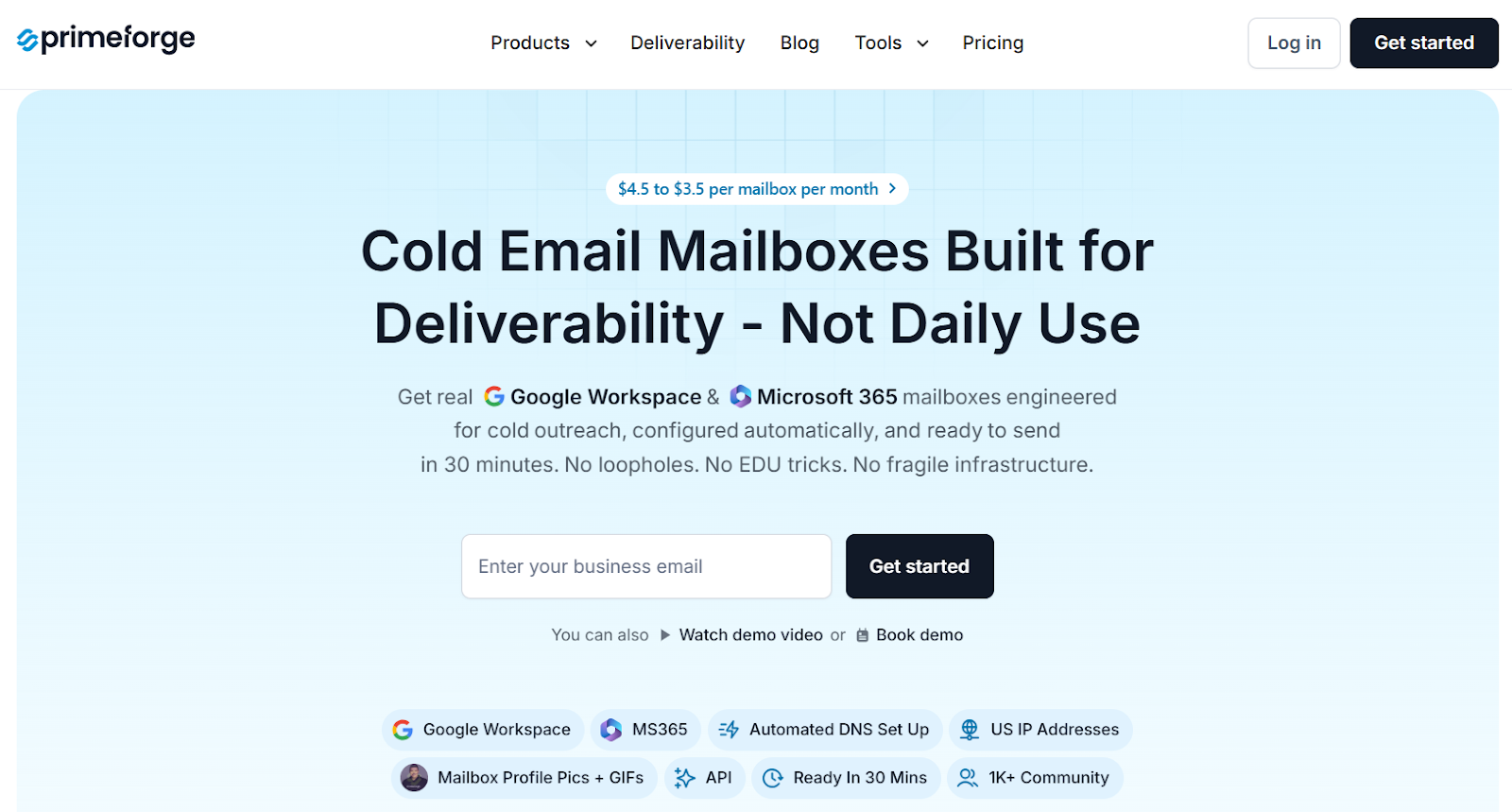
Primeforge is a cold email infrastructure tool that sets up Google Workspace and MS365 mailboxes correctly, automatically, and in a way that improves inbox placement from day one.
Here’s how Primeforge boosts Google Workspace deliverability:
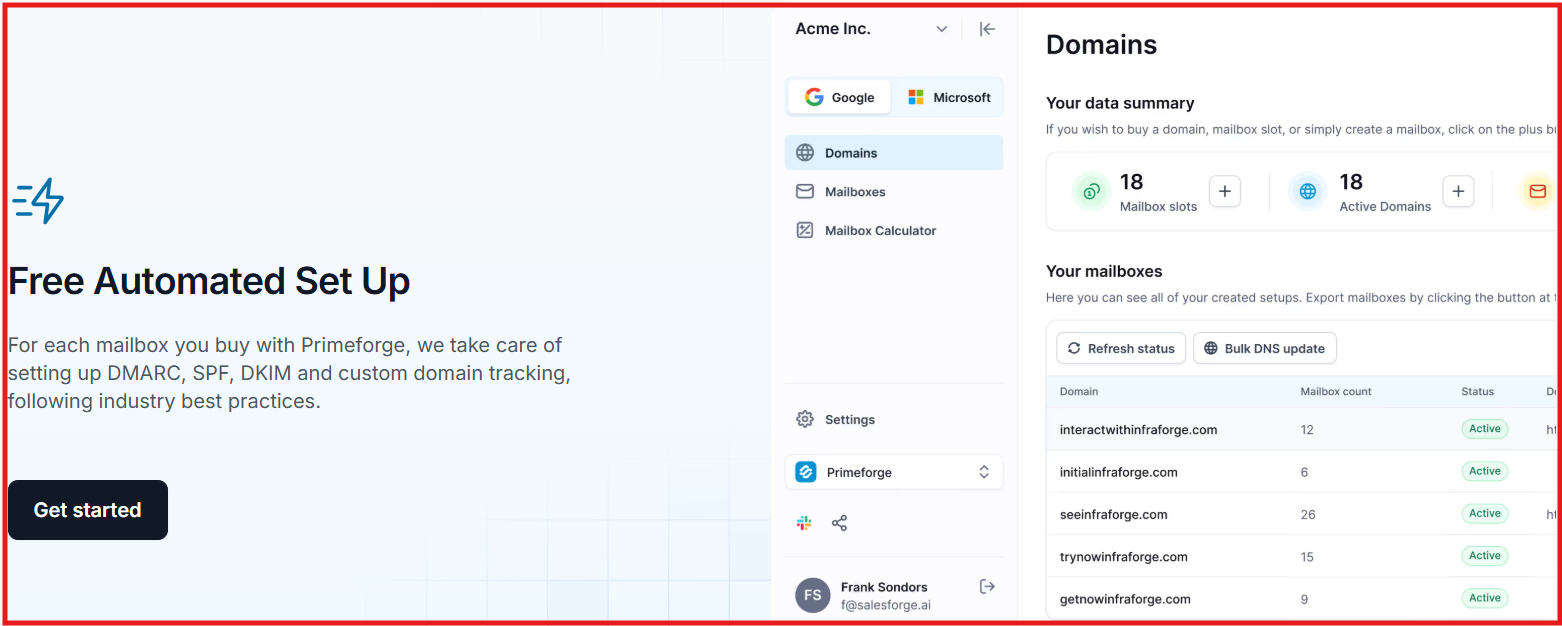
1. Automated SPF, DKIM & DMARC Setup: Primeforge automatically sets up all the important DNS records, SPF, DKIM, DMARC, and tracking. Correct authentication means stronger trust with Gmail and fewer spam issues.
2. Uses Clean, Trusted IP Addresses: Primeforge Workspace mailboxes run on high-quality IPs. Clean IPs help inbox providers trust your messages more, which improves deliverability.
3. Clean, Fresh Domains With Zero Reputation Problems: Primeforge provides brand-new domains ready for cold outreach. There is no past issues or any hidden reputation damage, which makes it easier to inbox.
4. Safe, Fast Mailbox Setup (Ready in 30 Minutes): Instead of waiting 24+ hours when buying directly from Google: Primeforge mailboxes are ready in 30 minutes, fully configured and deliverability-safe.
5. Bulk DNS Updates for Multiple Domains: If you run many domains, Primeforge updates all DNS records in a few clicks. This prevents manual mistakes that often lead to spam placement.
6. Deliverability Best Practices Automatically Applied: Primeforge follows the latest industry best practices when creating each domain and mailbox.
7. Mailbox Profile Pics & GIFs (Higher Reply Rates): Primeforge lets you add profile pictures or GIF headshots directly to Google Workspace mailboxes. This makes your emails more visible and can increase reply rates by 3%–15%.

8. Diversified Email Infrastructure (Lower Risk of Spam / Blocks): Primeforge helps you use multiple domains instead of relying on one. This reduces the risk of:
Primeforge improves Google Workspace deliverability by giving you fully authenticated, clean, US-based Workspace mailboxes that follow best practices automatically, so your emails reach the inbox instead of spam.
Google Workspace offers excellent email deliverability for regular business communication — especially for 1:1 messages and client updates.
But when it comes to cold outreach or higher-volume sending, it has limitations that can cause emails to land in spam.
The main challenges are strict sending limits, sensitive spam filters, and technical setup requirements (like SPF, DKIM, and DMARC).
On its own, Google Workspace isn't optimized for cold emailing or scaled campaigns.
That said, the deliverability can be very good, if everything is set up correctly.
If you want to use Google Workspace for outreach, and actually reach inboxes, the setup makes all the difference.
That’s where Primeforge helps.
It sets up Google Workspace (and MS365) mailboxes the right way, with clean domains, automated DNS setup, and inbox-ready configuration.
Whether you're doing outreach, running campaigns, or just want safer email sending, Primeforge makes sure your emails land in the inbox, not spam.
If you want higher inbox placement with Google Workspace, start with deliverability-ready mailboxes from Primeforge.