Your email is ready to send.
But there’s one problem.
You need to send it to multiple people while making sure each person receives it as a separate email, not as part of a group message where everyone can see each other’s addresses.
Well, the good news is that Gmail and Outlook both offer ways to do this.
And there are also email automation tools that make the process even easier, especially if you want to personalize each message or send emails at scale.
But which method should you use?
In this guide, you'll learn exactly how to send emails to multiple recipients individually in Gmail and Outlook, step by step.
We'll also cover the pros and cons of each method, sending limits, personalization options, and best practices to help your emails land in the inbox in 2026.
Let's get into it.
There are three main ways to do this, and each one offers a different level of personalization, automation, and control over your sending.
I've ranked them by effectiveness, from the most powerful to the simplest, so you can jump straight to the one that fits your situation.
Here's a quick comparison before I break each one down.
Email automation is the most effective way to send personalized emails to multiple recipients at scale. Unlike BCC or mail merge, it handles the entire workflow in one place: personalization, follow-ups, scheduling, and tracking.
This approach is especially valuable for sales teams, agencies managing multiple campaigns, and anyone sending 100+ emails per day who needs automated follow-ups and performance data.
If you are running cold outreach, building a sales pipeline, or managing client campaigns, this method will give you the highest response rates.
There are several email automation platforms on the market. I've tested most of them, and I keep coming back to Salesforge because it combines AI-level personalization with unlimited mailbox connections and built-in warmup, all under one roof.
Here is how to set it up in practice.
Step 1: Set Up Your Mailboxes (And Why the Right Provider Matters)
Before you send a single email, you need mailboxes that are actually built for outreach.
A common mistake is using your personal Gmail or a single Outlook account to send bulk messages. Free email accounts have strict daily sending limits, and they lack the DNS authentication records that inbox providers look for when deciding whether to deliver your email.
If you are serious about reaching inboxes, you need either Google Workspace or Microsoft 365 mailboxes with SPF, DKIM, and DMARC properly configured.
On top of that, brand-new mailboxes need to be warmed up before you can send at any real volume. Without a sending history, inbox providers like Google and Microsoft will route your emails straight to spam.
That’s why I prefer using Primeforge because it removes the two biggest bottlenecks in setting up outreach mailboxes: DNS configuration and warmup.
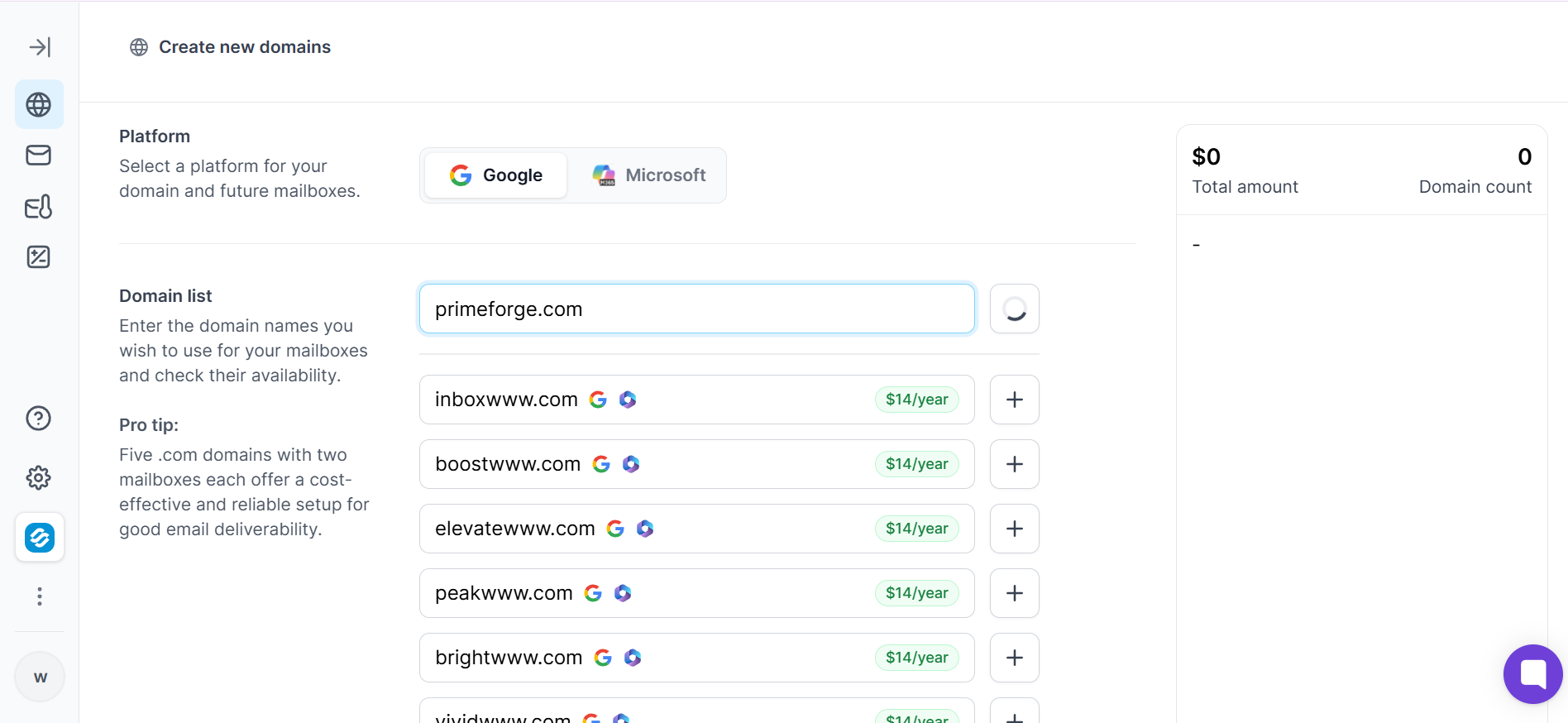
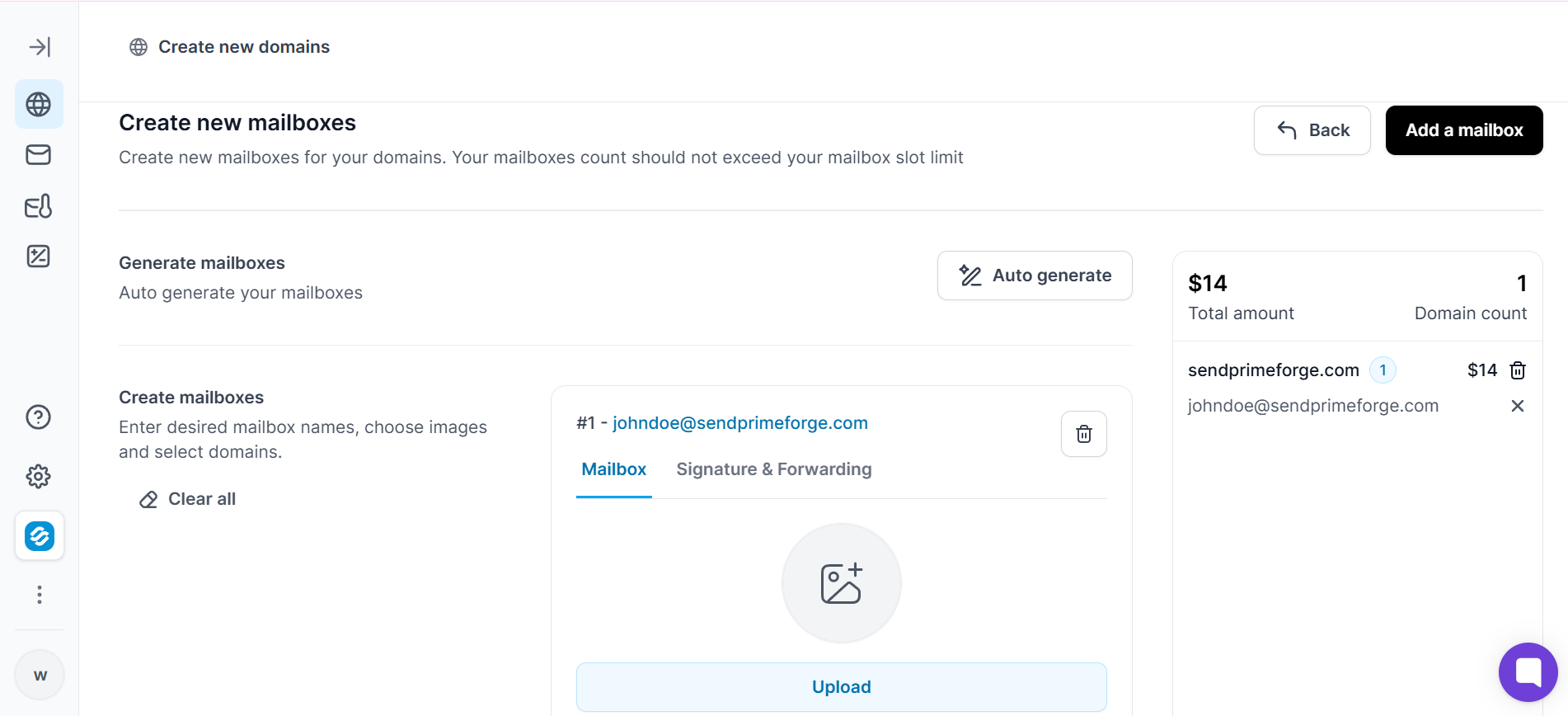
When you self-manage Workspace or 365 accounts, you are spending hours on DNS configuration and then waiting at least two weeks for warmup before you can send a single campaign.
With Primeforge, every mailbox comes pre-warmed and pre-configured, so you can start sending almost immediately.
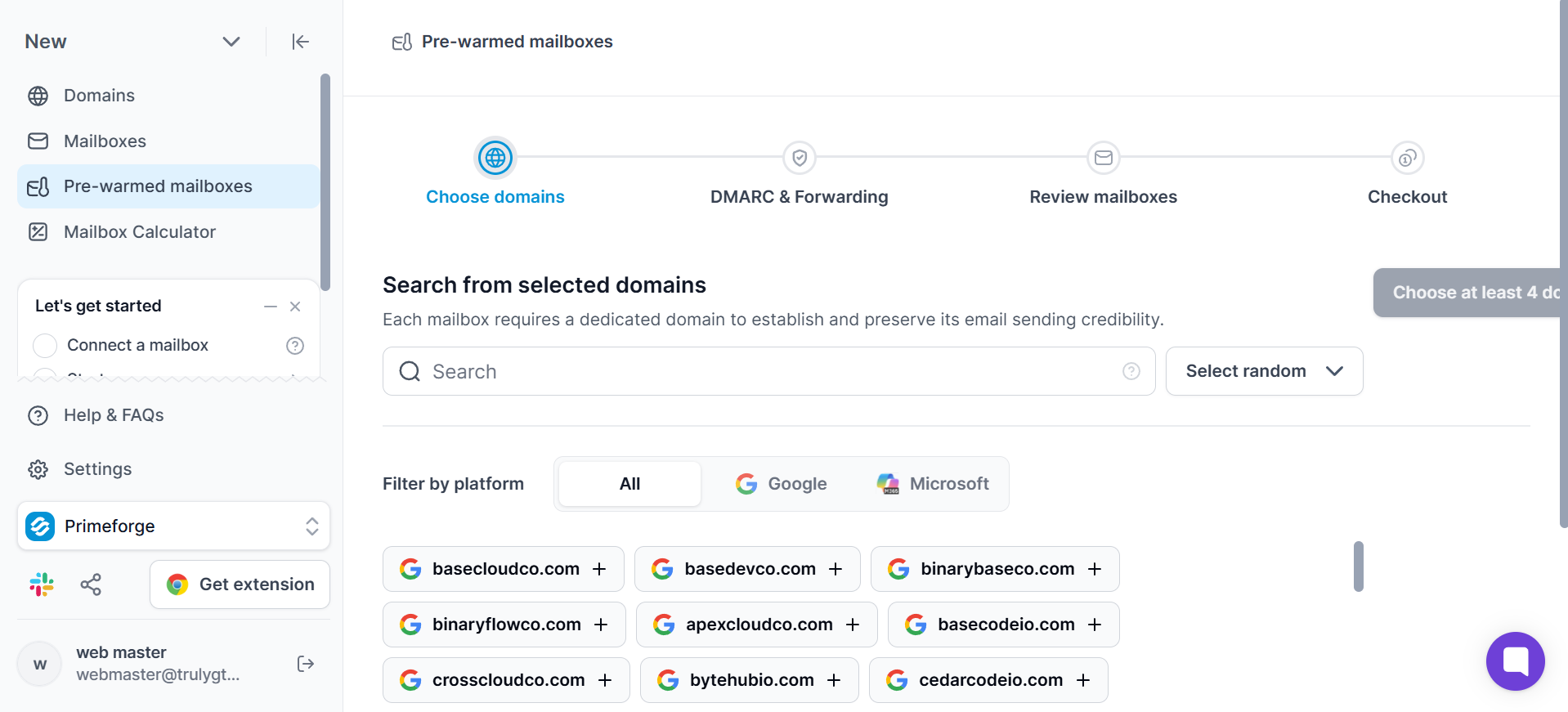
And no!!
It doesn’t cost that much!
Here is what it actually costs to set up and maintain outreach mailboxes using different approaches:
Setting up 10 mailboxes through Primeforge took me under an hour. Compare that to manually provisioning accounts, configuring DNS, and waiting 14 days for warmup, and the time savings are hard to ignore.
Recommended Read: How to Set Up Cold Email Infrastructure
Step 2: Build or Import Your Recipient List
Once your mailboxes are set up, you need a clean list of recipients.
If you already have a list, you can upload it directly into your email automation tool. Most tools support unlimited contact storage, so list size isn't a constraint.
If you don't have a list ready, this is where the Forge stack comes in handy.
Primeforge is part of a connected ecosystem of outbound tools built to work together.
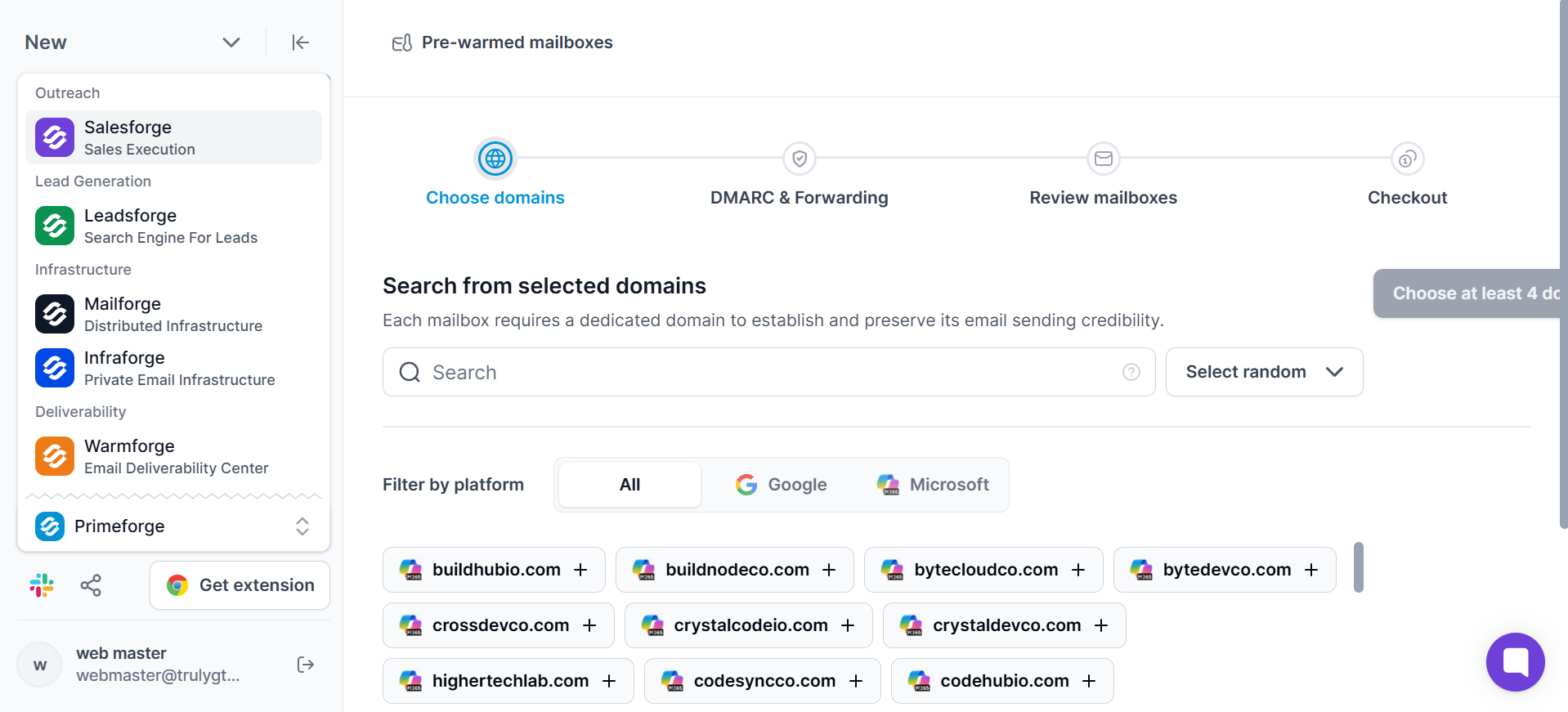
You can use Leadsforge to build a targeted prospect list from 500M+ contacts.
It lets you filter by job title, industry, company size, and other ICP criteria. From there, you can import those contacts into Salesforge and start sending sequences through the Primeforge mailboxes you set up in Step 1.
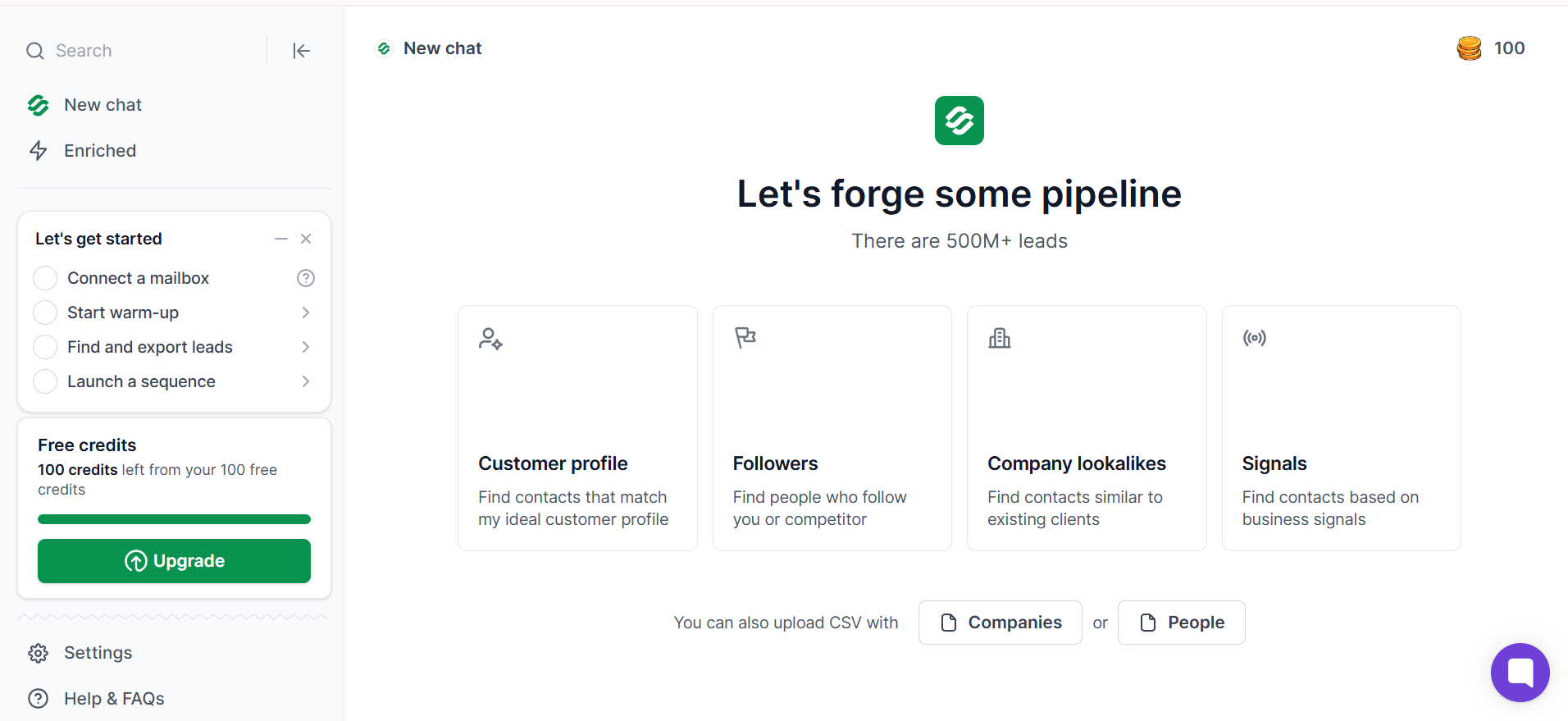
The whole flow stays connected: find leads in Leadsforge, send through Salesforge, deliver from Primeforge mailboxes.
Either way, make sure your data is accurate before you hit send. Missing first names or outdated email addresses will hurt both your personalization and your deliverability.
Learn how to segment a email list to improve deliverability
Step 3: Create Your Email Sequence
This is where email automation pulls ahead of every manual method.
In Salesforge, you write your email template and add personalization fields like first name, company, and job title. But unlike mail merge, you are not limited to simple field swaps.
Salesforge's AI (called Overdrive) generates unique copy for each recipient based on their data, so every email reads like it was written specifically for that person.
The difference between a mail merge email that says "Hi John, I noticed your company is growing," and an AI-personalized email that references a specific detail about John's role or company is significant when it comes to reply rates.
You can also set up multi-step sequences with automated follow-ups, so you do not have to manually chase down every recipient who did not reply to your first email.
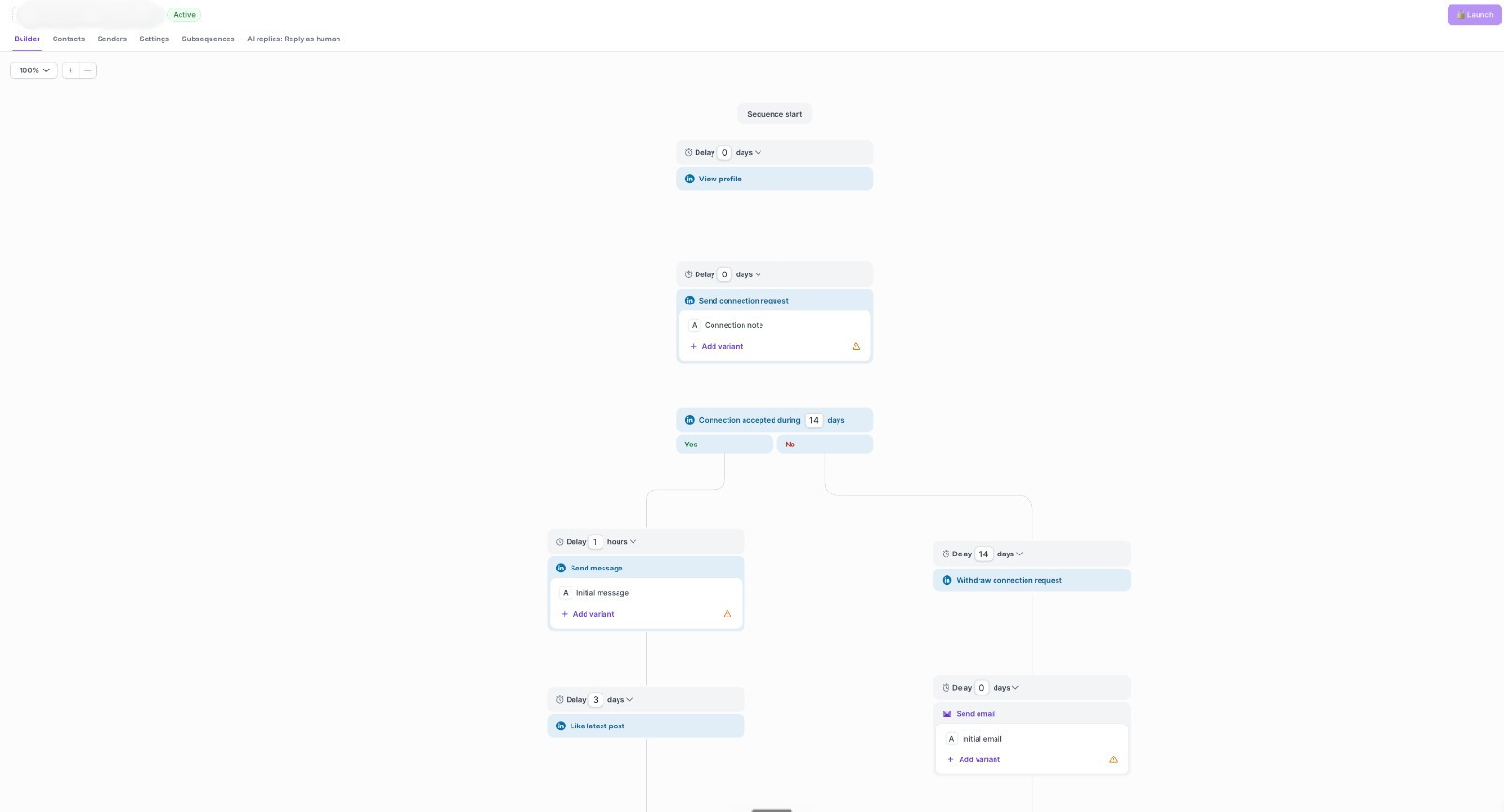
Here is what the setup flow looks like:
Recommended Read: Learn How AI Personalization Improves Cold Email Results
Step 4: Schedule, Send, and Monitor
Choose your send times. Salesforge optimizes delivery windows based on recipient time zones so your emails arrive during business hours, not at 3 AM.
Once emails start going out, you can track opens, clicks, and replies from Primebox™, which is a unified inbox that pulls all responses into one place. Use the performance data to adjust your subject lines, email copy, or follow-up timing as the campaign runs.
Now, not everyone needs this level of automation. If you are sending a personalized email to 50 or 200 people and do not need follow-up sequences, mail merge is a solid middle-ground option.
Mail merge connects a spreadsheet of recipient data (names, email addresses, company names) to an email template. When you send, each recipient gets their own individual email with their specific details filled in automatically.
It is a step up from BCC because each message feels personal. But it still lacks automated follow-ups, advanced tracking, and AI-level personalization.
One important thing to note upfront: Gmail's built-in mail merge only works on Google Workspace accounts.
If you are using a free Gmail address, you will need a third-party add-on like Yet Another Mail Merge (YAMM) to access this feature.
Here is how the built-in Workspace mail merge works:
Each person on your list receives their own email with their name and details filled in. Nobody sees anyone else's address.
Sending limits to keep in mind: Google Workspace accounts can send up to 1,500 emails per day on standard plans and up to 2,000 on higher-tier plans. Free Gmail accounts cap out at 500 per day and do not support native mail merge.
Outlook's mail merge involves a three-tool workflow using Microsoft Word, Excel, and Outlook together. It takes a bit more setup than Gmail, but it gives you solid personalization for corporate or professional emails.
Create a spreadsheet with columns for first name, last name, email address, and any other personalization fields you plan to use. Double-check for missing or incorrectly formatted data before moving on.
Go to the Mailings tab, click Start Mail Merge, and select E-mail Messages.
Click Select Recipients, choose Use an Existing List, and browse to your Excel spreadsheet. This links your contact data to the email template.
Compose your message in Word and use Insert Merge Field to pull in personalized details like <<FirstName>> or <<Company>> from your spreadsheet.
Click Finish & Merge and select Send E-Mail Messages. Choose the column containing email addresses, set your subject line, and send. Each recipient will get their own individual, personalized email.
Outlook's native mail merge does not support attachments. If you need to send personalized attachments to each recipient, you will need a third-party add-on like Mail Merge Toolkit or MergeTools. These tools plug into the Word/Outlook workflow and let you attach unique files per recipient.
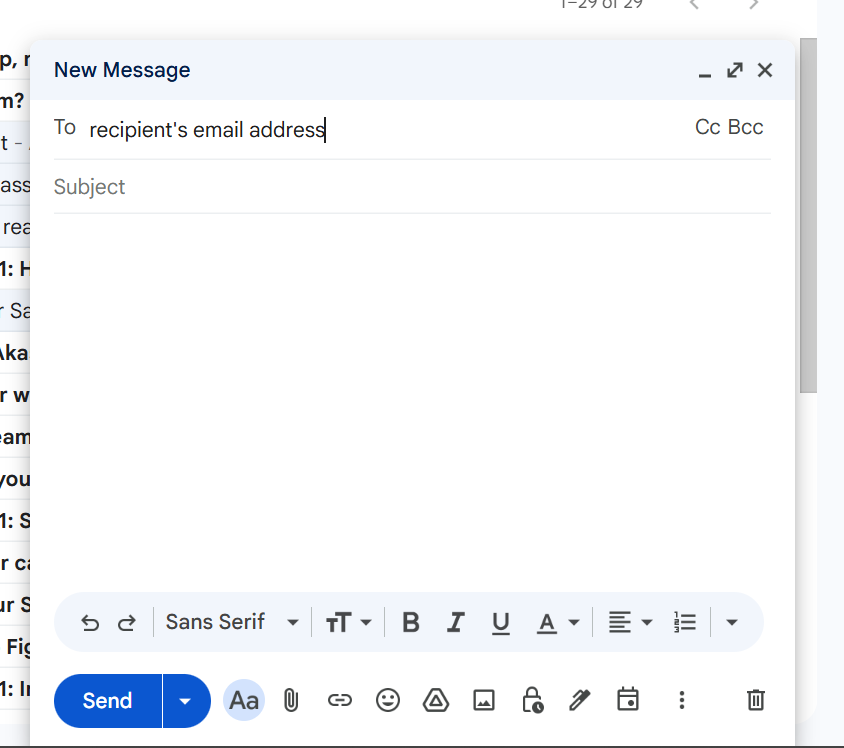
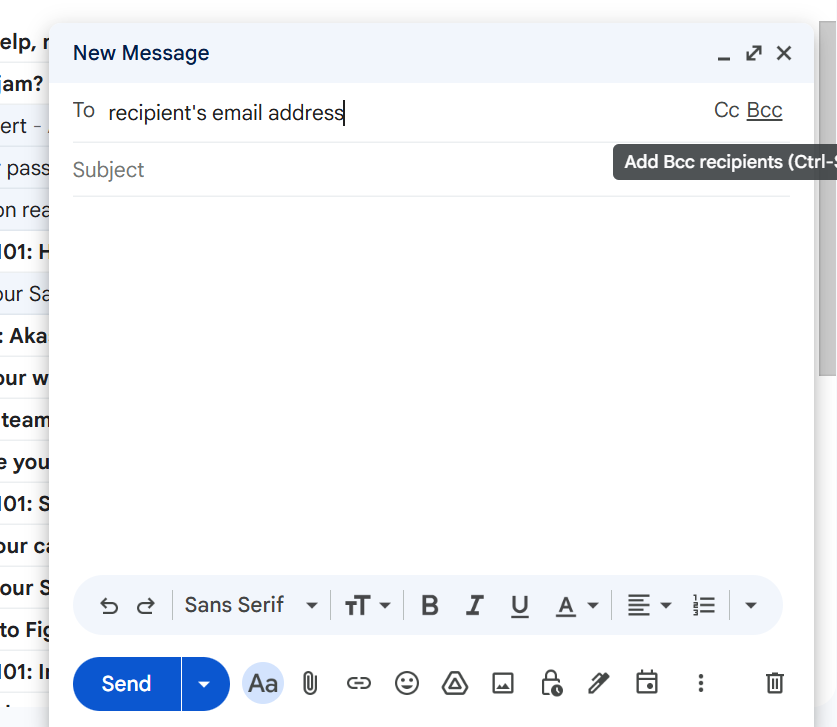
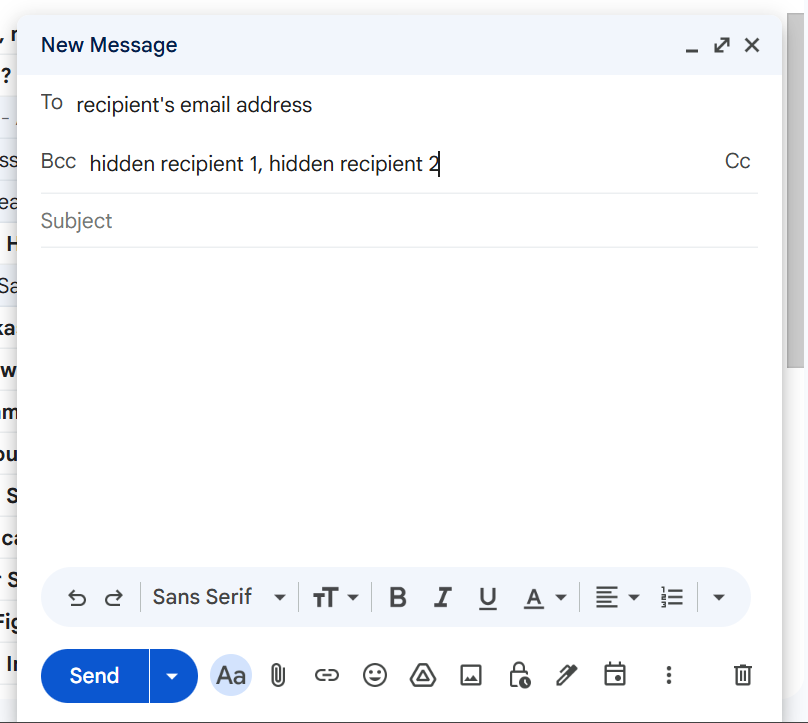
If personalization is not a priority and you just need to send a single message to a group without exposing addresses, BCC is the simplest option available.
BCC stands for Blind Carbon Copy. When you add recipients to the BCC field instead of the "To" or "CC" field, each person receives the email without seeing anyone else's address.
It is the quickest way to email a group privately, but there is a major trade-off: there is zero personalization. Every recipient gets the exact same email, and most people can tell when they are on the receiving end of a mass BCC send.
One of the biggest questions I hear is whether the automation route is worth the cost.
Here is a side-by-side breakdown of what each approach actually costs.
The choice comes down to three questions: how many people you are emailing, whether you need personalization, and whether you need follow-up sequences.
Yes. The simplest way is to use the BCC field in Gmail, Outlook, or Apple Mail. BCC hides every recipient's address from all other recipients. For more advanced approaches, mail merge and email automation tools also send individual, separate emails to each person on your list.
BCC sends the exact same email to everyone with no personalization. Mail merge connects a spreadsheet of recipient data to your email template and fills in personalized details (like names and company names) for each person. Mail merge creates a more personal experience, while BCC is faster but generic.
Free Gmail accounts can send up to 500 emails per day. Google Workspace accounts allow 1,500 to 2,000 depending on the plan. Outlook and Microsoft 365 sending limits vary by plan but can go up to 10,000 per day for enterprise accounts. If you need to send beyond these limits, an email automation tool with proper mailbox infrastructure is the better path.
Yes. Gmail's built-in mail merge feature is only available to Google Workspace users. If you are on a free Gmail account, you will need a third-party add-on like Yet Another Mail Merge (YAMM) to send mail merge emails, and you will still be limited to 500 sends per day.
There are several factors that affect whether bulk emails land in the inbox or spam folder:
After testing several platforms, I recommend Salesforge for teams that need AI-level personalization, automated follow-up sequences, and detailed performance tracking. It supports unlimited mailbox connections and integrates with deliverability tools to help your emails actually reach the inbox. You can test the full platform with a free 14-day trial.
With BCC and Gmail mail merge, attachments work natively. With Outlook's mail merge, you will need a third-party add-on like Mail Merge Toolkit to include attachments. Email automation tools like Salesforge also support attachments within sequences, and you can even personalize which attachments go to which recipients.