
Most advice on improving email deliverability starts with subject lines and spam words. In my experience, that's the last place the problem usually is.
When I audit a cold email setup that's landing in spam, the cause is almost always further down the stack: the wrong kind of mailbox, too few domains, a missing DMARC record, or a mailbox sending 150 emails a day in its second week.
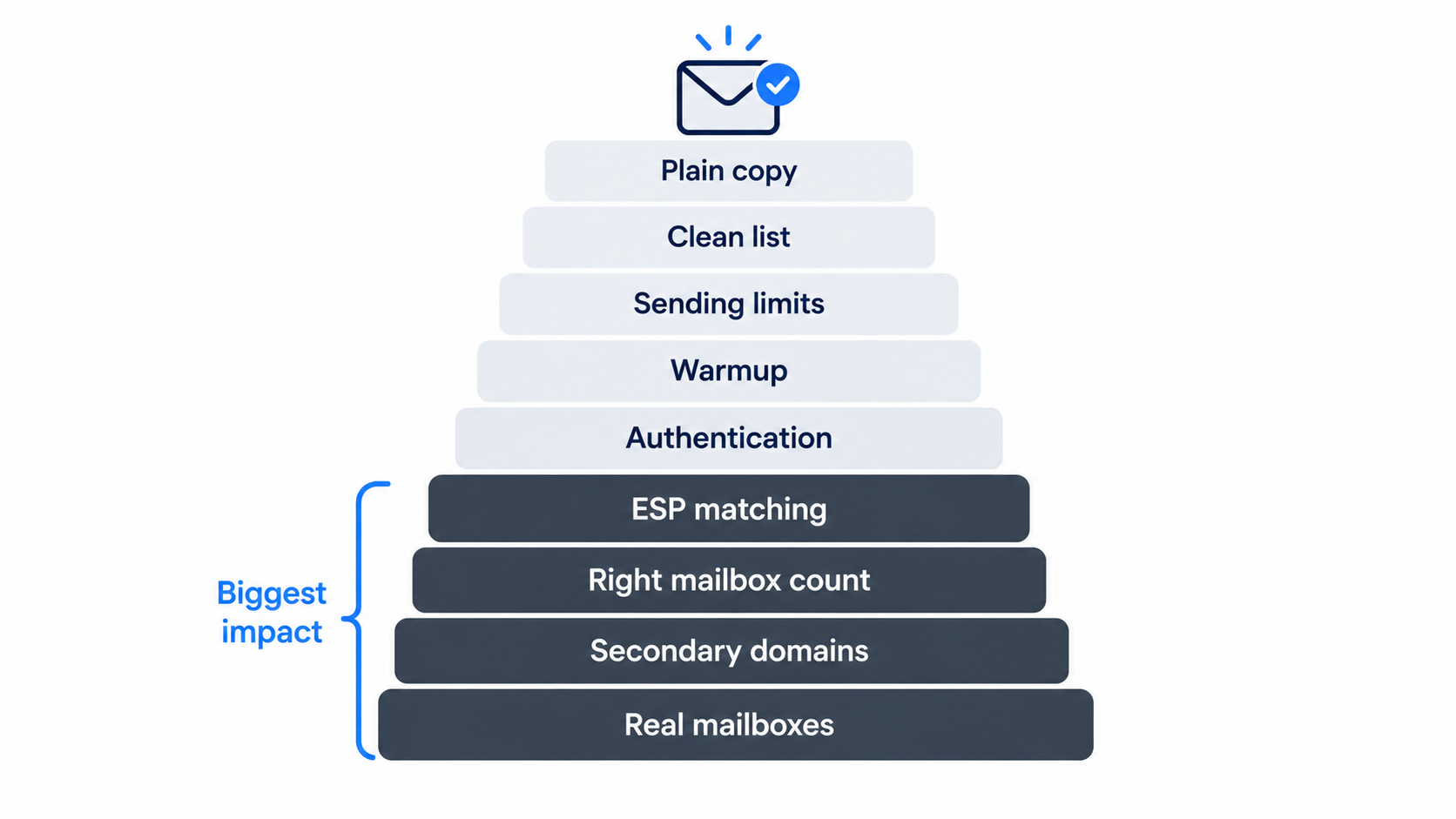
So this guide works from the mailbox up. It covers 9 fixes in the order I'd apply them, starting with the ones that make the biggest difference.
The inbox providers raised the bar, and cold email has less room for error than any other kind of email.
Since February 2024, Google and Yahoo have required bulk senders to authenticate with SPF, DKIM and DMARC, support easy unsubscribes and keep spam complaints below 0.3%. Google's bulk sender guidelines break down what applies to outreach. Microsoft followed on May 5, 2025, routing mail from non-compliant domains that send over 5,000 emails a day to Junk.
Newsletters have one advantage cold email doesn't: subscribers asked for them. A cold email arrives with no history, so the provider judges it almost entirely on the sender. That's why the fixes below start with the sender, not the copy.
The mailbox you send from carries more weight than anything you write in it.
Most B2B prospects receive email on Google Workspace or Microsoft 365. Mail sent from those same providers looks normal to their filters, because it travels the way legitimate business mail travels. Mail from cheap SMTP servers or unknown hosts has to earn trust from scratch.
The shortcut I'd avoid is the "cheap Google mailbox" market: education accounts, repurposed tenants and resold seats that break when the provider tightens its policies. When they break, every mailbox on the tenant goes down at once. These EDU mailbox risks are worth reading before you buy anything that sounds too cheap.
Buy properly licensed Google Workspace and Microsoft 365 mailboxes, configured for outreach. That single decision removes a whole category of deliverability problems before you send anything.
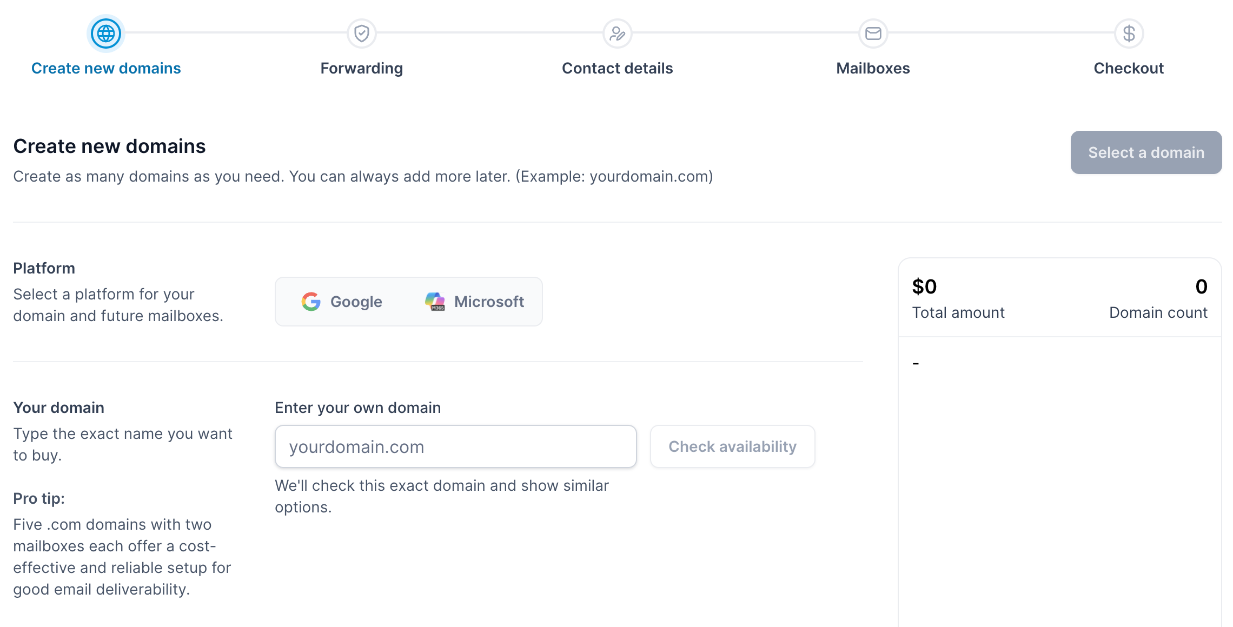
Your primary domain carries your website, your invoices and your team's daily email, so keep cold outreach off it.
If a cold campaign goes wrong on your main domain, the damage spreads to everything else that domain sends. I always run outreach from secondary domains that look like the brand (for example, a "get" or "try" variation of the company name) and redirect them to the main website.
Subdomains are a common middle ground, but they still share reputation signals with the root domain. This comparison of domain vs subdomain for cold email explains when each makes sense.
Deliverability problems often come from asking too few mailboxes to send too many emails.
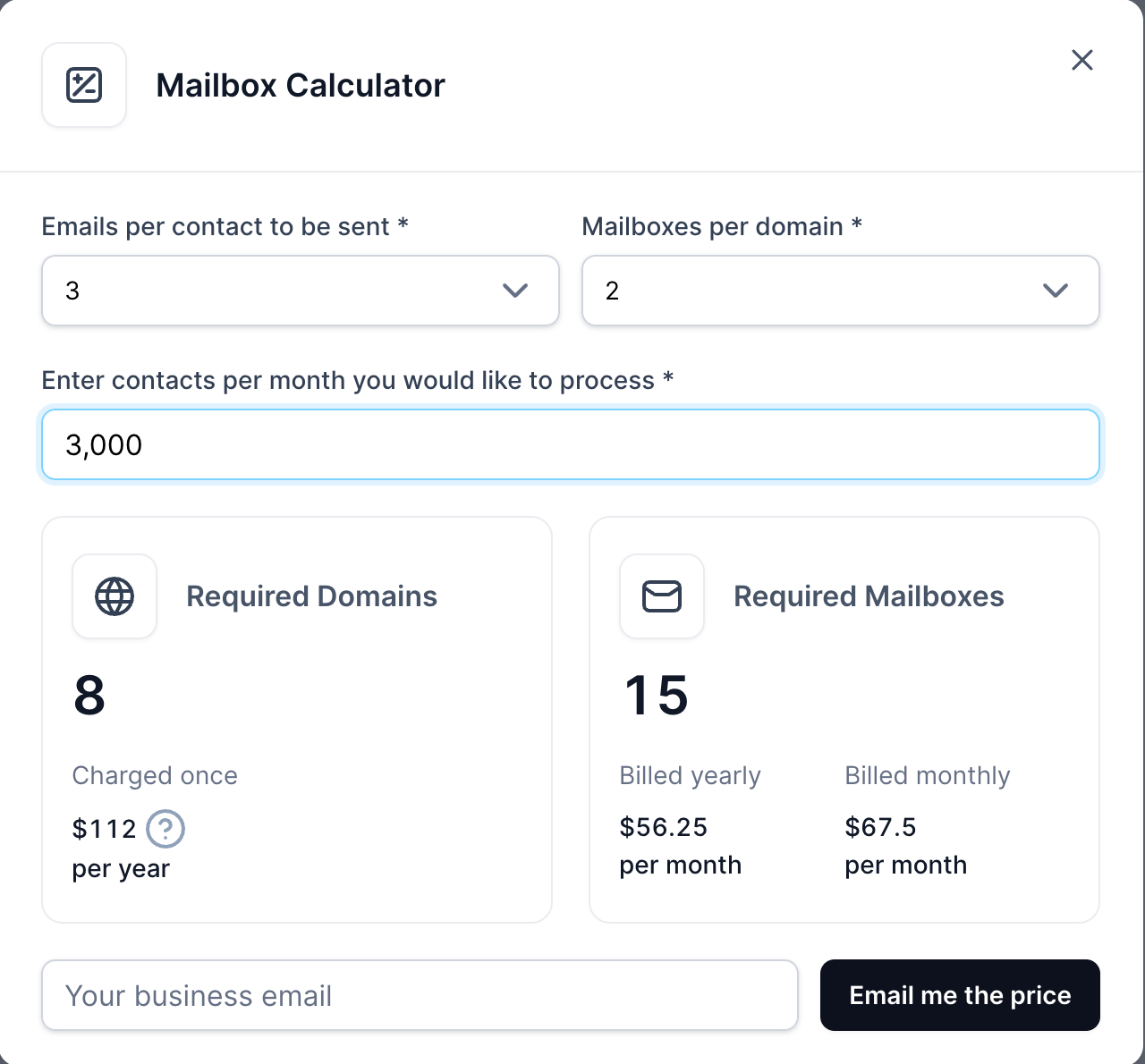
Work backward from your volume. Multiply the contacts you want to reach each month by the number of emails in your sequence, then divide by what one mailbox can safely send. Two or three mailboxes per domain keeps any single domain's footprint small.
For example, reaching 3,000 contacts a month with a 3-step sequence means 9,000 emails. Primeforge's Mailbox Calculator turns that into 8 domains and 15 mailboxes at 2 mailboxes per domain, which works out to roughly 600 emails per mailbox per month.
If you'd like the full math, this guide on how many domains you need for cold email walks through it at different volumes.
Google-to-Google and Microsoft-to-Microsoft delivery is the closest thing to a free deliverability gain I know.
ESP matching means sending from a Google mailbox when the prospect uses Google, and from a Microsoft mailbox when they use Microsoft. Each provider tends to trust mail from its own ecosystem, and you avoid the cross-provider filtering that pushes cold mail into spam or promotions.
This explainer on how ESP matching improves deliverability covers how the matching is done.
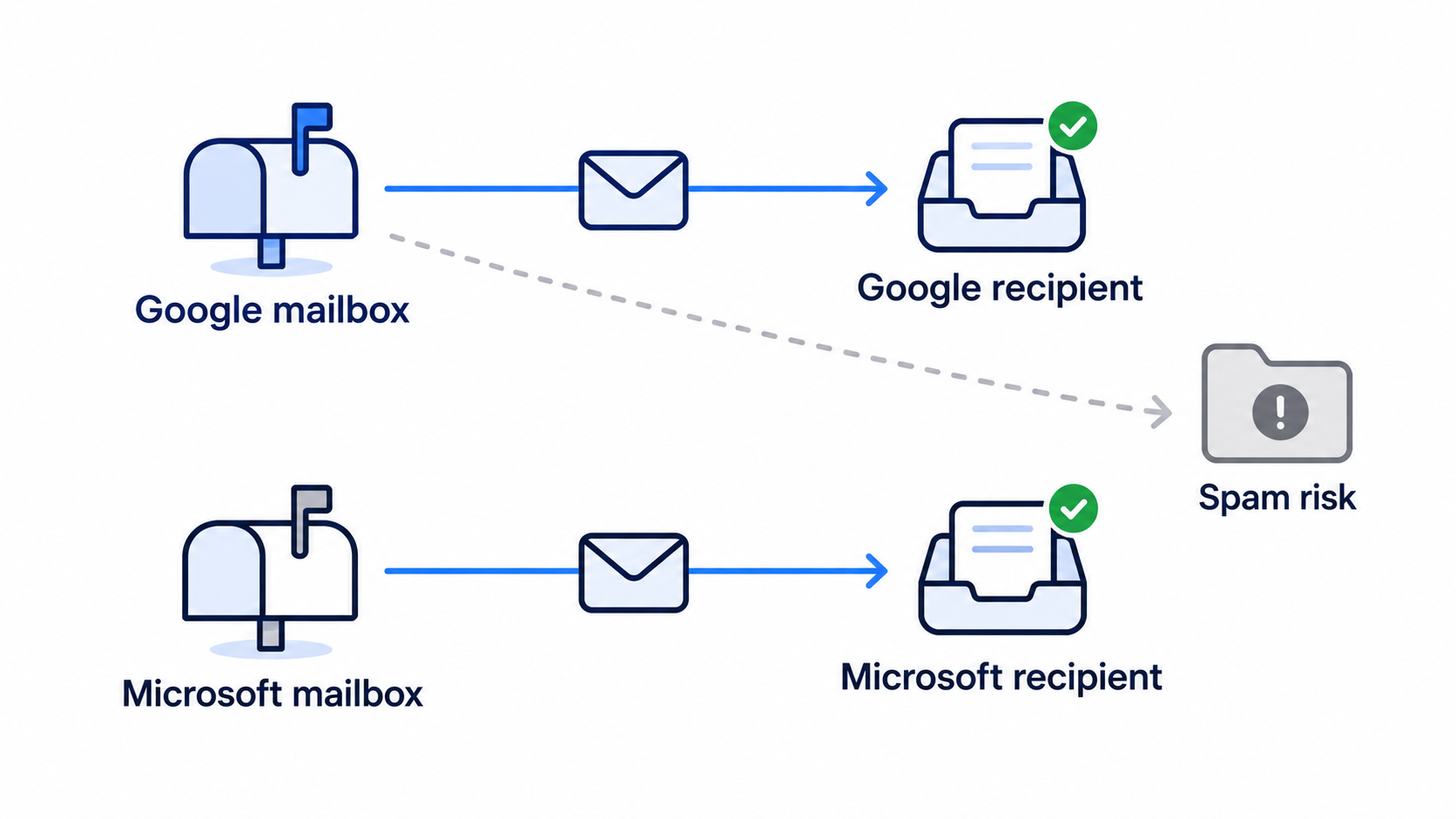
To match, you need both providers in your setup. I recommend running at least two, so there's always a mailbox on the same provider as the prospect, and so one provider's policy change doesn't stop your outreach. Here's more on why to diversify your cold email infrastructure.
Authentication proves your mail is really from you, and it's now a requirement rather than a best practice.
This SPF, DKIM and DMARC setup guide for Google Workspace covers the exact records.
Two more pieces complete the setup. A custom tracking domain stops your links from sharing a tracking domain with thousands of other senders. And domain forwarding redirects each secondary domain to your main website, so a prospect who checks the domain finds a real business.
A new mailbox has no history, and warmup is how it earns one before the first cold email goes out.
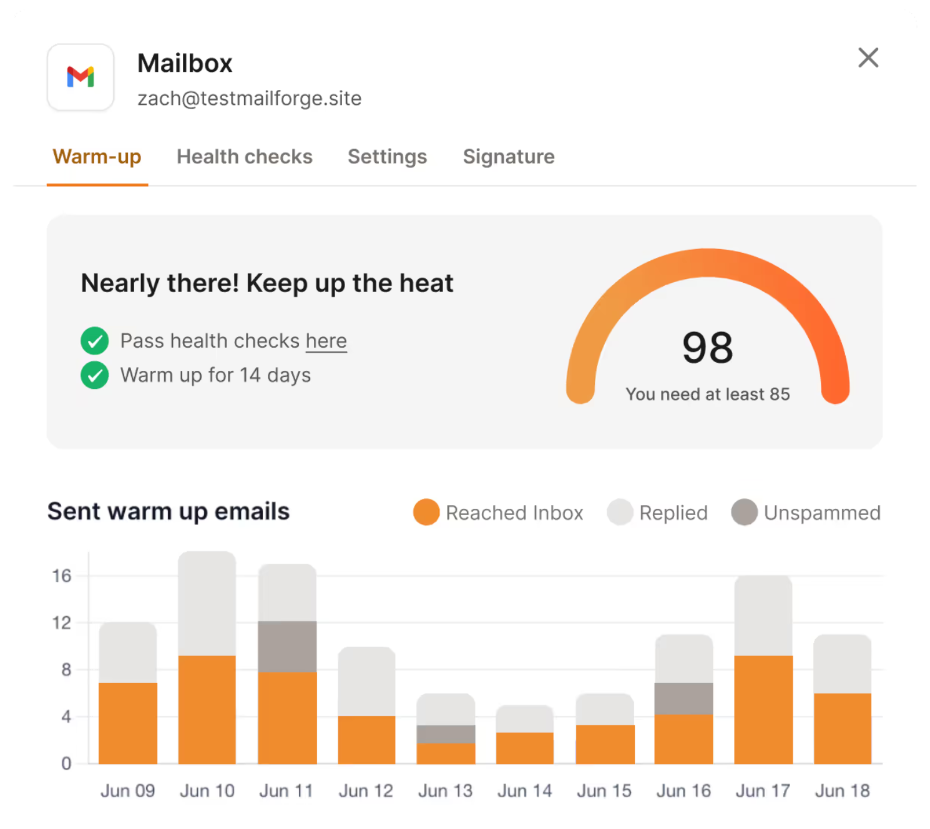
Warmup sends and receives realistic conversations from your new mailbox, gradually increasing volume, so providers see normal engagement. I give every new mailbox about two weeks before cold sends, and I keep warmup running afterwards rather than switching it off. This email warm-up checklist for new domains lays out the ramp.
I use Warmforge for this. Its Heat Score™ gives each mailbox a reputation score, and I wait for 85 or above before scaling. If you can't wait two weeks, pre-warmed Google mailboxes let you start sending sooner.
Volume is where good setups break, because a warm mailbox can still be overloaded.
I keep each mailbox to roughly 20 to 30 cold emails a day, ramp new mailboxes gradually, and spread volume across mailboxes and domains instead of pushing one harder. Microsoft in particular reacts quickly to sudden spikes, so these Microsoft 365 throttling best practices are worth following if you send from Outlook mailboxes.
This piece on how sending limits affect cold email deliverability goes deeper. When you need more volume, add mailboxes and domains, then rotate across them; here's how domain rotation keeps any single domain's reputation intact.
Bounces are a direct reputation hit, so verifying your list is one of the cheapest fixes on this page.
Verify every list before it's sent, remove role and catch-all addresses you can't confirm, and stop any campaign where hard bounces rise above 2%. Knowing the difference between hard and soft bounces tells you which addresses to remove and which to retry.
Data quality starts upstream. Leadsforge uses waterfall enrichment across multiple data providers, so fewer addresses are wrong in the first place, and Salesforge's Bounce Shield blocks sends to addresses likely to bounce.
Once the infrastructure is right, copy decides whether you land in primary or promotions.
If your emails reach Gmail but sit in the wrong tab, these steps to avoid the Gmail Promotions tab usually fix it.
Here's how the common ways to get sending mailboxes compare on deliverability and risk.
The setup I see working best combines options: Primeforge for ESP-matched Google and Microsoft mailboxes, paired with Mailforge or Infraforge for extra volume and diversification.
Deliverability drifts slowly and then drops quickly, so a weekly check catches problems while they're still small.
This step-by-step email deliverability check turns these into a routine you can run in one sitting.
Primeforge covers the first five fixes on this list, so you start from infrastructure that's already set up for cold outreach.
It provides real Google Workspace and Microsoft 365 mailboxes built for cold email. Here's what's included:
Pricing: $4.50 to $3.50 per mailbox per month billed annually, with the price dropping at volume. Your first mailbox is live in about 30 minutes. There's no free trial because mailboxes have to be purchased, but you can explore the app for free before buying.
Primeforge is one of three infrastructure options in the Forge Stack, all under one login: Mailforge for shared infrastructure and Infraforge for dedicated IPs. The most successful teams I see run two or more providers, typically Primeforge with Mailforge or Infraforge, so they always have a matching mailbox for each prospect.
On Salesforge, the rest of the list is handled too. Warmforge warmup is included free with unlimited slots on every plan, and ESP matching, sender rotation, Bounce Shield and text-only sending protect the mailboxes you just set up. You can run the stack with your own team, hand it to Agent Frank, Salesforge's AI SDR, or work with a certified Forge Expert agency.
Fix deliverability from the bottom of the stack up, and most of the copy problems disappear on their own.
If I had to rank the nine fixes, the first four do most of the work: real Google and Microsoft mailboxes, secondary domains, enough mailboxes for your volume, and ESP matching. Authentication and warmup are the requirements that let those mailboxes earn trust. Sending limits, list hygiene and plain copy keep that trust intact, and weekly monitoring tells you when something slips.
Primeforge is how I'd build the foundation. Paired with Mailforge or Infraforge, warmed with Warmforge and sending through Salesforge, it's part of the only stack I know that puts infrastructure, deliverability, lead data from Leadsforge, multichannel outreach and an AI SDR in Agent Frank under one roof.
Quick answers to the questions I get most about improving deliverability for cold email.
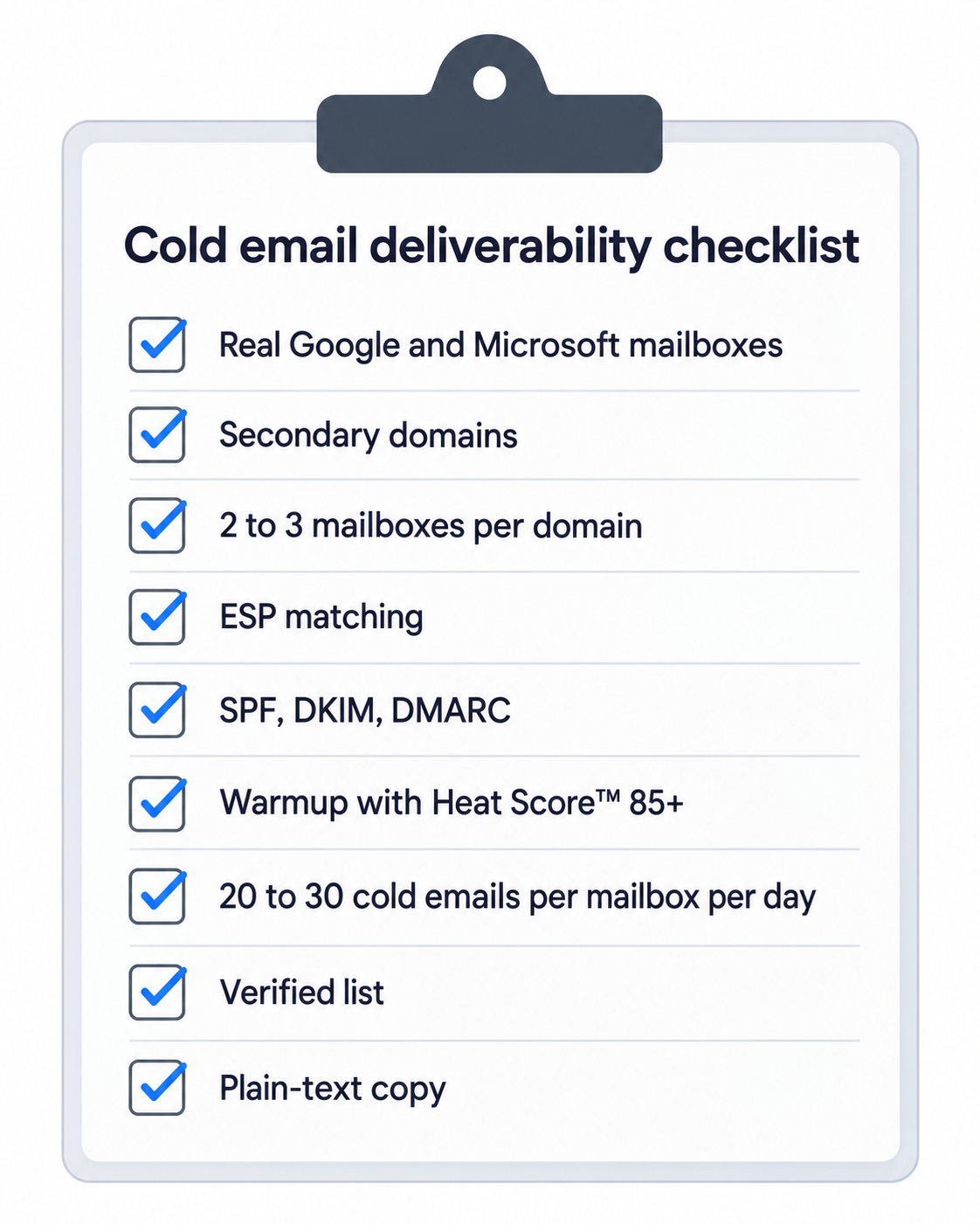
Check your foundation first. Make sure you send from real Google Workspace or Microsoft 365 mailboxes on secondary domains, that SPF, DKIM and DMARC pass, and that no mailbox sends more than about 20 to 30 cold emails a day. Those fixes usually move placement faster than any copy change.
The most common causes are sending from a new or unwarmed mailbox, missing or misaligned authentication, too much volume per mailbox, a high bounce rate from an unverified list, and marketing-style formatting. Fix them in that order, then retest placement.
ESP matching means sending from the same email provider your recipient uses: a Google mailbox to a Gmail or Google Workspace recipient, and a Microsoft mailbox to an Outlook or Microsoft 365 recipient. Providers tend to trust mail from their own ecosystem, which improves primary inbox placement.
No. Send from secondary domains that redirect to your main website. If a campaign damages a secondary domain's reputation, your main domain and everyday company email stay unaffected.
I keep each mailbox to roughly 20 to 30 cold emails a day once it's warmed, and ramp new mailboxes up gradually. When you need more volume, add mailboxes and domains instead of pushing each mailbox harder.
About two weeks before sending cold email, and keep warmup running afterwards. A Heat Score™ of 85 or above in Warmforge is a good signal that a mailbox is ready to scale. Pre-warmed mailboxes let you start sooner.
Neither wins on its own. The best results come from having both, so you can match each prospect's provider. Running two providers also protects your outreach if one of them changes its policies.
Primeforge provides the mailboxes and handles DNS setup. Warmup comes from Warmforge, which is included free with unlimited slots on every Salesforge plan and also available on its own. Primeforge also sells pre-warmed mailboxes separately for teams that want to send from day one.